

IIS Configuration
Configure the SuperOffice IIS website for Anonymous access.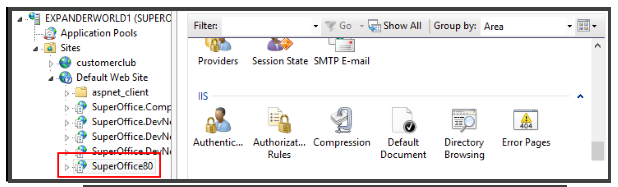 Open the IIS Authentication dialog.
Disable all except Anonymous authentication.
Open the IIS Authentication dialog.
Disable all except Anonymous authentication.
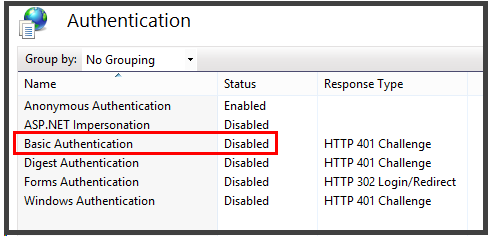 This sets up the site so that anyone can access the application and the WebAPI, but they will still need a valid SuperOffice username and password to access the site.
If you enable Basic authentication on the IIS site, then IIS will try to use any username+password passed in, and fail the call if the username and password are not valid Active Directory accounts (because that’s where IIS checks its usernames and passwords).
The SuperOffice WebAPI can check usernames and passwords against the SuperOffice users without Basic authentication being enabled on IIS. We need to enable it for SuperOffice in web.config.
This sets up the site so that anyone can access the application and the WebAPI, but they will still need a valid SuperOffice username and password to access the site.
If you enable Basic authentication on the IIS site, then IIS will try to use any username+password passed in, and fail the call if the username and password are not valid Active Directory accounts (because that’s where IIS checks its usernames and passwords).
The SuperOffice WebAPI can check usernames and passwords against the SuperOffice users without Basic authentication being enabled on IIS. We need to enable it for SuperOffice in web.config.
SuperOffice web.config
You must explicitly enable the authentication methods you want to use in the web.config file.true otherwise the Basic authentication method will not work.
Testing Login
Accessing the SuperOffice web page, you should see the login page, asking for a username and password.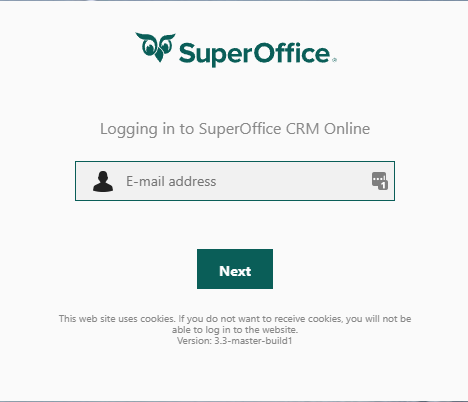
Testing WebApi
If we access the/api/endpoint, we should get a page describing the WebAPI
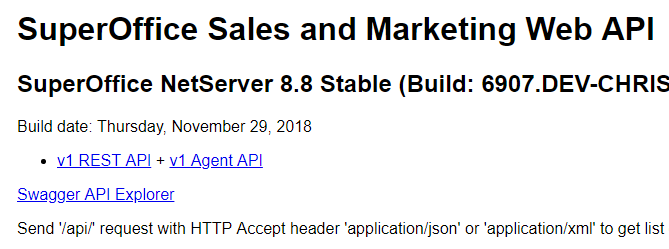 This page should require any login to access.
Testing authentication
If we try to get some information out of the API, we should be asked to log in.GET /SuperOffice/api/v1/contact/2 should prompt for a username and password.
If we try to use the browser, we will get an error message: 401 Unauthorized
 If we use Postman, we can add the Authorization HTTP header to the request.
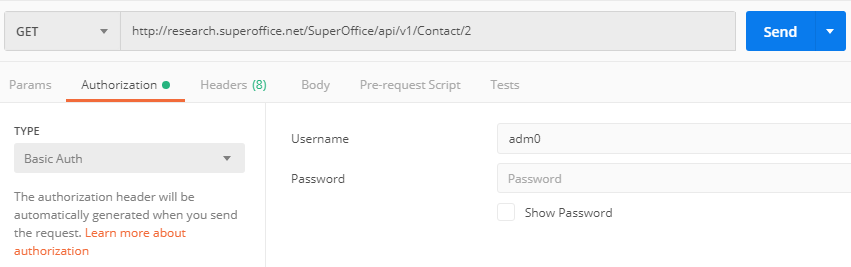 This adds the
 Authorization header to the request, with the username:password base64 encoded:
