Option A - Start from a specific message
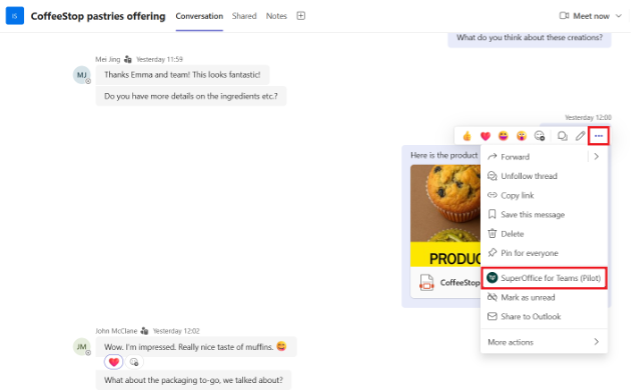
Use this when you want to capture a specific point in the conversation - a key decision, a handover, or (in a standard channel) a message with a file.- Find the message in the chat or channel.
- Right-click the message (or select the … menu).
- Select SuperOffice for Teams.
- Click Save Chat.
- Select your scope: This message, This and later, or Custom.
- Fill in the details to connect the archive to the correct record in SuperOffice (see below).
- Click Create.
Option B - Start from the compose bar
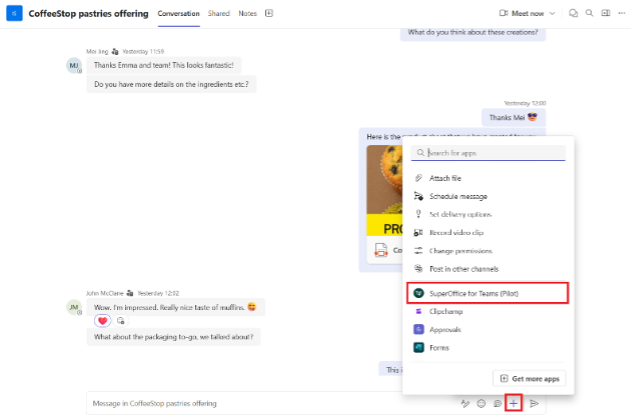
Use this when you want to archive a range of messages - like Today, Yesterday, or the Last 7 days.- Open the chat or channel.
- Click the + (apps) icon in the compose area.
- Search for and select SuperOffice for Teams.
- Click Save Chat in the pop-up.
- Select a date range or click Custom to set start and end dates.
- Fill in the details to connect the archive to the correct record in SuperOffice (see below).
- Click Create.
Starting apps from the compose bar is blocked in direct chats with external users. You can still launch SuperOffice for Teams from the message menu if both users are managed by an organization.
Choosing what to include
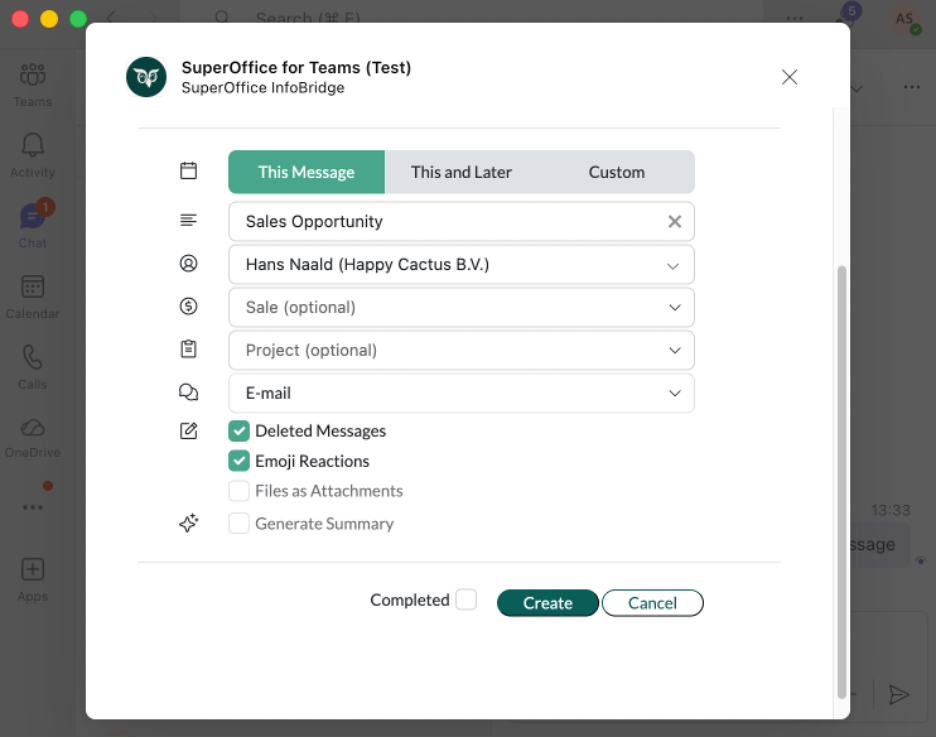
Before you save, you can decide what gets included.- Include deleted message notices: Adds a placeholder line where messages were removed. The original deleted content is not retrieved.
- Include emoji reactions: Captures reactions like thumbs up or heart alongside messages. Custom emojis are not supported.
- Include files (attach to .EML): Attaches files from the selected date range to the email file. This option is only available in standard channels.
Choosing where it goes in SuperOffice
Whether you’re saving a chat or a file, you’ll fill in a few details so the archive lands in the correct place.- Title: Prefilled based on your selection, but you can change it.
- Contact or Company: SuperOffice will automatically pre-populate this field if it can match someone from the conversation to a contact in SuperOffice. If no match is found, select a company or contact manually. You’ll see recently used entries from SuperOffice, and you can search by name. Click the Chat icon to select someone from the Teams conversation who also exists in SuperOffice.
- Sale (optional): Link the message or file to a sale.
- Project (optional): Link the message or file to a project.
- Document template (Type): Select the document template your organization has set up for Teams conversations or files.
- Completed: Optionally mark the activity as completed in SuperOffice. If not selected, it appears in your open activities.
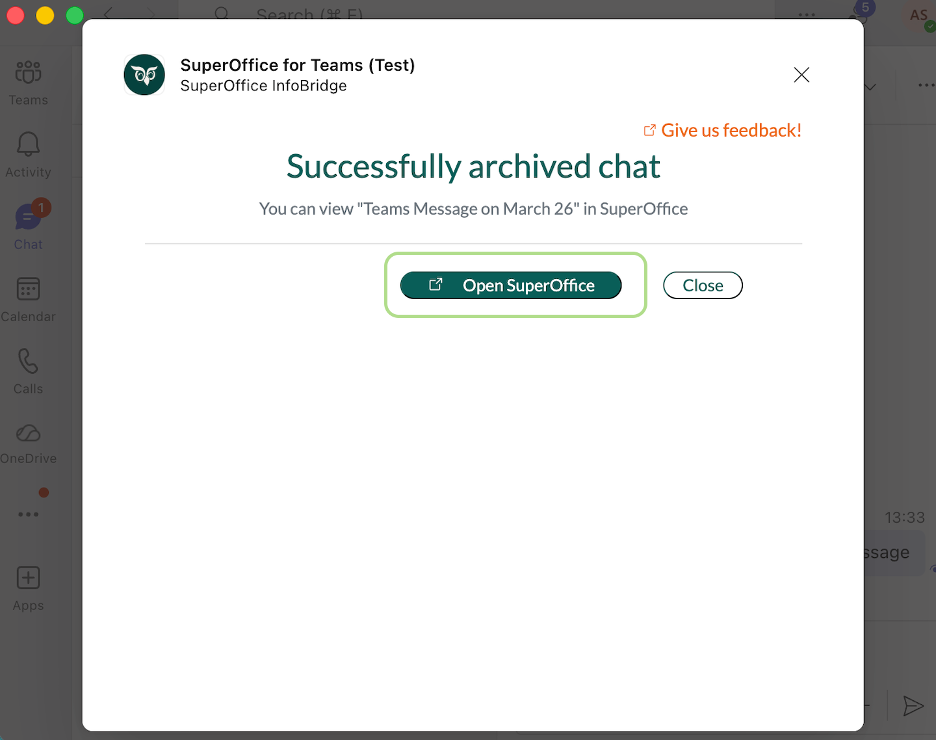
 When you’re ready, click Create. After a successful save, SuperOffice for Teams shows an Open in SuperOffice link so you can go directly to the new document.