

Install the app yourself
If your admin has uploaded and approved SuperOffice for Teams but hasn’t pushed it to you automatically, you can install it yourself. There are two things to set up: the app for your personal chats (which also gives you the bot for signing in) and the app for any standard channels where you want to archive messages and files.Add SuperOffice for Teams from the app store
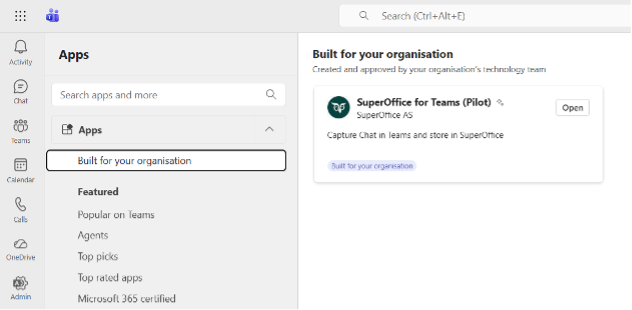
- In Teams, select Apps in the left sidebar.
- Find SuperOffice for Teams under Built for your org (during the pilot) or by searching in the app store.
- Click Open.
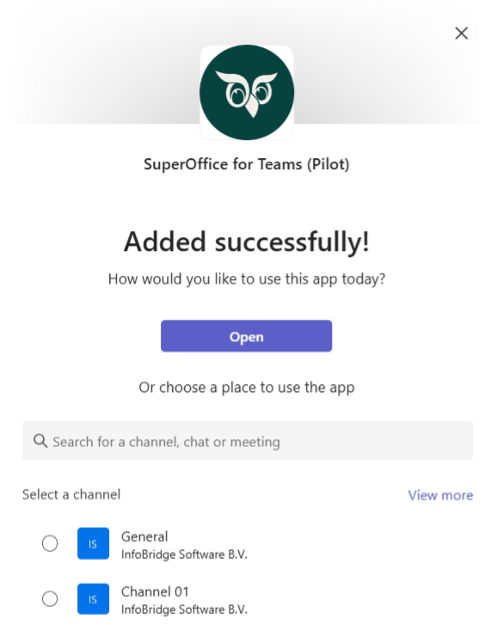
- A dialog appears asking how you’d like to use the app. You have two options:
- Select Open to add the app to your personal scope - this sets up the bot chat and lets you use SuperOffice for Teams in your 1:1 and group chats.
- Select a channel from the list below to add the app to that channel - this lets you archive messages and files in that channel.
- You’ll see a welcome message from the bot. From here, you can sign in with SuperOffice for Teams to get started.
Add SuperOffice for Teams to a channel later
If you’ve already installed the app for your personal chats and want to add it to a channel afterward:- Go to the channel where you want to use SuperOffice for Teams.
- Click the + button or the channel name in the channel header.
- Select Apps from the menu.
- Search for SuperOffice for Teams, or select Get more apps to find it.
- Click Open on the app tile.
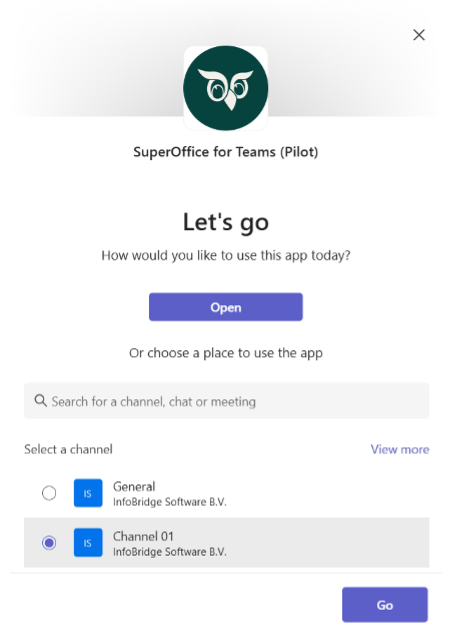
- Select the channel and confirm by clicking Go.
Already have the app?
If your admin has pushed SuperOffice for Teams to you via a setup policy, you’ll find it already installed - either in your app bar on the left or under Added by your org in Manage your apps. You don’t need to do anything to install it. Just open it and sign in.Uninstalling the app
How you remove the app depends on how it was installed. If you installed it yourself from Built for your org, go to Manage your apps in Teams, find SuperOffice for Teams, and remove it from the … menu. If the app was pushed by your admin, you won’t be able to remove it yourself. Teams will show a message saying you don’t have permission. Contact your Microsoft 365 administrator if you have any questions.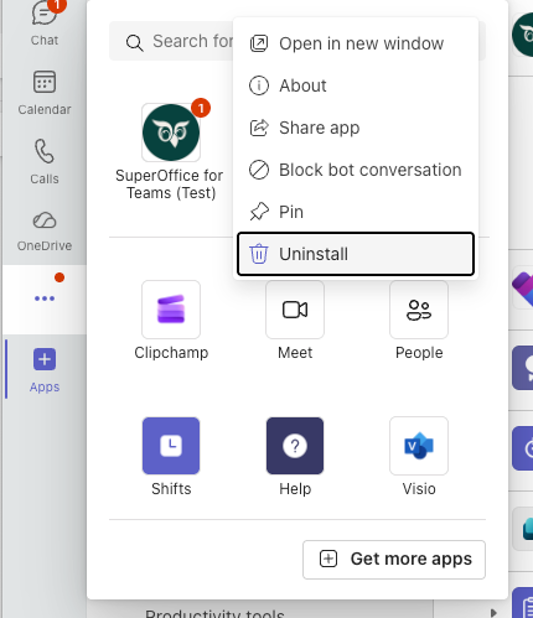
The SuperOffice for Teams bot and user sign-in
SuperOffice for Teams uses a simple bot in Teams to help you sign in and out. It is not a general help chatbot.Where to find the bot
After the app is added, you can find SuperOffice for Teams from the … menu in the left app rail. Once you select it, you can pin it for easy access (right-click the icon and select Pin). Unpinning works the same way.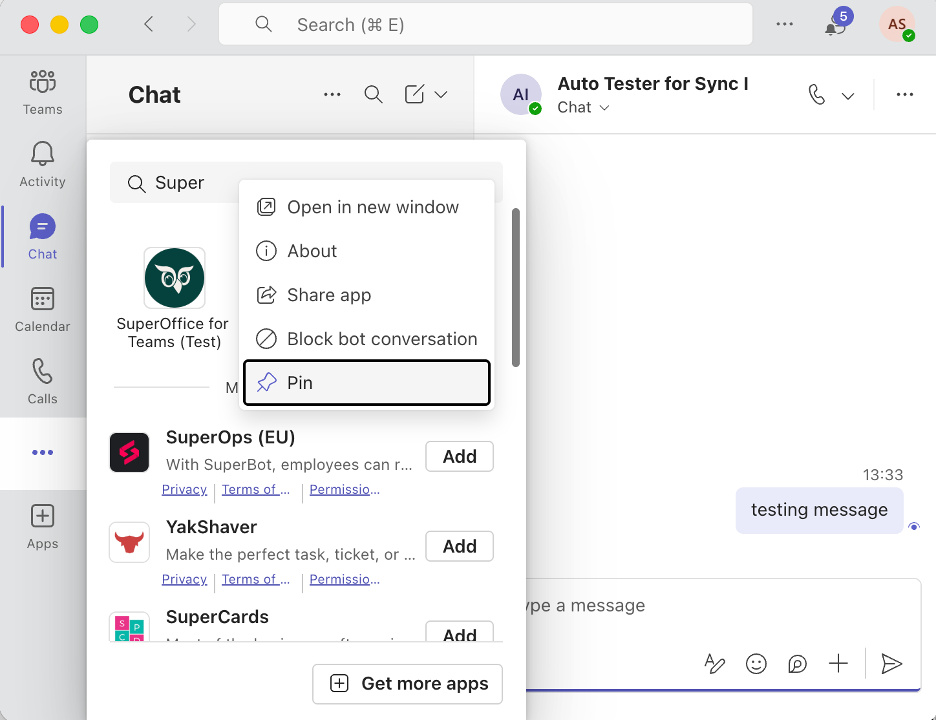 You can also access the bot chat from your chat list. If you lose your bot chat, start a new conversation by selecting the New message icon and typing teams in the To: box. Then select SuperOffice for Teams from your contact list.
As soon as the app is installed, the bot automatically opens a conversation and invites you to get started. You don’t need to go looking for it - it comes to you. The welcome message reads:
“Hello [your name]. Welcome to SuperOffice for Teams! You can use the buttons below to log in, or choose Help if you want to know more.”
You can also access the bot chat from your chat list. If you lose your bot chat, start a new conversation by selecting the New message icon and typing teams in the To: box. Then select SuperOffice for Teams from your contact list.
As soon as the app is installed, the bot automatically opens a conversation and invites you to get started. You don’t need to go looking for it - it comes to you. The welcome message reads:
“Hello [your name]. Welcome to SuperOffice for Teams! You can use the buttons below to log in, or choose Help if you want to know more.”
What the bot does
The bot handles sign-in and sign-out only. It does not answer general “how do I?” questions. In the bot chat, you will see the available buttons, depending on your sign in status:- Sign In: Starts the SuperOffice sign-in flow.
- Logout: Signs you out of SuperOffice for Teams.
- Help: Shows a message with a link to the SuperOffice for Teams knowledge base and documentation.
Signing in
You must be signed in before you can archive anything. Open SuperOffice for Teams from the left rail to start your bot chat, then select Sign In. Signing in is a two-step process:- Sign in with Microsoft: This gives SuperOffice for Teams permission to read your Teams chats and channels on your behalf via Microsoft Graph. This is separate from your Teams session and is required for the app to function.
- Sign in with SuperOffice: This connects your SuperOffice Online account, so the app knows where to save your archived content.