Open/download attachments in sidebar preview
To get a quick overview of a request, you can use the preview in the sidebar! Sometimes that preview shows some attachments that are important to look at to get the full overview. Click on the arrow of the attachment and select Open/Download and you have all information available.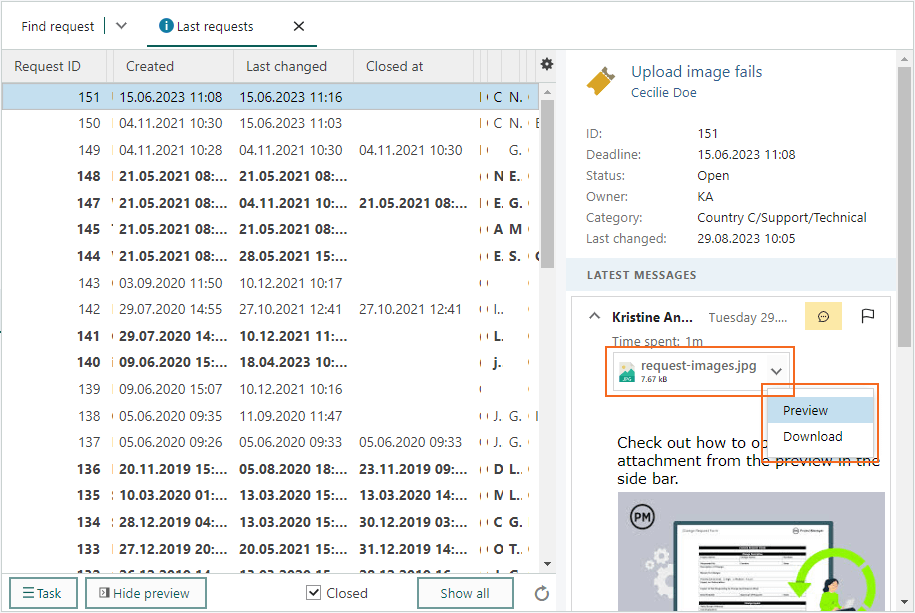
Update lists clicking the info icon
Request handling is often a team effort, and lists give an easy overview. However, as soon as someone updates a request, the list view becomes outdated. When this happens, the list icon changes to a blue info icon. Simply click the blue info icon to refresh the list. All recent changes become visible in the list. This is an alternative to clicking the Refresh button in footer, which off course does the same thing.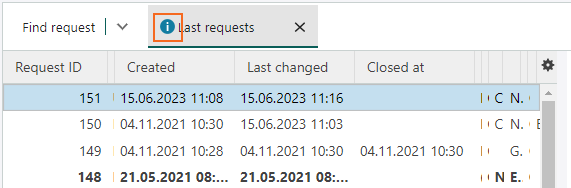
Create system signature for requests
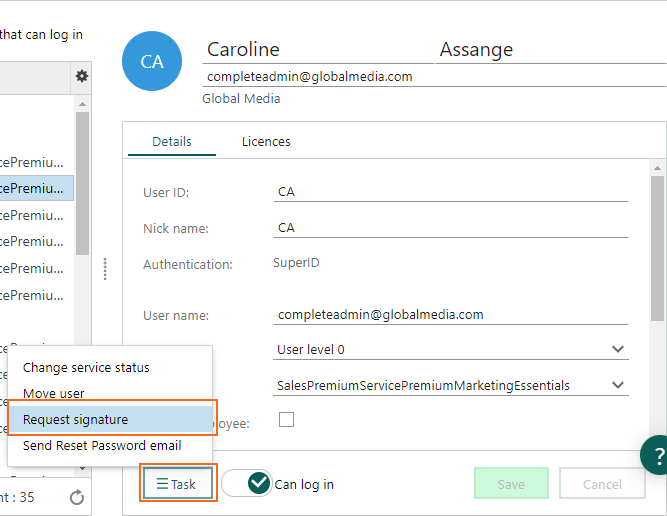
To have a united look and feel for all outgoing communication is often wanted. This is especially useful when there are more than one person who deal with customers. To set that uniform signature for all users, add the correct signature in the system signature settings. Go to the Main menu, select Edit system signature, and add the wanted request signature.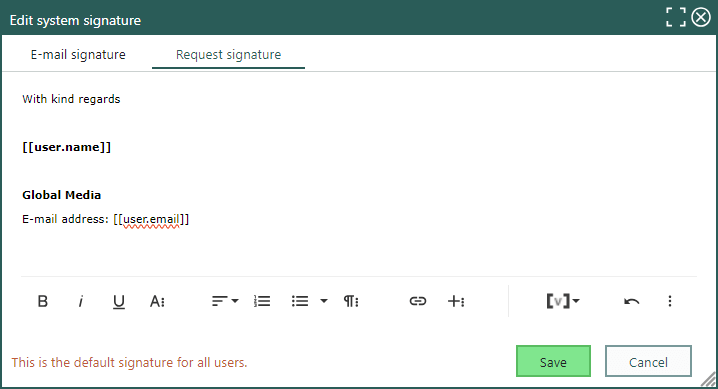 If you have user administrator rights, you can also set the user’s request signature from the Task button in the User screen.
Change rank on contacts by drag-and-drop
Dealing with multiple contacts on a request is sometimes time consuming to change and fix. By going into Edit mode and drag the different contacts added, you can change the contact directly linked to the request. The request will appear in the Requests section tab on companies and contacts for all contacts added in the requests.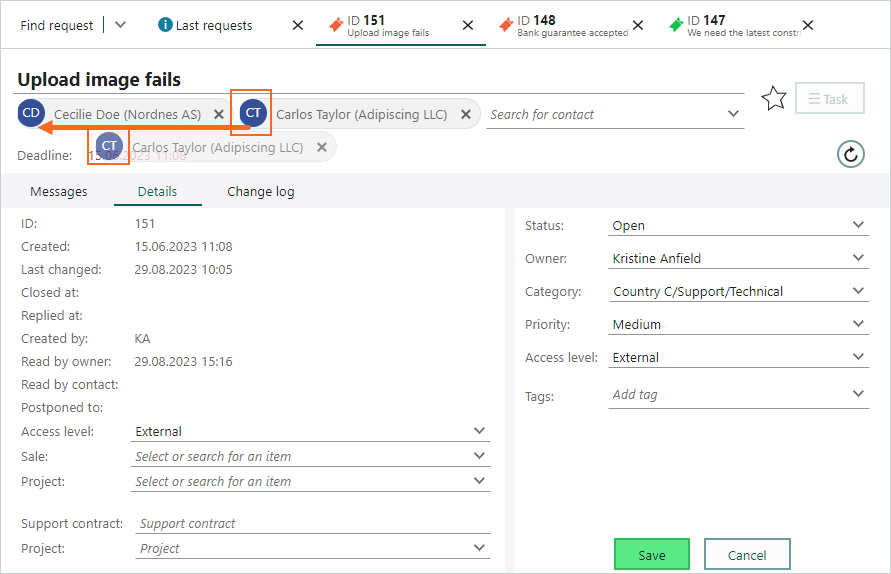
Refresh request tab
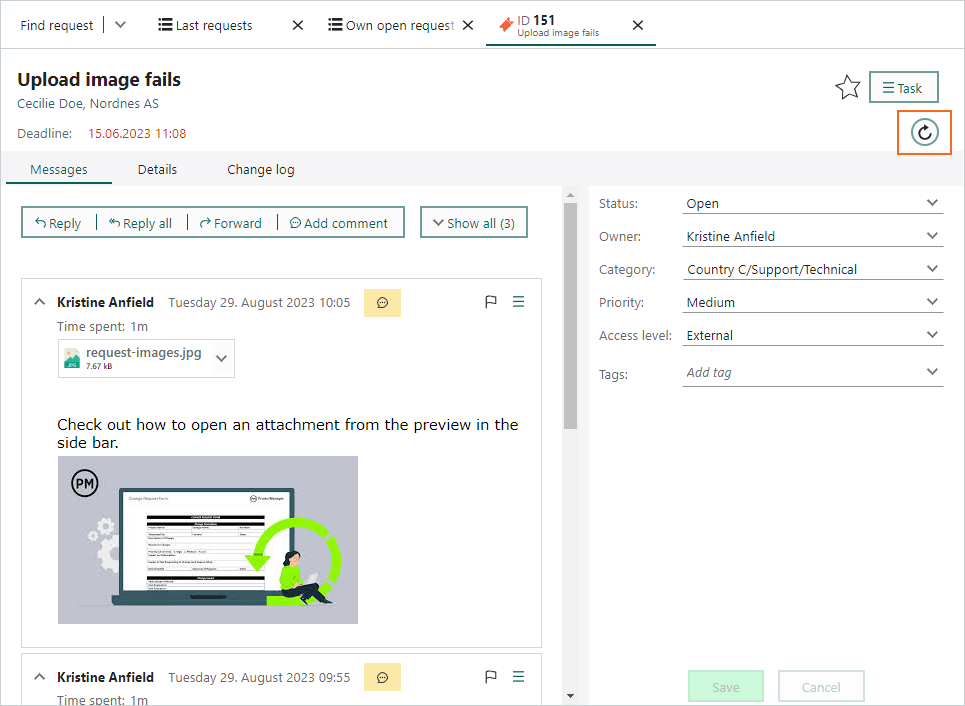
When you are working with live updates on requests, other associates can add or change information or the request your are working on. To update the request, simply click the Refresh button in the header.