

Data Quality Agent is coming soon. This page describes a feature that is not generally available yet. It requires CRM Suite Growth or above.
What the agent does for you
- Fixes formatting problems: normalizes phone numbers and tidies up addresses, flagging anything it cannot safely correct.
- Fills in missing details: finds missing company information, such as website, description, or industry, from trusted business sources.
- Flags undeliverable emails: highlights contact email addresses recorded as bounced, on every run.
- Checks GDPR consent: flags contacts with missing or withdrawn consent so you can act on them.
- Spots companies with no contacts: surfaces company records that have no people attached and, optionally, proposes contacts to add.
The agent proposes. You decide. Every proposed change is reviewed and approved by you before it is written to SuperOffice. If you do not approve a review, nothing changes.
Schedule
The agent runs Daily, once a day at a system-assigned time. You control how many review tasks it creates each day with Max tasks per day, so review volume stays manageable.Activate the agent
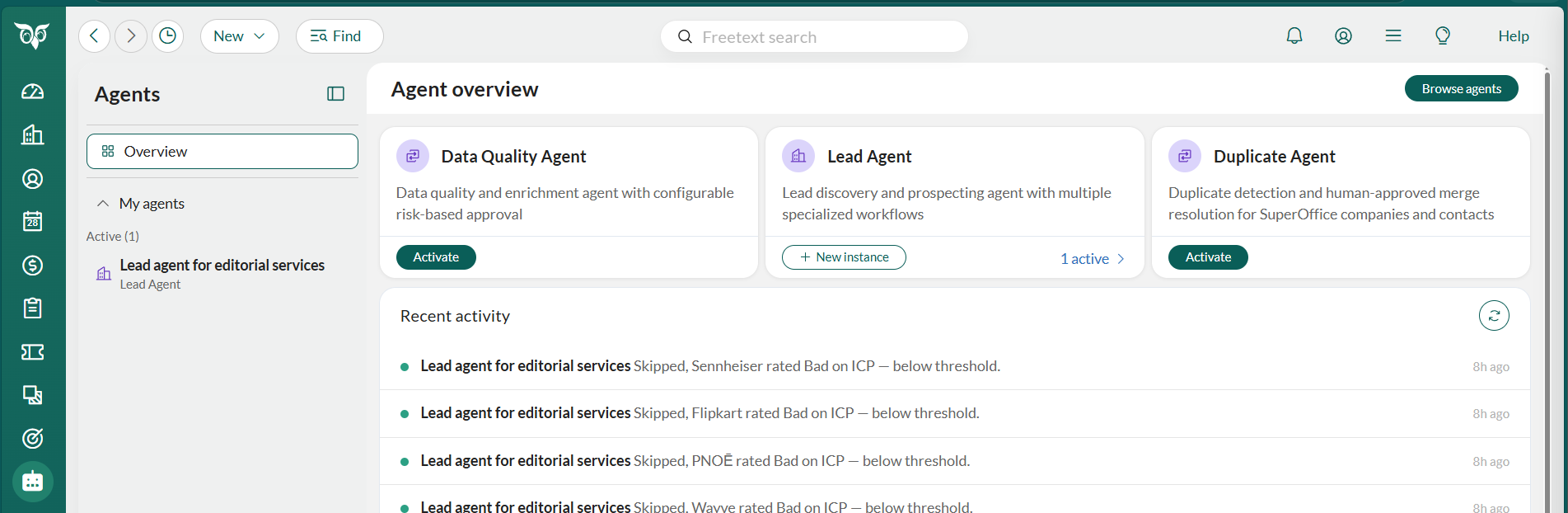
You are automatically the approver for the records it reviews, and you can create one instance.- Select Agents in the Navigator. The first time you access the Agents page, you need to log in and approve AI agents in SuperOffice.
-
Locate the Data Quality Agent card in the Agent overview and select Activate. This opens the set-up wizard.
General settings
-
Enter a unique Name for the agent instance. This cannot be changed after activation.
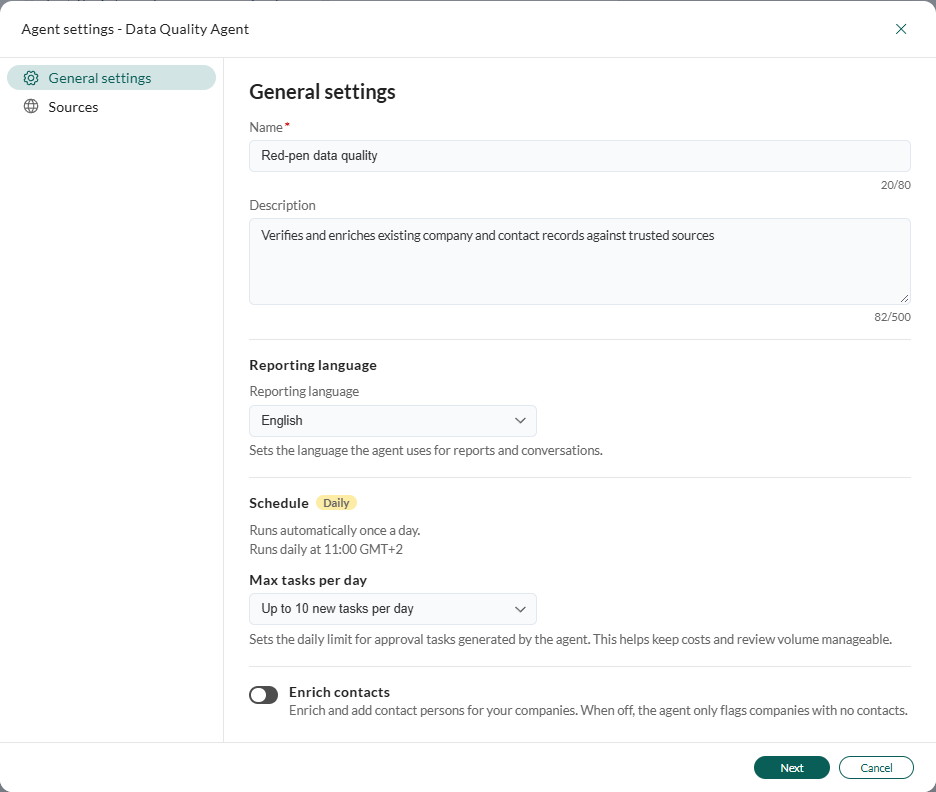
- Optionally, edit the suggested Description if you want something different.
- Choose Reporting language. This affects both reports and chat replies.
- Select how many review tasks the agent creates per day (1-30). The default Max tasks per day is 10.
- Optionally, enable Enrich contacts. When on, the agent also proposes missing contact persons and corrected bounced-email addresses, with email and phone details where it finds them. When off, it only flags the gaps.
- Select Next.
Sources
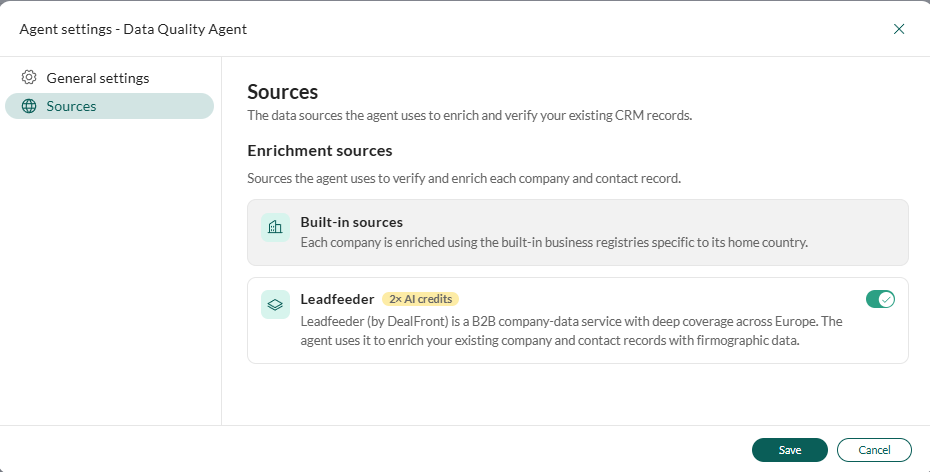
- Built-in sources: business registries selected based on each company’s home country, for example, Brønnøysundregistret for Norway or Northdata for Germany, plus that company’s own website. Managed by SuperOffice and not edited here.
- Leadfeeder: used to verify and enrich companies. On by default, always billed at 2x credits when used, using SuperOffice’s own Leadfeeder account.
- Choose whether to use Leadfeeder to enrich companies, or rely on the built-in registries alone. On by default.
- Select Save. The instance is activated, appears under My agents in the Agents sidebar, and begins working on its next daily run.
- Select Go to instance to open your new Data Quality Agent and get started.
Review and approve changes
- Select the Chat tab.
- Select and select Pending.
- Choose a company review thread () from the list.
-
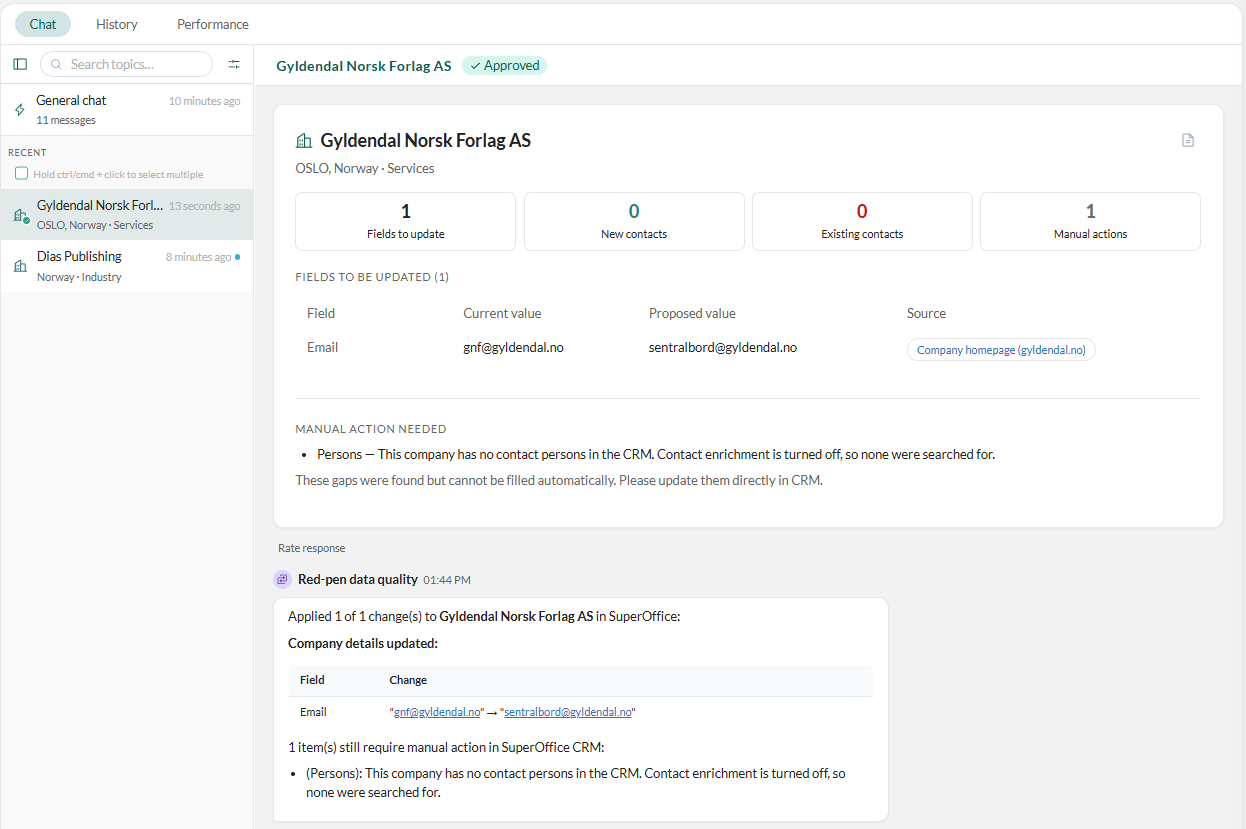
Review the summary tiles, Fields to update, New contacts, Existing contacts, and Manual actions, and the Fields to be updated table: Field, Current value, Proposed value, and Source, for example a business registry, the company homepage, or Leadfeeder.
Gaps the agent could not fill automatically are listed under Manual action needed. Update those directly in the company or contact record. A contact flagged for missing GDPR consent is shown as “will be soft-deleted”.
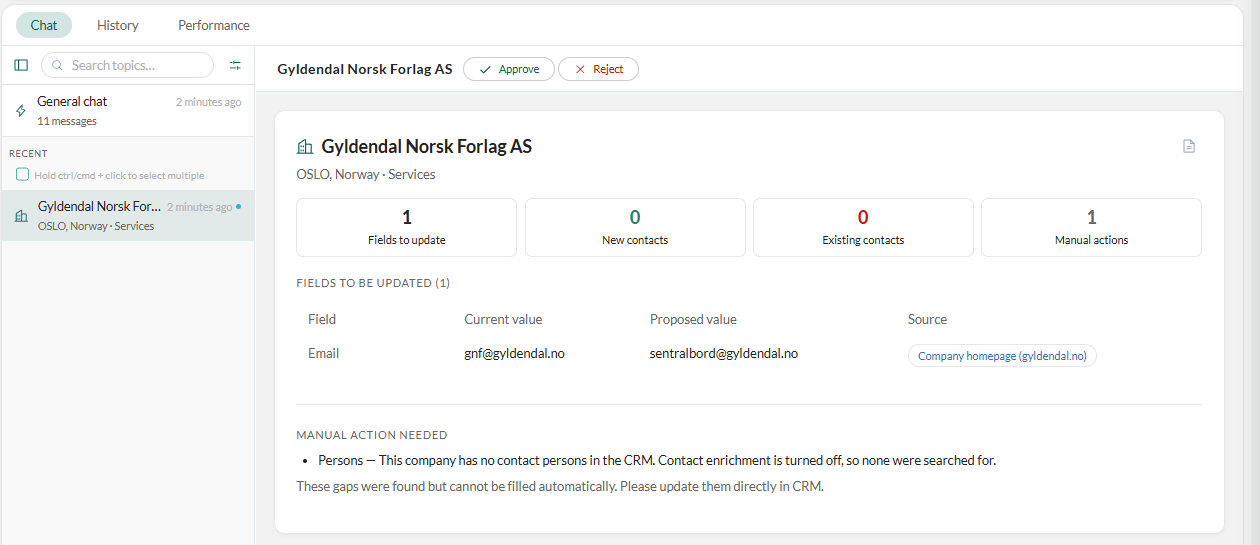
- Optionally, ask the agent in chat to adjust what is proposed, before you approve.
-
Select Approve.
Changes cannot be undone. Approved changes cannot be undone, so review carefully before approving.
-
Select Approve in the confirmation dialog, for example “1 field will be updated.”
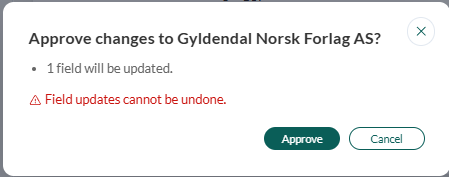
- All the changes in the review are written to SuperOffice at once.
- For a GDPR-consent item, approving soft-deletes the contact, and SuperOffice removes it permanently 30 days later.
Look into a specific company
- Select the Chat tab.
- In the General chat, ask the agent to check a specific company now, for example check Acme’s data, or look up a company’s or contact’s current details.
- If it finds genuine changes to propose this way, it raises a normal review task for it, exactly like a company found on the daily scheduled run. Review it as described above.
The agent workspace
The Data Quality Agent’s workspace has three tabs: Chat, History, and Performance.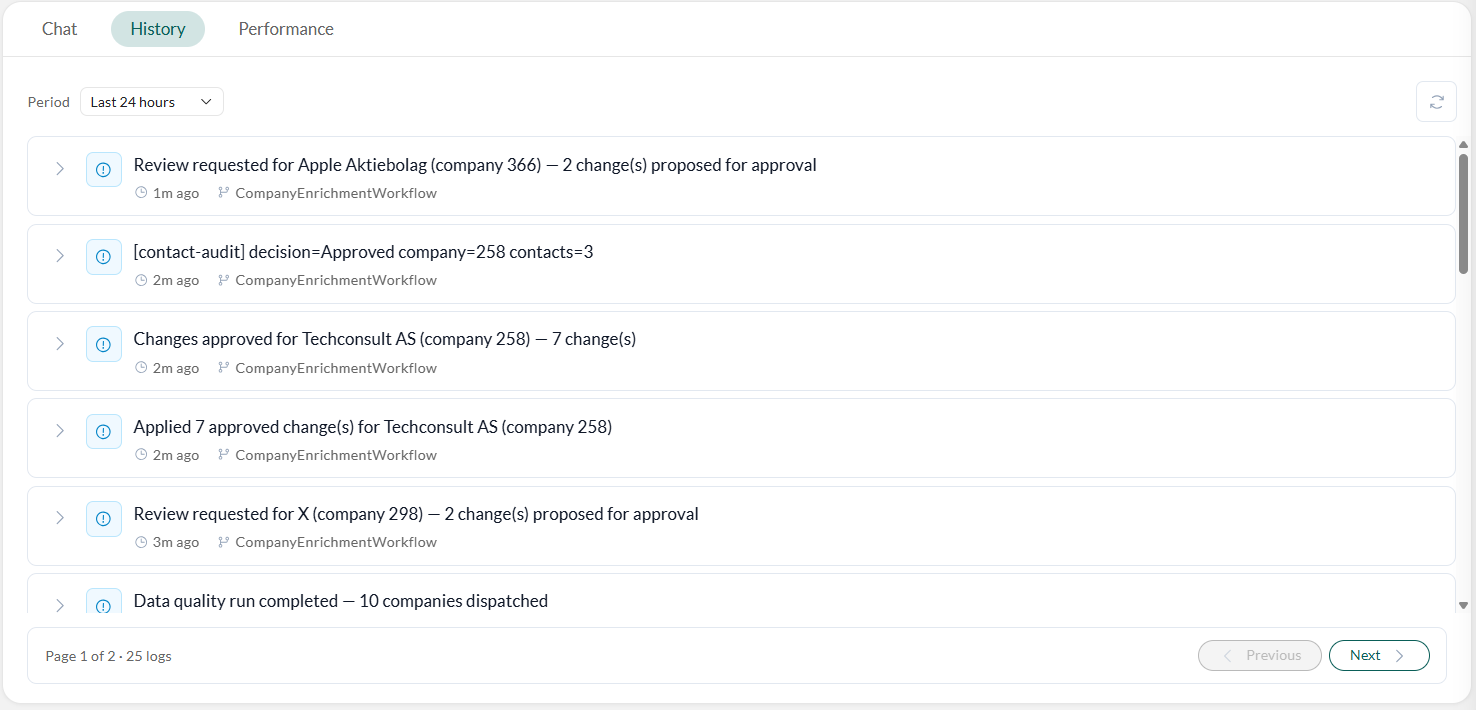 Select to pull in the latest entries.