

Duplicate Agent is coming soon. This page describes a feature that is not generally available yet. It requires CRM Suite Growth or above.
What the agent does for you
- Finds duplicate companies: compares your companies by name and other details, such as organization number, domain, and phone, to find likely duplicates.
- Finds duplicate contacts: looks for two contact records within the same company that seem to be the same person.
- Rates each match: scores every candidate from 1-5 and only suggests the strongest matches.
- Proposes a safe merge: for companies, always suggests keeping the oldest record.
- Reconnects orphaned contacts: finds contacts with no company whose email points to one, and proposes linking them.
The agent proposes. You decide. No records are merged or linked until you approve. There is no automatic mode. It works only inside your SuperOffice CRM. There is no web search or external enrichment. The daily scan mainly checks records you own, but a suggestion can still involve a record owned by someone else in your tenant: only one side of a match needs to be yours for it to be raised to you.
Schedule
The agent runs Daily, once a day at a system-assigned time. There is no daily limit on how many companies it checks. The agent keeps up to 50 suggestions of each type (company merges, contact merges, and orphaned contacts) waiting for your decision. Once you approve or reject enough to free up room, its next scheduled scan tops that type back up toward 50 if there is more to find.Activate the agent
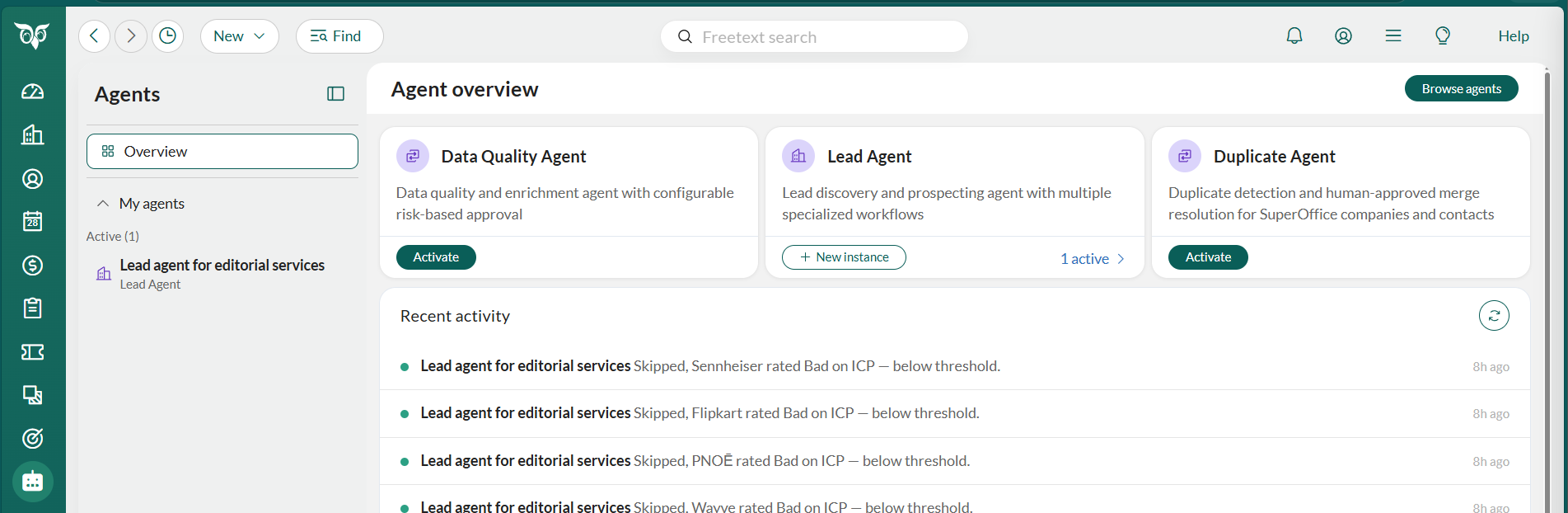
Setup is a single step. You are automatically the approver, and you can create one instance.- Select Agents in the Navigator. The first time you access the Agents page, you need to log in and approve AI agents in SuperOffice.
-
Locate the Duplicate Agent card in the Agent overview and select Activate. This opens the set-up wizard.
General settings
-
Enter a unique Name for the agent instance. This cannot be changed after activation.
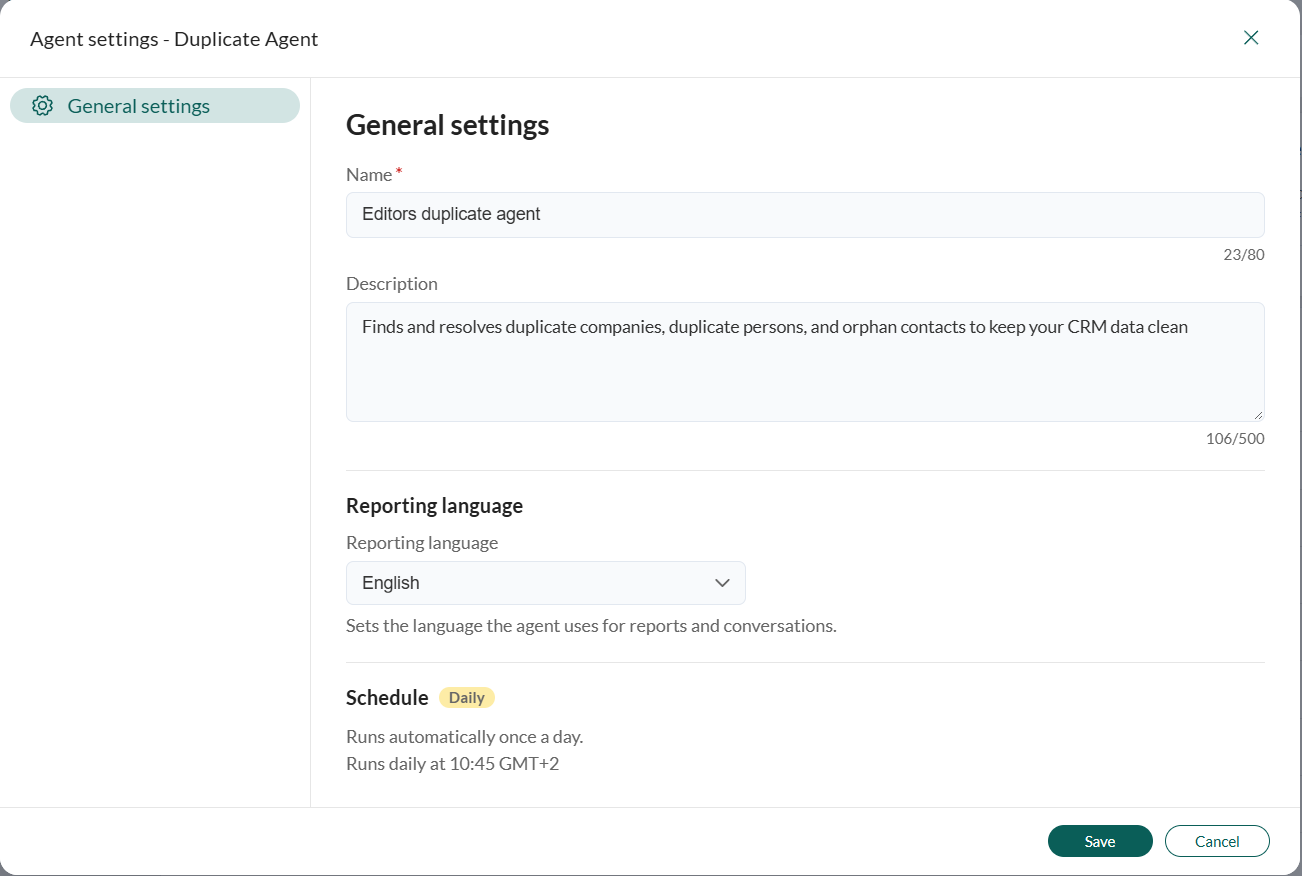
- Optionally, edit the suggested Description if you want something different.
- Choose Reporting language. This affects both reports and chat replies.
- Select Save. The instance is activated, appears under My agents in the Agents sidebar, and begins working on its next daily run.
- Select Go to instance to open your new Duplicate Agent and get started.
Merge suggestion: duplicate companies
- Choose a company-merge suggestion () from the list.
-
Review the side-by-side remove/keep company comparison and what happens if you approve the merge.
The agent always suggests keeping the oldest company.
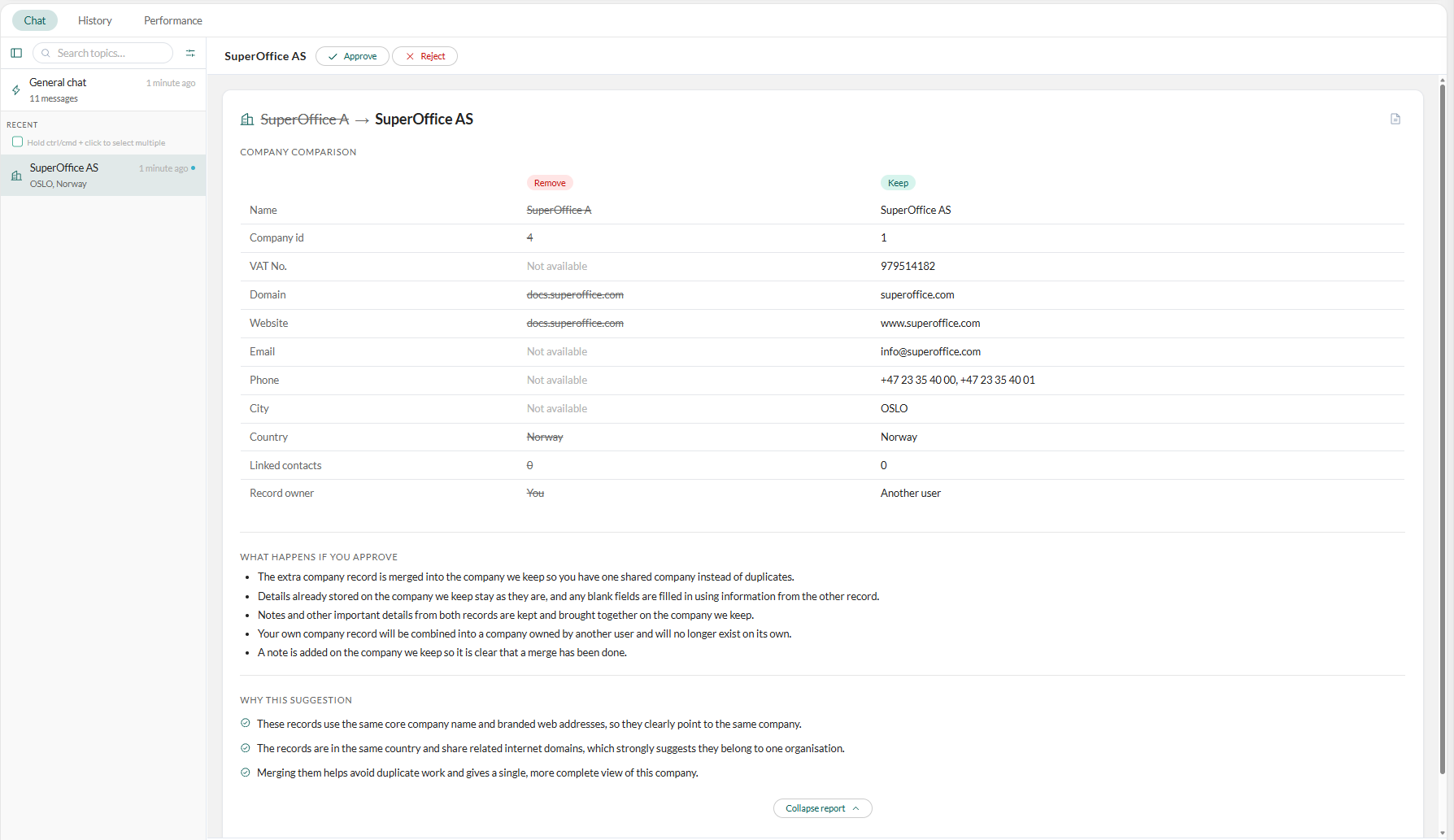
- Optionally, ask the agent (in chat) to tidy up the company you are keeping, before you approve.
-
Select Approve.
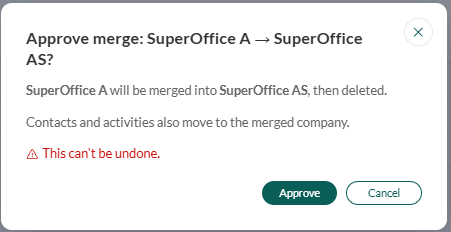
A merge cannot be undone. Combining two companies permanently removes the extra record.
-
Select Approve in the confirmation dialog.
- The kept (oldest) company retains its details and its owner, who becomes the owner of the merged result.
- Any blank fields are filled in from the other record.
- A note is added to the kept company recording the change.
- The owner of the removed company is notified of the merge and the ownership change, even when both records already had the same owner.
Merge suggestion: duplicate contacts
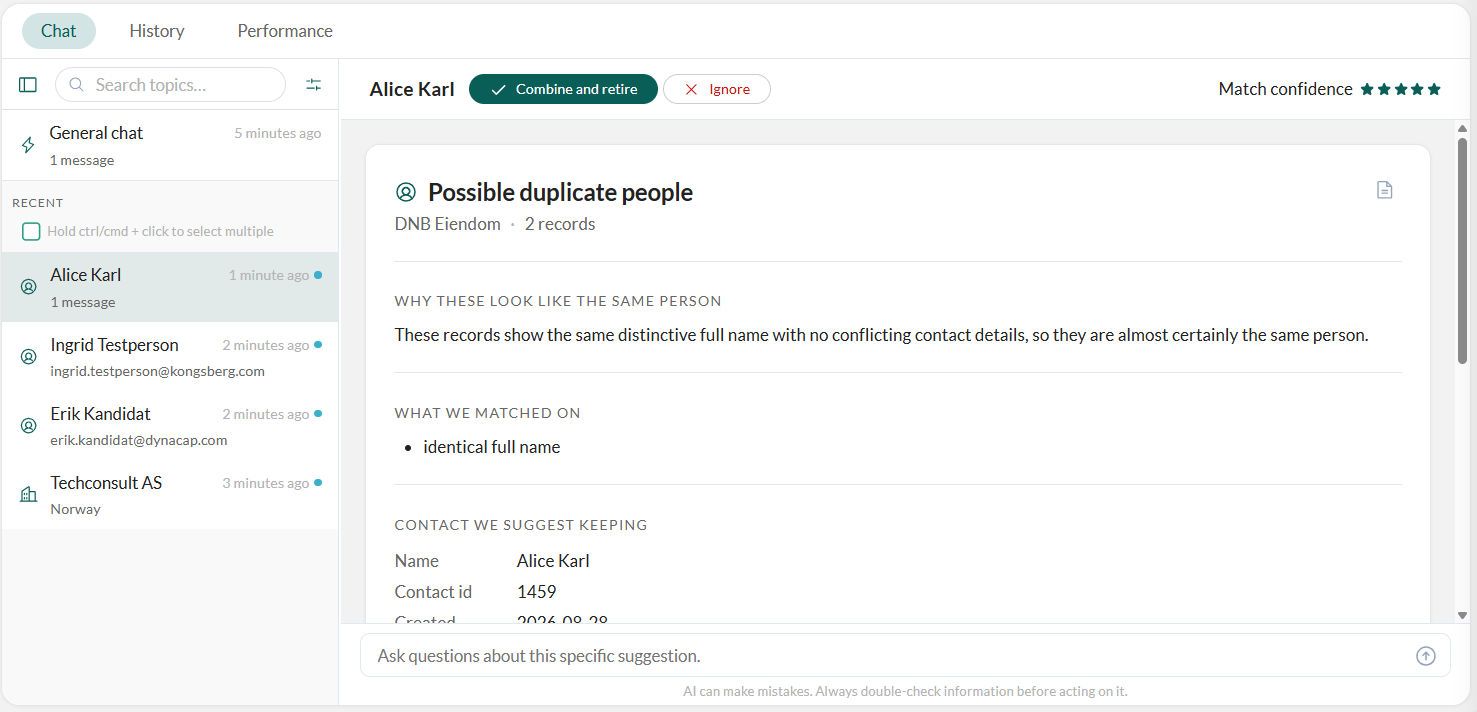
- Choose a duplicate-contact suggestion () from the list.
-
Review the possible duplicate people: the company the contacts belong to, a Match confidence rating (1-5 stars), why they look like the same person, and what the agent matched on, for example an identical full name.
A data-loss warning appears if the contact you are keeping already has an email or phone number that the other record’s differing value would otherwise overwrite: check both before approving.
-
Select Combine and retire.
This cannot be undone. Combining two contacts permanently retires the extra record.
-
Select Approve in the confirmation dialog.
- The two contacts are combined into the one you are keeping.
- Existing details on the kept contact stay as they are. Any blank fields are filled in from the other record.
- The merged-away contact is marked as a former employee rather than removed.
Orphaned contacts (no company)
The agent looks for orphaned contacts, people with no company whose email address uses a company’s domain, and matches each to the company that owns that domain. When the domain does not clearly point to one company, it also looks for a company whose name is a close match and offers that instead.- Choose an orphaned-contact suggestion () from the list.
-
Review the Contact and Suggested company sections, and why the agent is suggesting the link.
If a contact could belong to more than one company, you get a single suggestion asking you to pick which one. A contact with no company-domain email is not surfaced.
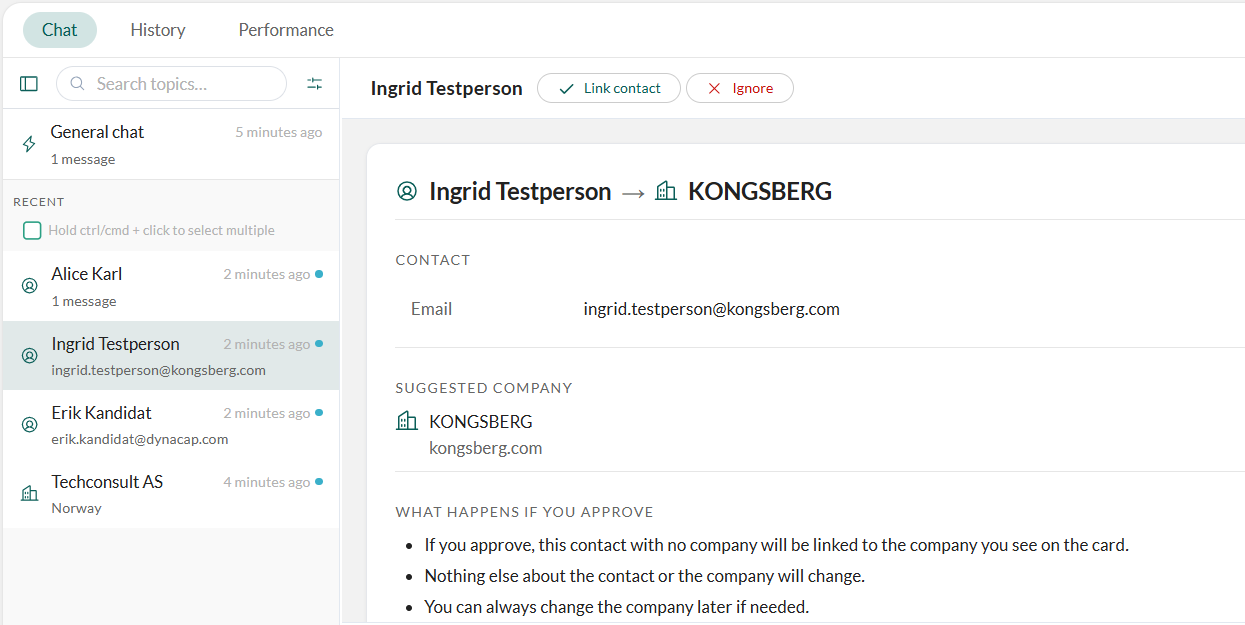
- Select Link contact. The contact is connected to that company. Nothing else about the contact or the company is changed. Unlike a merge, this can be reversed later by unlinking the contact.
Look into a specific company or contact
- Select the Chat tab.
- In the General chat, ask the agent to check a specific company for duplicates or look up a contact.
- If it finds a genuine duplicate or orphaned contact this way, it raises a normal approval task for it, exactly like one found on the daily scheduled run. Review it as described above.
The agent workspace
The Duplicate Agent’s workspace has three tabs: Chat, History, and Performance.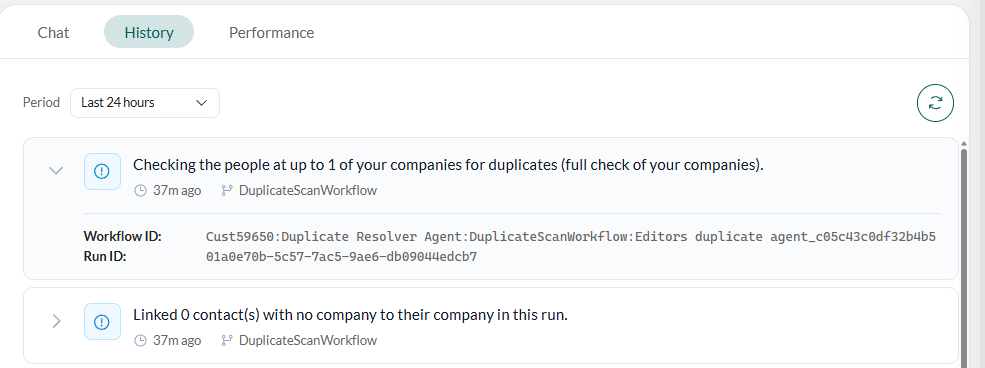 Select to pull in the latest entries. Select an entry to expand it and see its full workflow and run details.