

Sales Assistant Agent is a beta release that is being rolled out gradually. It is fully usable, but its behavior, wording, and settings may change before general availability. It requires CRM Suite Plus or above.
What the agent does for you
- Watches your pipeline daily: it raises a sale only when something needs a decision, such as a sale date that has passed, a sale that takes longer than usual, a stalled sale, an overdue or missing next activity, or an open high-priority request for the customer.
- Learns from real sales: it looks at how similar sales were won, for example how many activities it took and how soon the first one happened. It also looks at common reasons why similar sales were lost or stalled.
- Recommends one next step: for example a follow-up, rescheduling an overdue activity, adding a stakeholder, drafting a quote, updating a sale date that has passed, or closing the sale as sold or lost. The reasoning is shown alongside.
- Remembers your decisions: after you approve or reject a recommendation, it does not raise the same sale again until the sale changes or a waiting period has passed.
The agent proposes. You decide. It never contacts a customer: quotes are created empty, and follow-ups are created without sending any invitations. The only thing the agent writes on its own is an alert flag on sales that are approaching or past their usual timeline. The flag is not cleared automatically. The agent works only from your own SuperOffice data. There is no web search or external enrichment.
Schedule
The agent runs Daily, once a day at a system-assigned time. You control how many recommendations it creates each day with Max tasks per day. Each run looks at your 100 most recently registered sales and reviews the open and stalled ones among them. Older sales are not reviewed. If 20 recommendations are already waiting for your decision, the run adds no new ones until you have handled some.Activate the agent
Setup is a single step. You are automatically the approver, and you can create one instance.- Select Agents in the Navigator. The first time you access the Agents page, you need to log in and approve AI agents in SuperOffice.
-
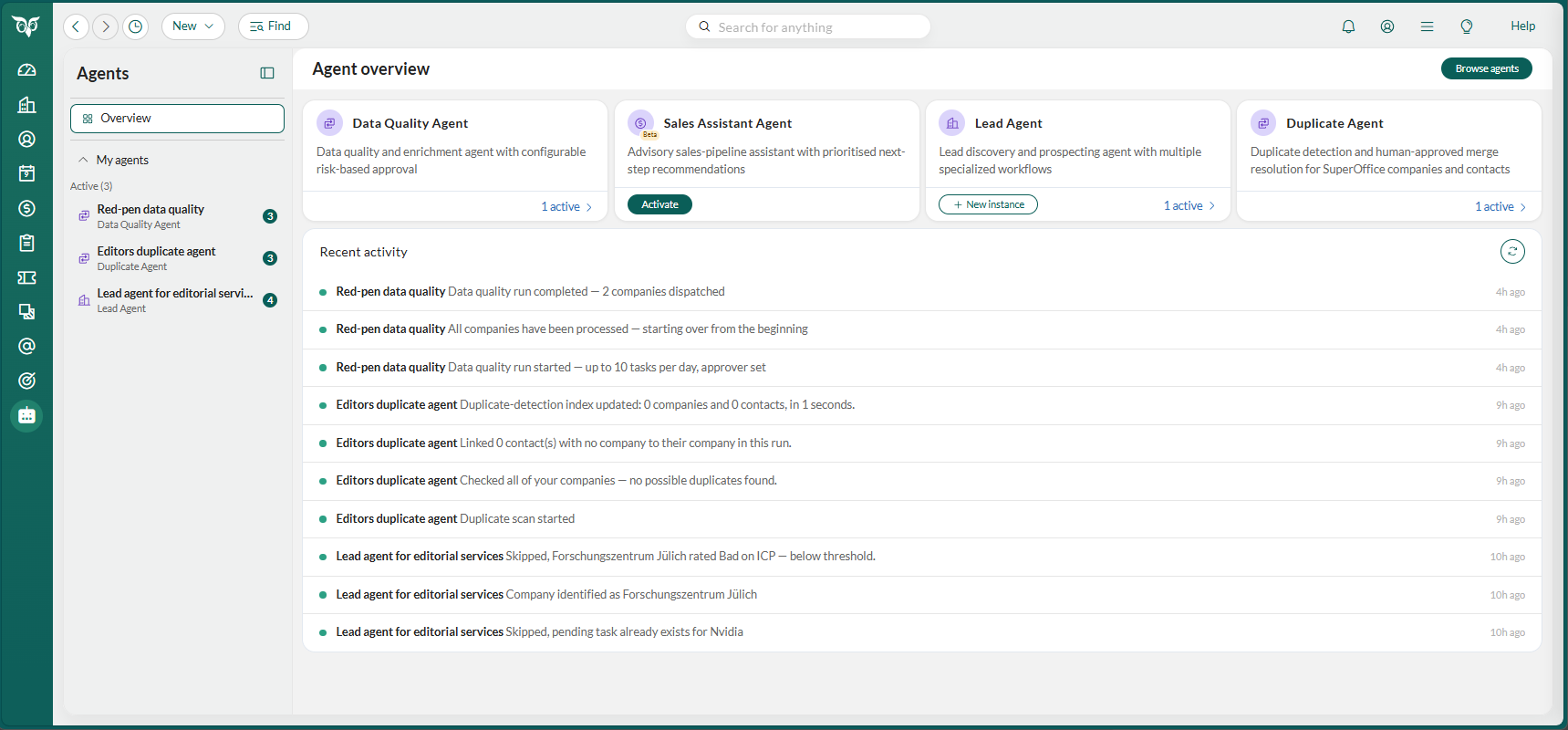
Locate the Sales Assistant Agent card in the Agent overview and select Activate. This opens the set-up wizard.
General settings
-
Enter a unique Name for the agent instance. This cannot be changed after activation.
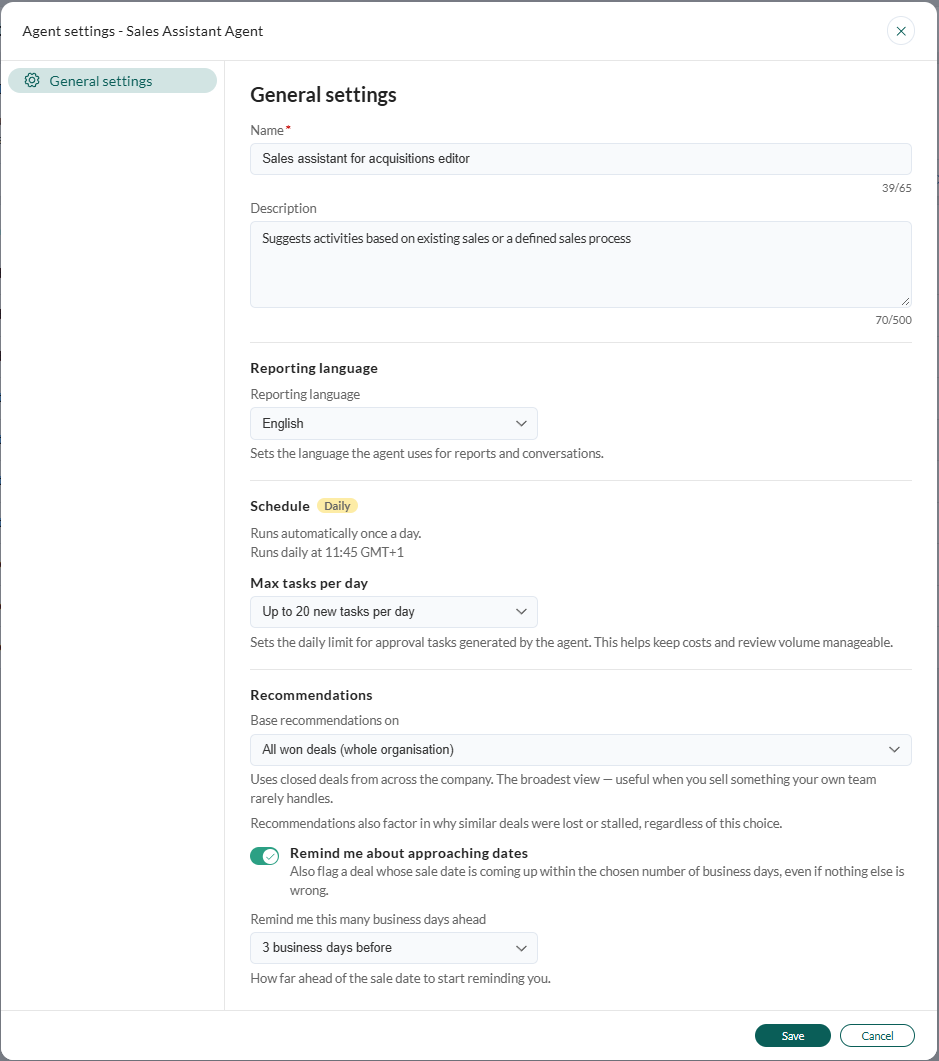
- Optionally, edit the suggested Description if you want something different.
- Choose Reporting language. This affects both recommendations and chat replies. The default is English.
- Select how many recommendations the agent creates per day (up to 30). The default Max tasks per day is 10.
-
Choose what to Base recommendations on. The default is My own won deals.
Whatever you choose, recommendations also take into account why similar sales were lost or stalled.
- Optionally, turn on Remind me about approaching dates to also flag a sale whose sale date is coming up, even when nothing else is wrong. Then choose Remind me this many business days ahead (1-14). The default is 3. Business days skip weekends, but not public holidays.
-
Select Save.
The instance is activated, appears under My agents in the Agents sidebar, greets you in General chat, and starts its first run straight away.

How recommendations work
On each run, the agent compares your open sales with similar won sales, both on total age and on time in the current stage. Sales that are on track are left alone. It looks at:- Sale age and stage timing: a sale is approaching its usual timeline when it has been open longer than 7 out of 10 similar won sales were. It is past its usual timeline when it has been open longer than 9 out of 10. Time in a stage is not checked if won sales usually complete that stage in less than a week.
- Completed activities: calls, meetings, and to-dos that actually happened. This tells the agent when you last reached out to the customer, so it does not suggest something already done.
- The sale date: whether it has passed or, with reminders on, is coming up soon.
- Open requests: whether the customer has an open, high-priority request. The agent tells you whether the request is on this sale or elsewhere on the customer’s account, where you would not see it from the sale.
Priority
Each recommendation has a priority: High, Normal, or Low. Bigger sales move up a level and smaller ones down, compared with your other open sales. A strategic customer whose sale is stalled, has an overdue activity, or has an open high-priority request also moves up. So does an upcoming sale date when reminders are on. When more sales need attention than your Max tasks per day allows, the highest priority comes first, then the highest amount. The rest wait for a later run.Review and approve recommendations
- Select the Chat tab.
- Select and select Pending.
- Choose a sale thread () from the list. Threads are named after the sale, company, and contact.
-
Review the recommendation card:
- The sale’s name, contact, and company.
- Key facts: Sale type, Amount, Stage, and Days in stage.
- Why this deal, a plain-language reason the sale was picked.
- Recommended actions, one block per step, listing exactly what will be written to SuperOffice. Sometimes a supporting action, such as adding a follow-up or a stakeholder, comes with the main step.
- Optionally, ask the agent in chat about the recommendation before you decide.
- Select Approve or Reject. The buttons apply to every action on the card.
- If the recommendation sets or changes a date, keep the suggested date in the confirmation or pick another day. The time of day stays the same. You cannot change the date when you approve several recommendations at once.
What approving does
The first column shows the action’s title on the recommendation card.
When you approve, the agent confirms in chat what was created, or explains what could not be created so you can add it manually. If a card has two actions and only the first succeeds, the first is kept.
When you reject, nothing is written to SuperOffice. The agent does not suggest anything for that sale again until the sale falls further behind, moves to another stage, or passes its sale date, or until 14 days have passed.
After you approve, the sale comes back two days after the follow-up was due, two days after the new sale date, or 14 days after approval if nothing was added. It comes back sooner if the sale changes.
Ask about a specific sale
- Select the Chat tab.
- In the General chat thread, ask about a sale, for example What should I do next with Acme Corp? If something needs attention, the agent creates a recommendation in that sale’s own thread, just like the daily run. If the sale is on track, it says so.
The agent workspace
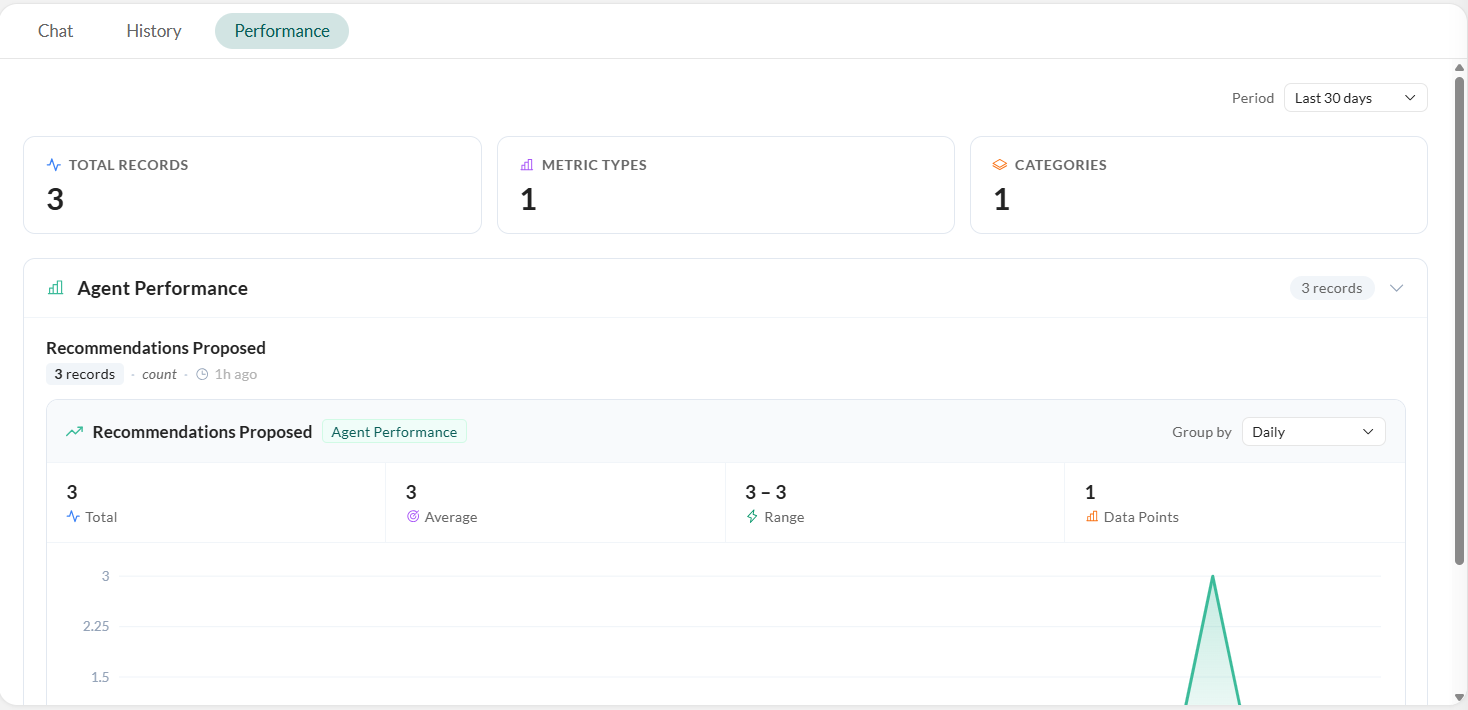
The Sales Assistant Agent’s workspace has three tabs: Chat, History, and Performance.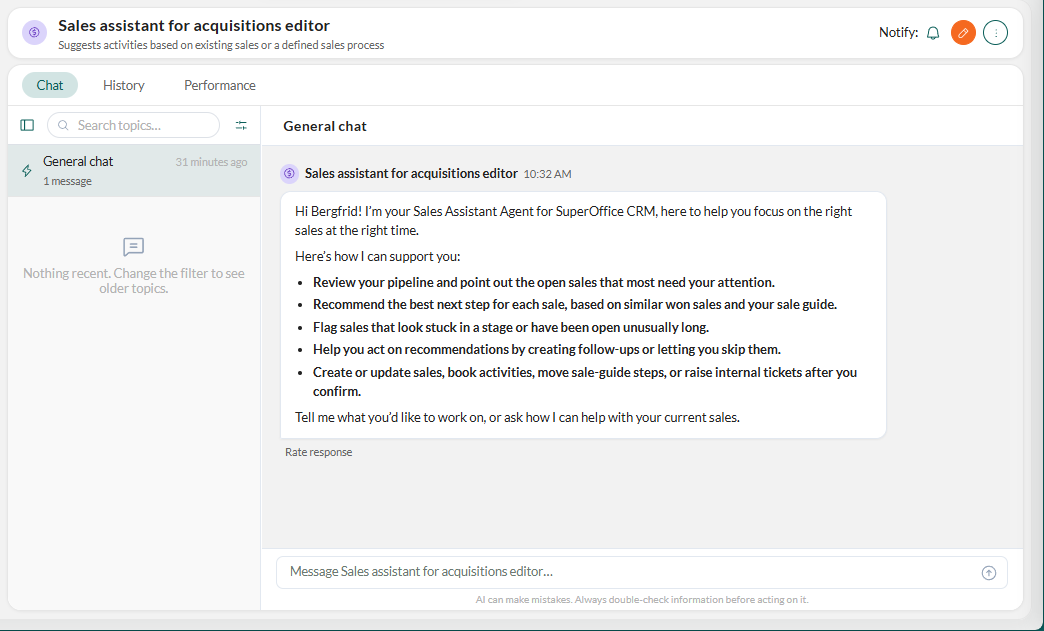
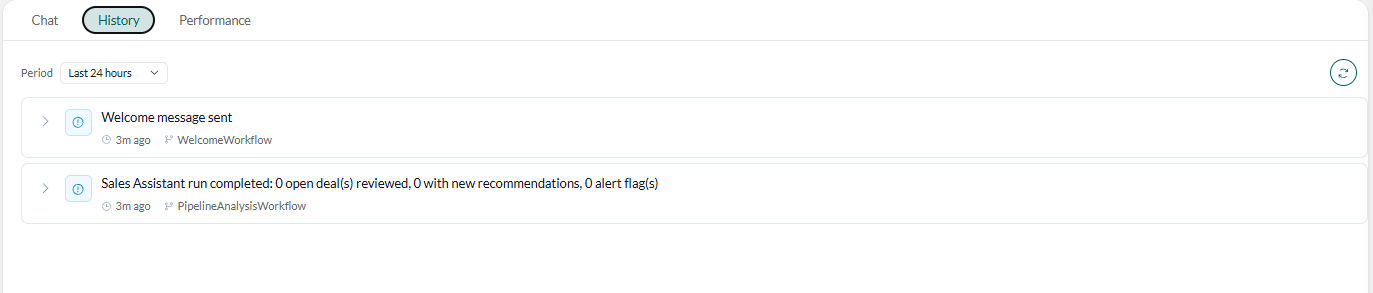
 Select to pull in the latest entries.
To change the description, language, Max tasks per day, what recommendations are based on, or the reminder settings, edit the instance. The name and schedule are fixed. Changes apply from the next run. Only the instance’s owner can change its settings or delete it.