

Extra tables require the CRM Suite Growth plan or higher, or a user-plan based license with Development Tools.With a user-plan based license, extra tables are available in SuperOffice Service, and in SuperOffice CRM through web panels. To use them as custom objects in SuperOffice CRM, join the custom objects pilot program.
Extra tables as custom objects
In the CRM Suite, an extra table becomes a custom object: an entity that behaves like the standard entities, such as companies and sales. A custom object has its own fields, and can relate to companies, contacts, sales, projects, requests, follow-ups, and other custom objects. The steps to create a table are the same regardless of license. What differs is how users view and work with the data stored in it.Where to find custom objects
Users find custom objects in these places:-
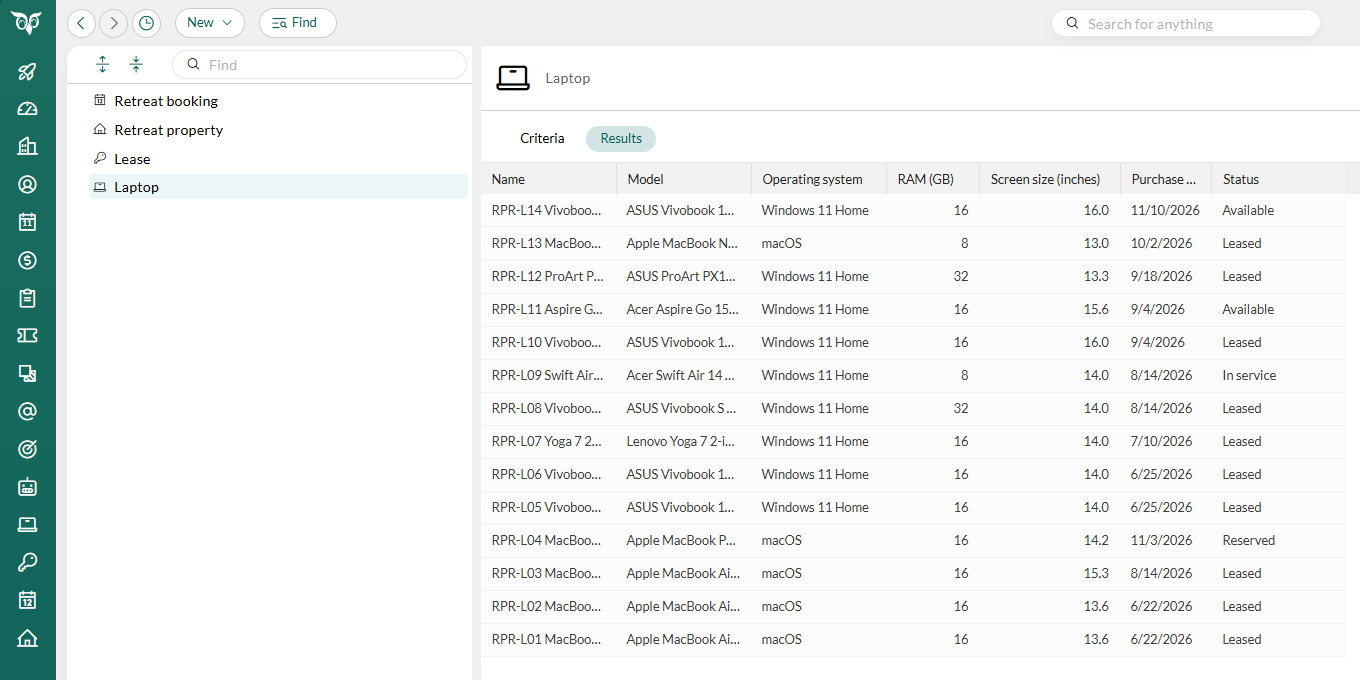
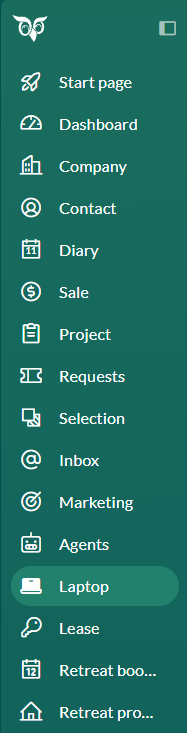
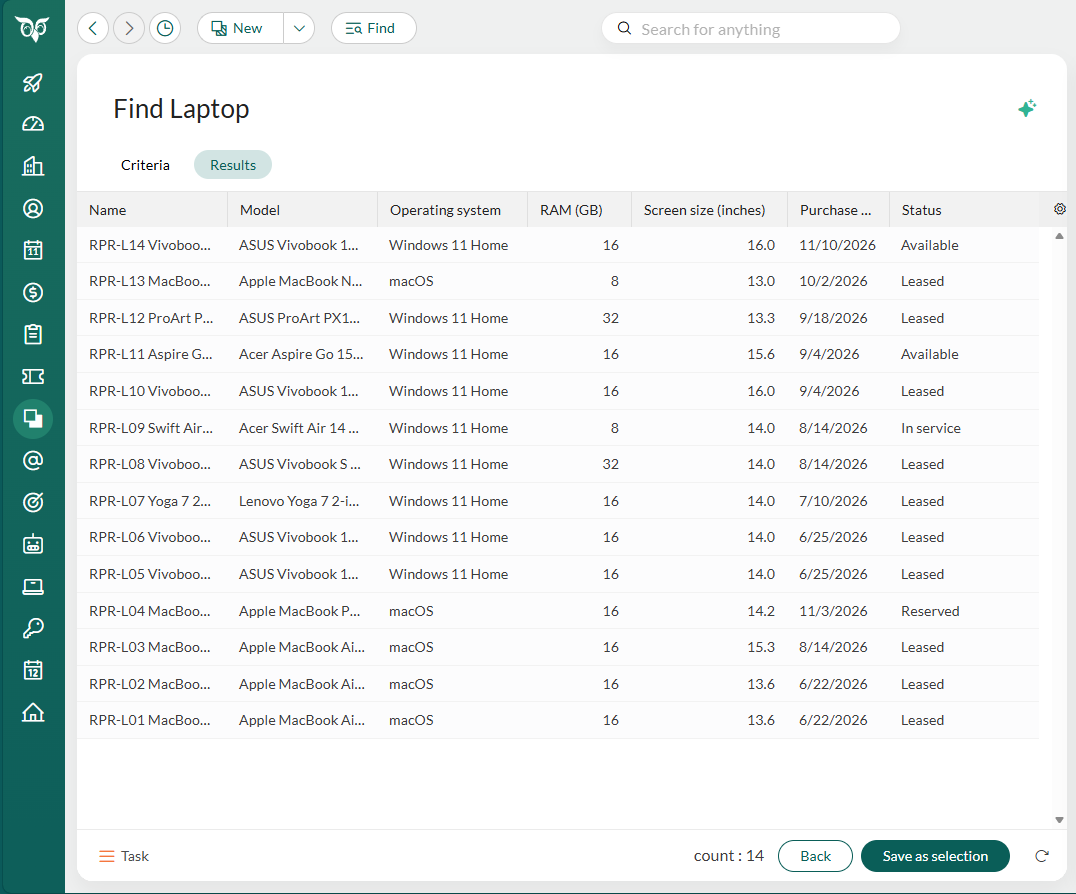
Main menu: Click and select Custom objects to open the Custom objects screen, with all custom objects you have access to. Select a custom object, add search criteria on the Criteria tab, and click Find. The matching custom data is shown on the Results tab.
-
Navigator: Custom objects are listed in the Navigator, each with its own icon. Select a custom object to open its screen, with its custom data in a list. Your administrator decides which custom objects are listed.
-
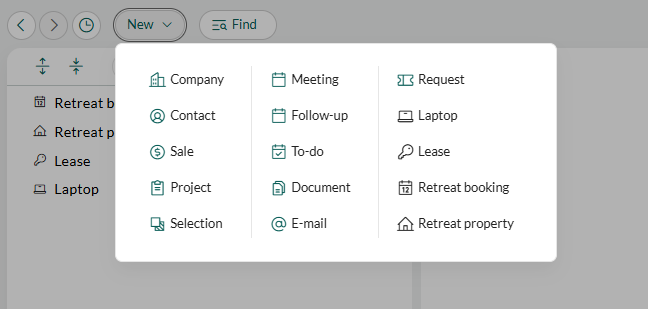
New: Click New in the top bar to add data to a custom object.
-
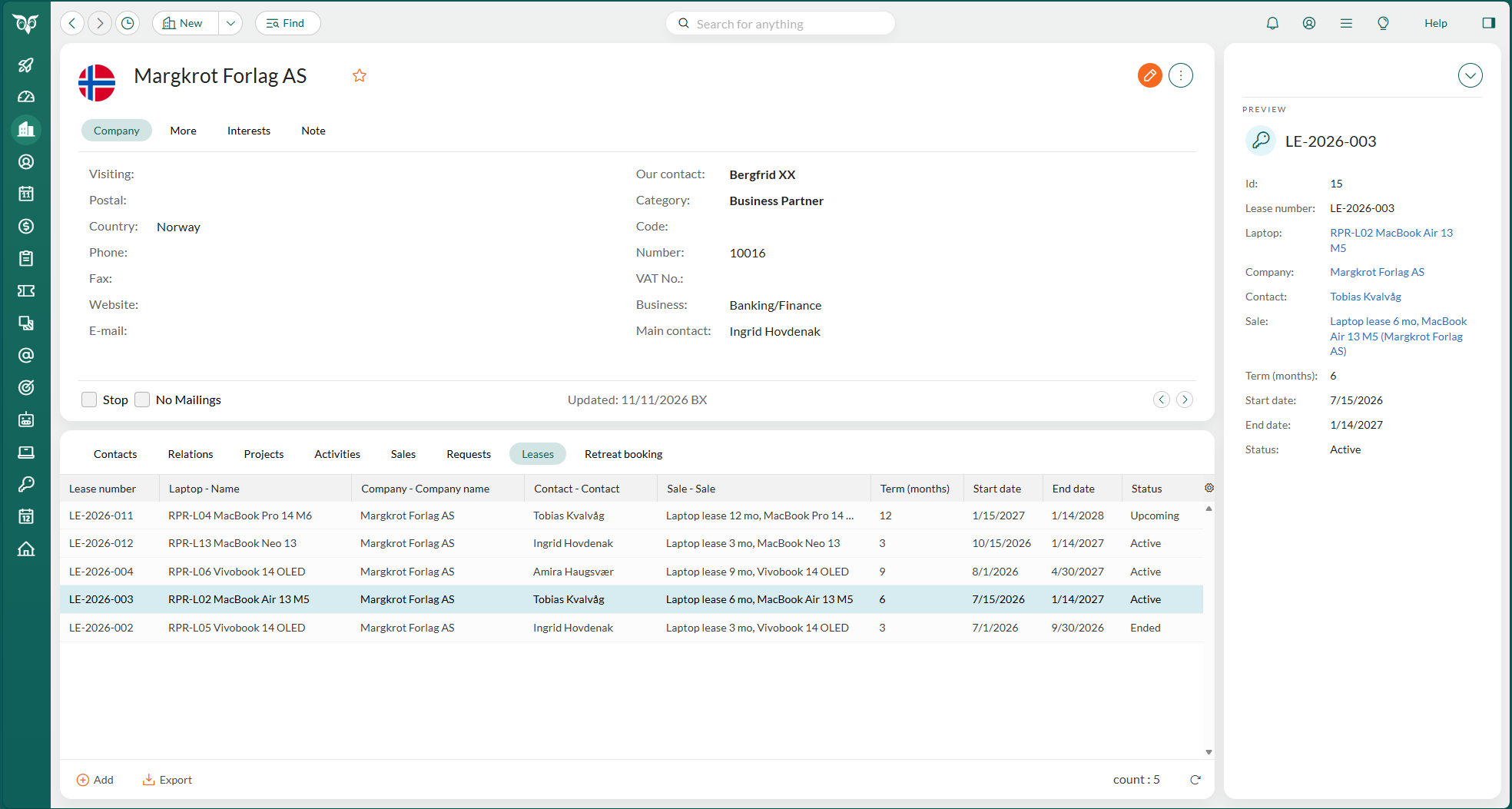
Section tabs: When a custom object relates to another entity, such as a company, sale, or custom object, the related custom data is shown on a section tab there.

-
Side panel: On a section tab with custom objects, select a row to see it in the Preview view of the side panel. Select a related record in the preview to go to it.
-
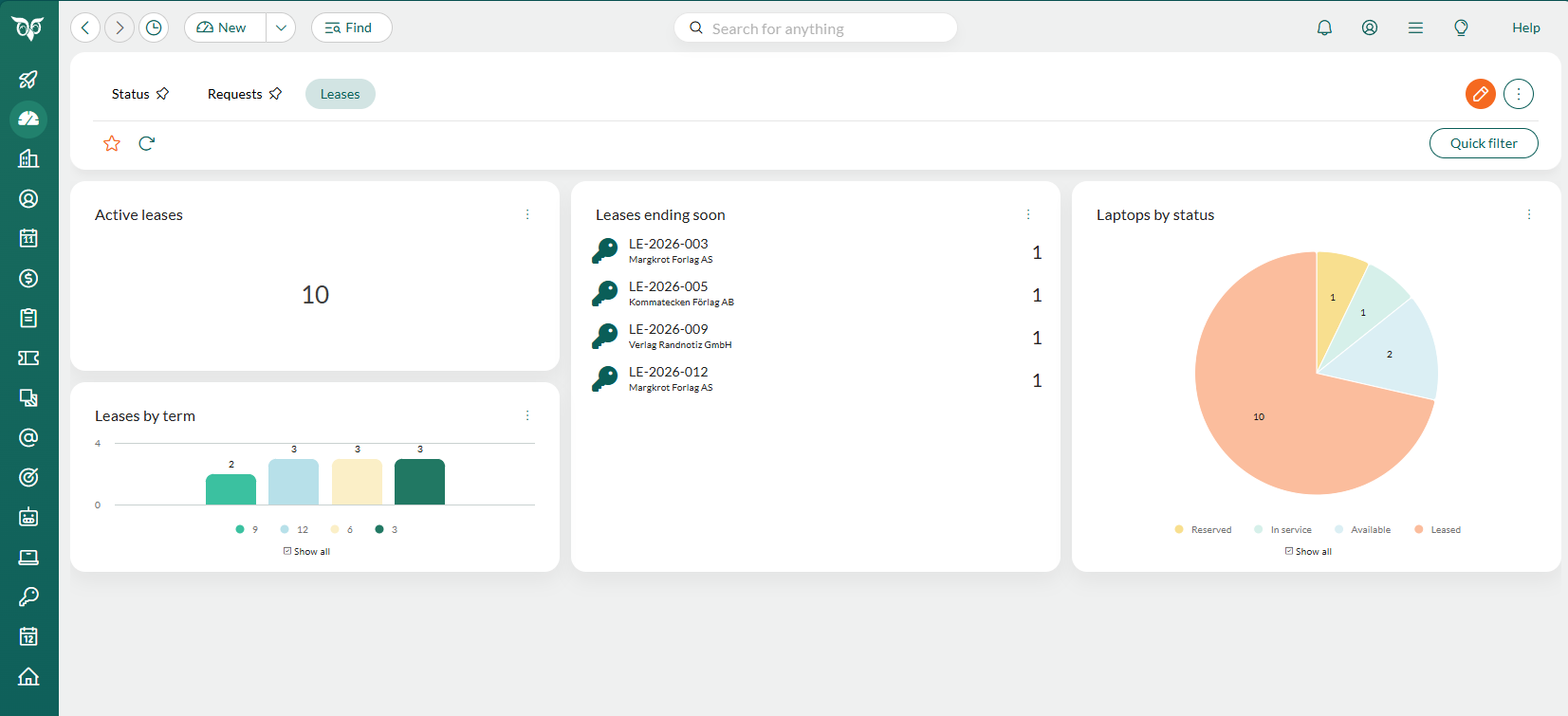
Dashboards: Use a custom object as the data source of a dashboard tile.
- History and favorites: Custom data you open is added to your history, and you can add it as a favorite.
Search for custom objects
You can search for custom objects and create selections based on them, in the same way as for companies, contacts, and sales.-
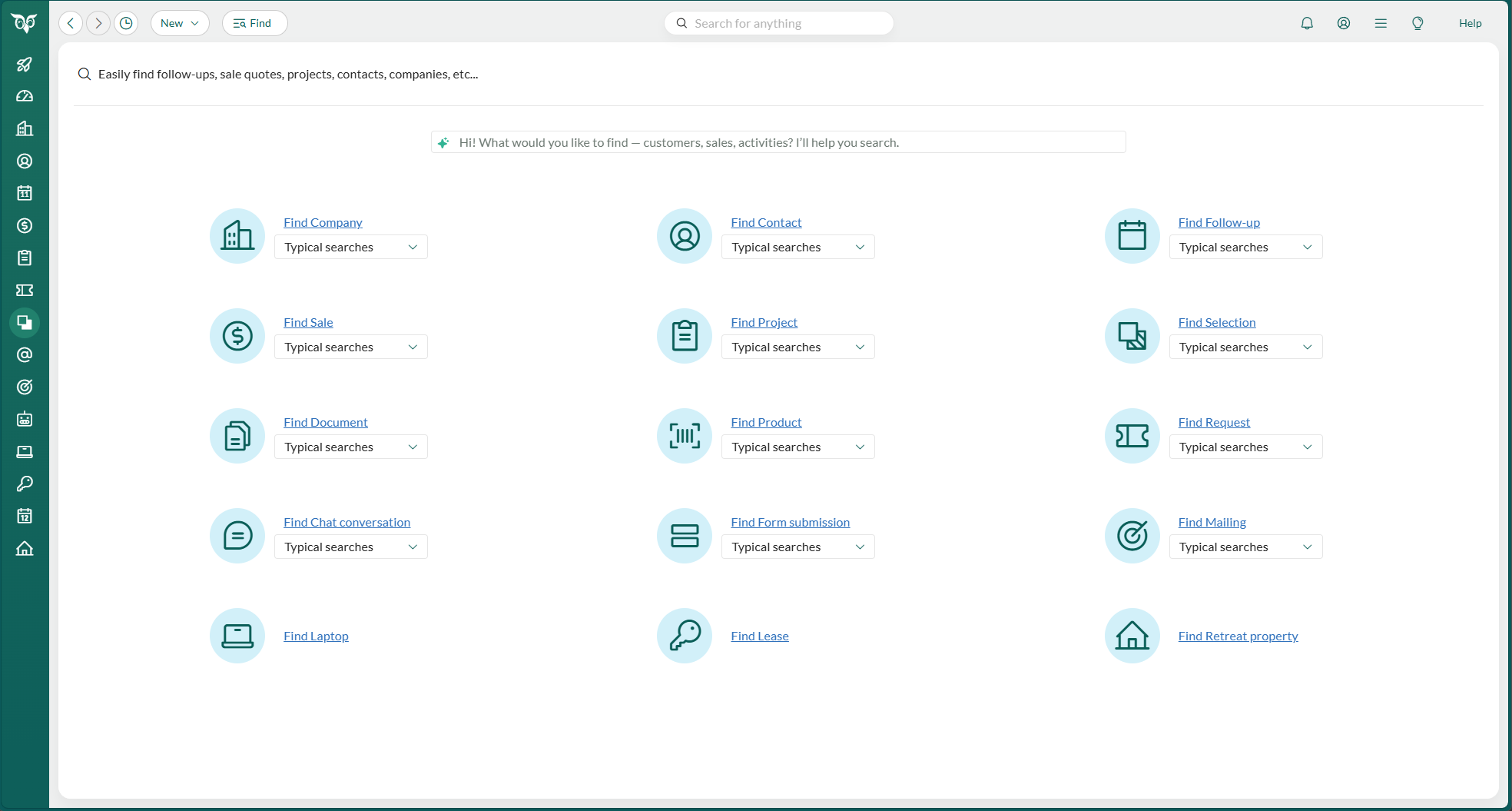
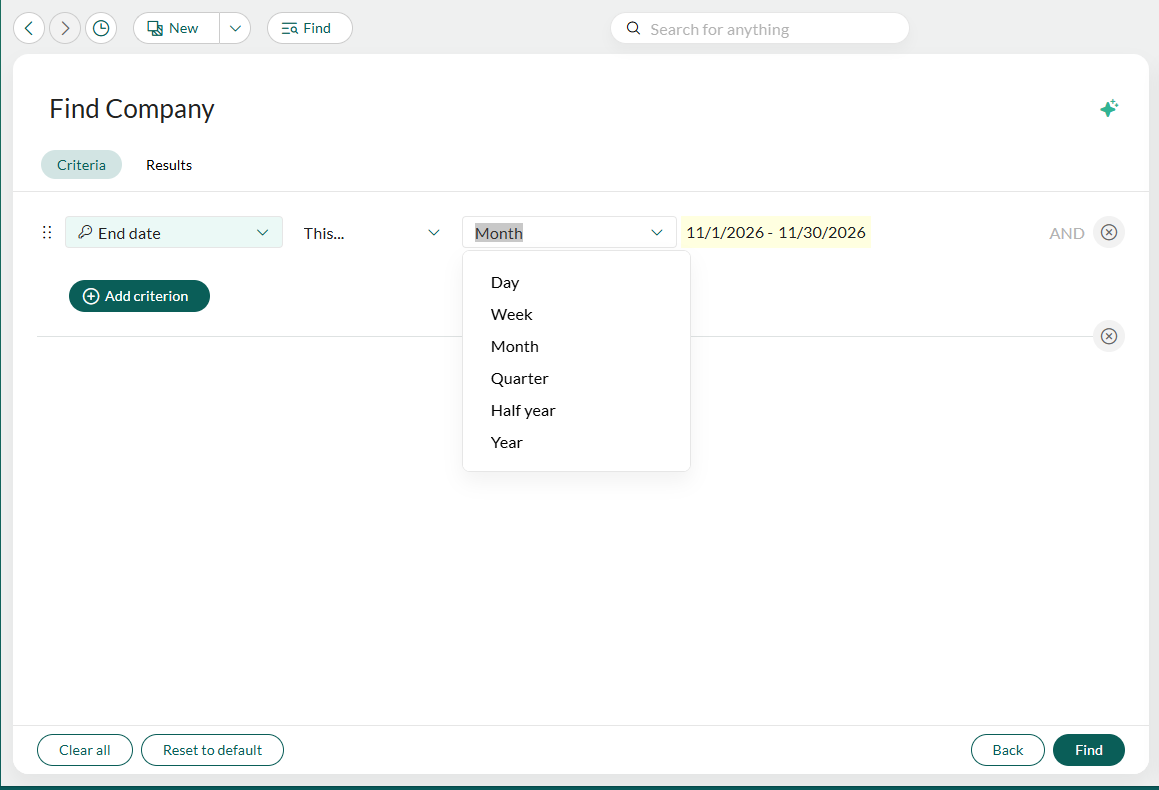
Find: In the Find screen, select a custom object to search for its custom data. You can also use a custom object as search criteria when you search for companies, contacts, sales, projects, requests, and follow-ups.
-
Selections: Save the search as a selection of custom data. A dynamic selection keeps the list up to date.
The field for freetext search in the top bar does not include custom objects. Use Find or the search in the custom object’s own screen.