

- Application settings
- App Store information
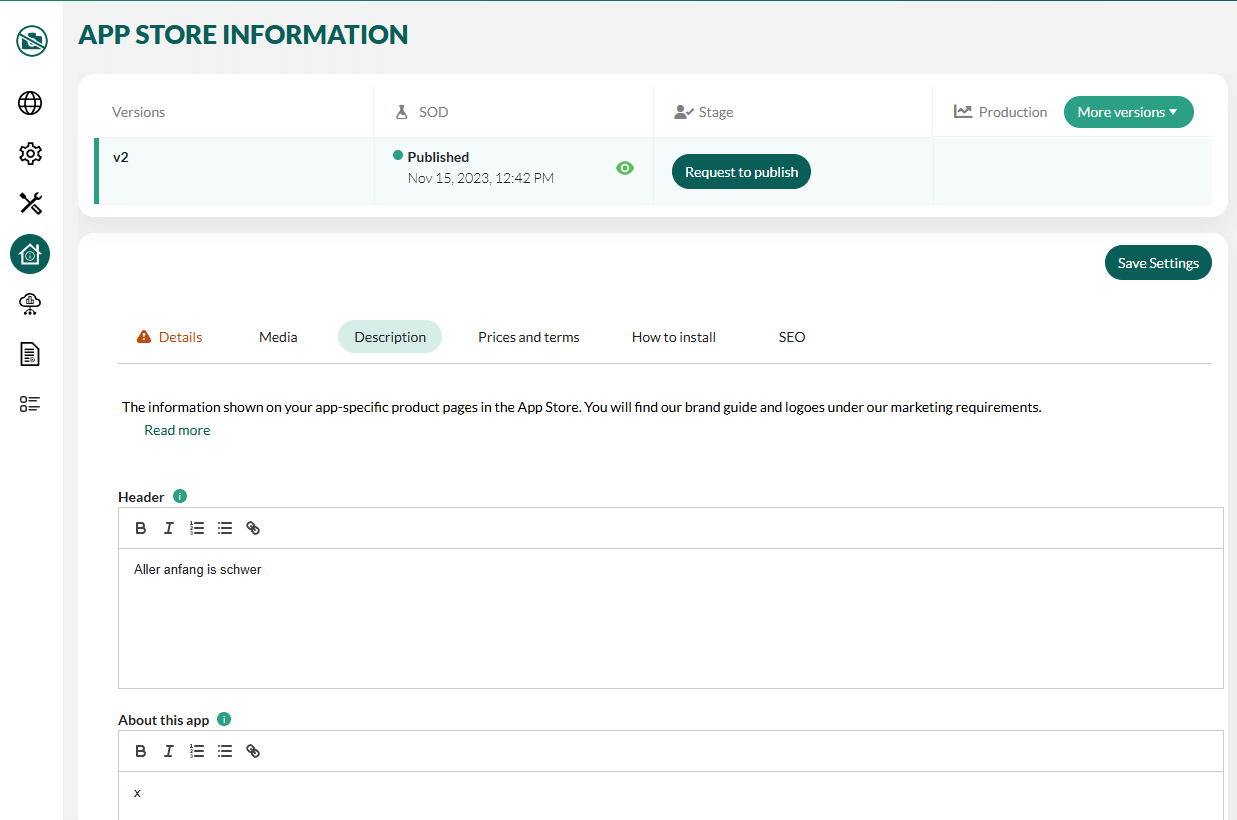
Update application settings
- In your application page, select Settings from the left menu or click the Edit button.
-
To update the technical contact person, click Clear and choose another contact by email address.
Only users from the existing partner’s user collection can be added as administrative or technical contacts.
-
To receive error emails at different or additional email addresses, scroll to the bottom and add one or more addresses in the Error reporting emails field. Press Enter after each address to add it to the list.
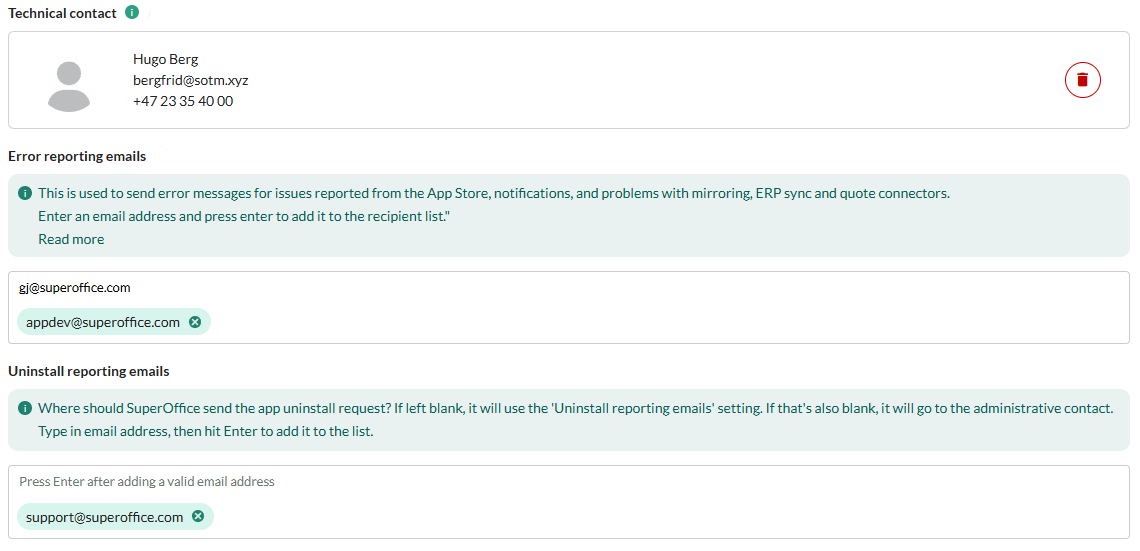
- To receive requests to uninstall an application at different or additional email addresses, update the Uninstall reporting emails field.
- Click Save Settings.
Update App Store information
- In the Developer Portal, go to your application page.
- Select App Store information from the left menu.
- Create a new version.
- Go through each tab and fill in the information.
- Click Save Settings.
Required information
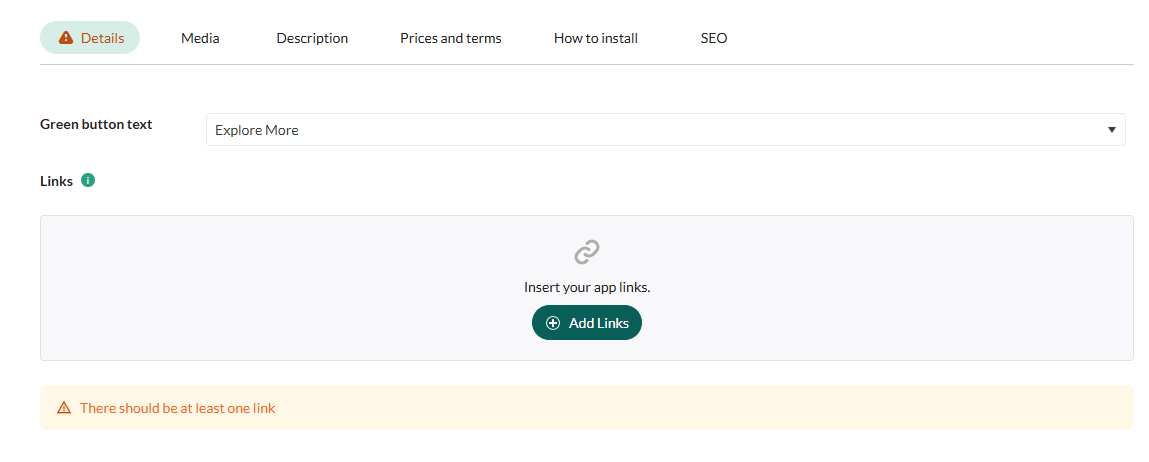
Most fields are mandatory and must be filled out before you click Request to Publish. However, the App Store information can be edited and saved incrementally. Missing information is highlighted and color coded:- Red - mandatory and must be filled before saving.
- Orange - mandatory for the published version but can be omitted when saving a draft.
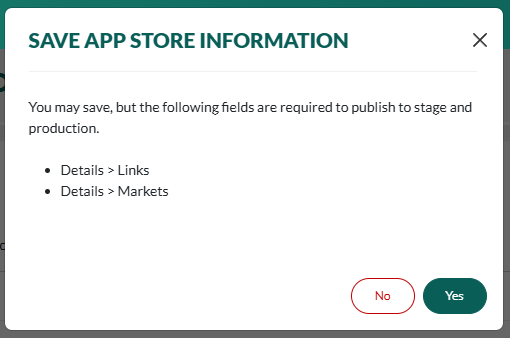
 When you click Save Settings, the confirmation dialog lists the fields needing attention.
Verify your changes
- Review your listing in the SOD App Store.
- Fix issues in the Developer Portal if necessary.
Request to publish
When you are happy with how it looks, return to your partner page in the Developer Portal:- Select Overview from the left menu.
-
In the App Store section, click the Request to Publish button.

The App Store information is only the commercial side of releasing an application.When you list an application for the first time, you must also prepare and request to publish the configuration.