

Overview pages are being introduced gradually, starting with the Sale screen. If you do not see the Sale screen yet, sales open on their own card, without a left panel. You can find a board view of your sales under Selections.
Available overview pages
Open an overview page
- Select the icon in the Navigator. The overview page opens with the content you last viewed. The record or selection you last worked with is shown, and its tab is highlighted.
- Select the name in the Navigator. The history, favorites, and search options open, as before. Choose a record or a selection, and it opens in the overview page.
- Click a link to a record anywhere in SuperOffice CRM. For example, in the board view, a section tab, or the side panel. The record opens in the overview page and becomes your current record.
- Click the New button to create a record of the type the screen is for. The new record opens in the overview page. When you save it, it opens in the last-viewed tab and becomes your current record.
Overview page layout
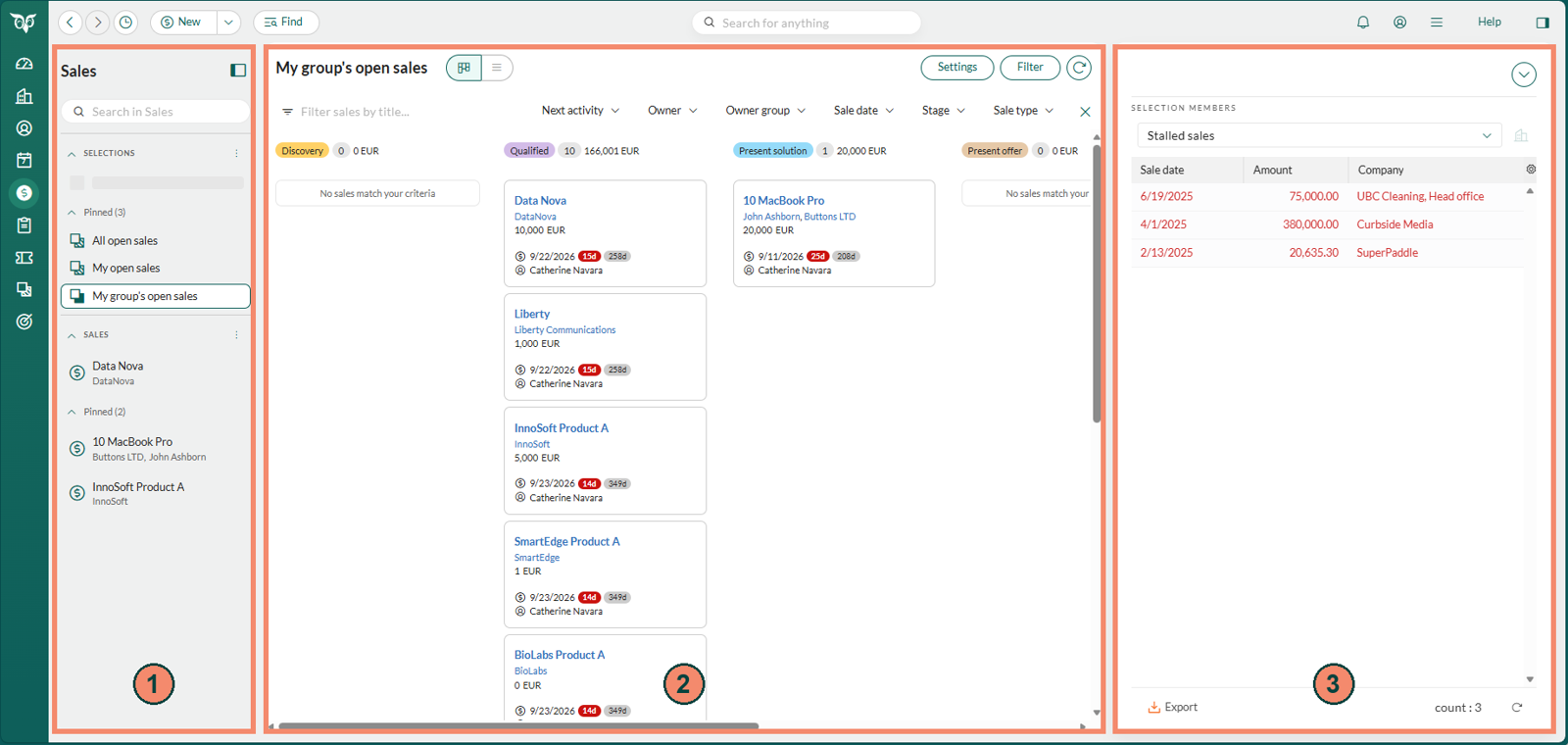
The left panel
The left panel shows your selections and records as vertical tabs. The tabs are organized in groups. On the Sale screen, the groups are Selections and Sales.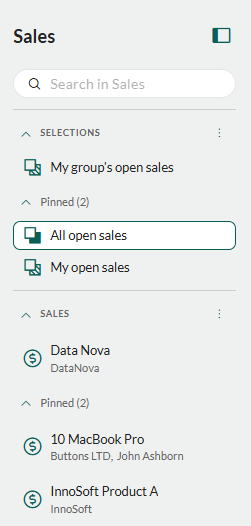 Each group can have one last-viewed tab and as many pinned tabs as you want. The last-viewed tab is directly below the group heading and has no label. It holds the selection or record you opened last that is not pinned, and it is replaced when you open another one that is not pinned. Opening a pinned tab does not replace it.
Pinned tabs are listed under the Pinned heading, which shows how many there are. Select the heading to collapse or expand the list. Pinned tabs stay until you close them and are not sorted automatically, so use Search in tabs to find the one you want. Drag and drop tabs to rearrange them manually, or to move a tab between the last-viewed tab and the pinned list.
Click a tab name to open it in the main area. The tab for the selection or record shown in the main area is highlighted.
Each group can have one last-viewed tab and as many pinned tabs as you want. The last-viewed tab is directly below the group heading and has no label. It holds the selection or record you opened last that is not pinned, and it is replaced when you open another one that is not pinned. Opening a pinned tab does not replace it.
Pinned tabs are listed under the Pinned heading, which shows how many there are. Select the heading to collapse or expand the list. Pinned tabs stay until you close them and are not sorted automatically, so use Search in tabs to find the one you want. Drag and drop tabs to rearrange them manually, or to move a tab between the last-viewed tab and the pinned list.
Click a tab name to open it in the main area. The tab for the selection or record shown in the main area is highlighted.
Show or hide the left panel
- Click the toggle button () at the top of the left panel to hide it.
- Click the toggle button () again to show the panel. The panel does not open when you point to it.
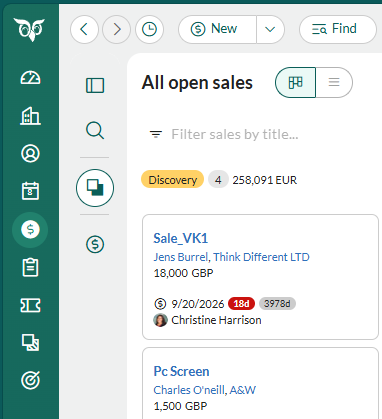 The side panel also has a button for showing and hiding it, in the upper-right corner of the screen. The same icon is used for the Navigator, the left panel, and the side panel.
Find a selection or record
Select the search field at the top of the left panel to find a selection or a record. A dialog opens with your history, and the field is ready for typing.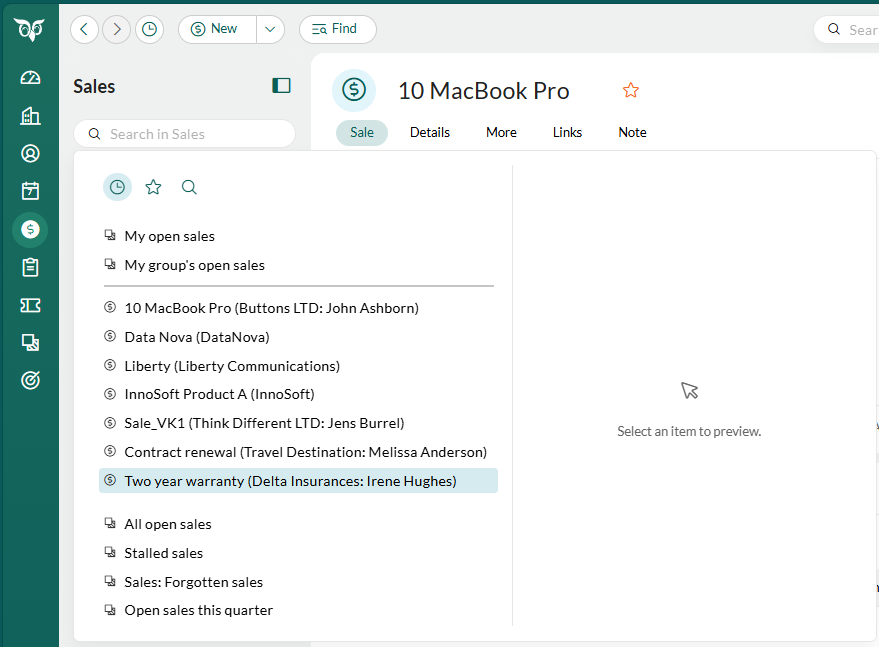 Use the icons at the top of the dialog to switch between three views:
To find and open a selection or a record:
- Enter at least two characters in the search field. The dialog switches to the Search view and lists the matching selections and records as you type.
- Point to an item to see a preview on the right side of the dialog.
- Choose the selection or record you want to open in the main area.
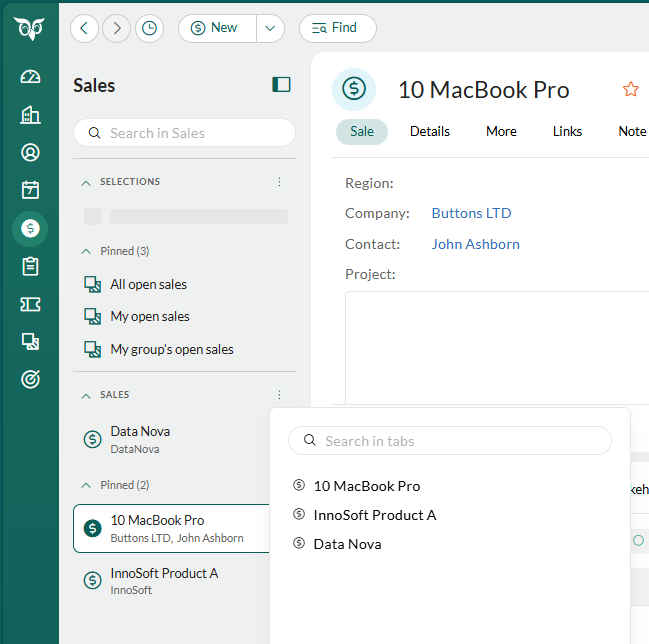
Find a tab you already have open
To search only the tabs in one group, for example the tabs in Selections or Sales:- Click (More options) next to the group heading.
- Enter text in Search in tabs to narrow the list.
- Select a tab to open it.
Pin and unpin tabs
Pin the selections and records you use most, so that they stay in the left panel until you close them.Pinned tabs are separate from your favorites.
Pin a tab
- Point to the last-viewed tab.
- Select the pin icon (), or click (More options) and then Pin.
Close a tab
- Point to the tab. (More options) appears, and a pinned tab also shows .
-
Select , or click (More options) and choose an option.
- Close: Closes the last-viewed tab.
- Unpin and close: Closes the pinned tab.
- Unpin and close all: Closes all pinned tabs in the group.
- Unpin and close all but this: Closes all pinned tabs in the group except this one.
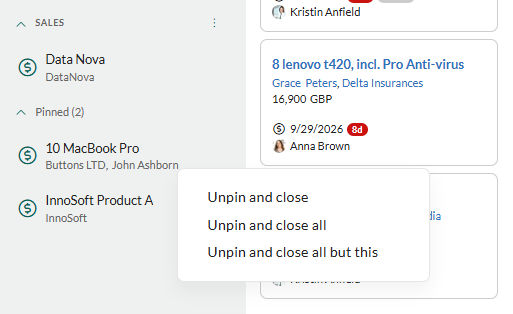 When you close the tab that is open, the next tab opens: the one below it in the pinned list, or the one above if there is none below. When you close the last-viewed tab, the first pinned tab opens.
Selections
When you choose a selection in the left panel, it opens in the main area in the last view you used.Change how you view a selection
Use the controls in the header to change the view.- Switch between list view and board view: Select the list () or board () button.
- Choose which filters to show: Select Filter, and then select the filters you want in the filter toolbar, for example Owner or Stage. Use the Toggle toolbar switch to show or hide the toolbar, and select Done to close the menu.
- Reload the selection: Select the refresh icon ().
- Group, sort, and summarize the cards: Select Settings to set grouping, sorting, summaries, the sale date badge, and whether closed sales are hidden. Available in board view only.
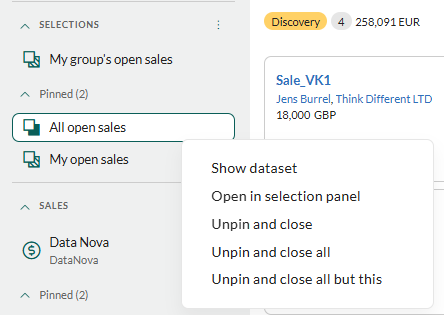
The Edit and Task buttons are not available on the overview page. To edit the selection itself, or to use these buttons, point to the selection tab, click (More options), and then click Open in selection panel. The selection opens in the Selection screen, as if you had selected Selections in the Navigator and chosen the selection.
Show the dataset of a selection
- Point to the selection tab, last-viewed or pinned.
- Click (More options), and then Show dataset. The dataset of the selection is shown.
Open a record from a selection
- In board view, double-click a card or select its title. The record opens in the main area. If the record is not pinned, it appears in the last-viewed tab in the left panel. If it is pinned, its pinned tab is highlighted.
- To go back to the selection, choose it in the left panel. You can also use the Back and Forward buttons (, ) or the History button () in the top bar, which is faster than remembering which selection you were looking at.