

You can mention associates only in comments. Replies and forwards cannot contain mentions, even when they are internal. When you reply with an earlier message quoted, the mentions in the quoted text are ignored, so the same associates are not mentioned again.
Mention an associate in a comment
- Open the request.
- Add a comment. You can also add an internal comment from the request preview.
-
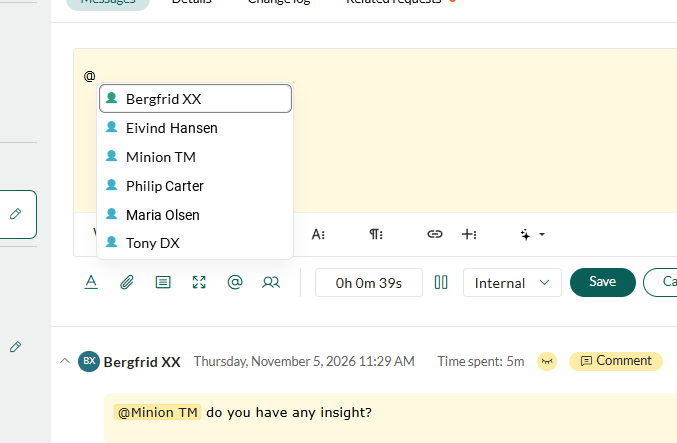
Type @, or click in the toolbar below the comment. A list of associates opens. Type the first letters of a name to narrow the list.
-
Select the associate you want to mention. The name is inserted as a highlighted @name.
To use the keyboard instead:
- Up arrow and Down arrow: Moves through the list.
- Enter or Tab: Inserts the highlighted associate.
- Esc: Closes the list without inserting anyone.
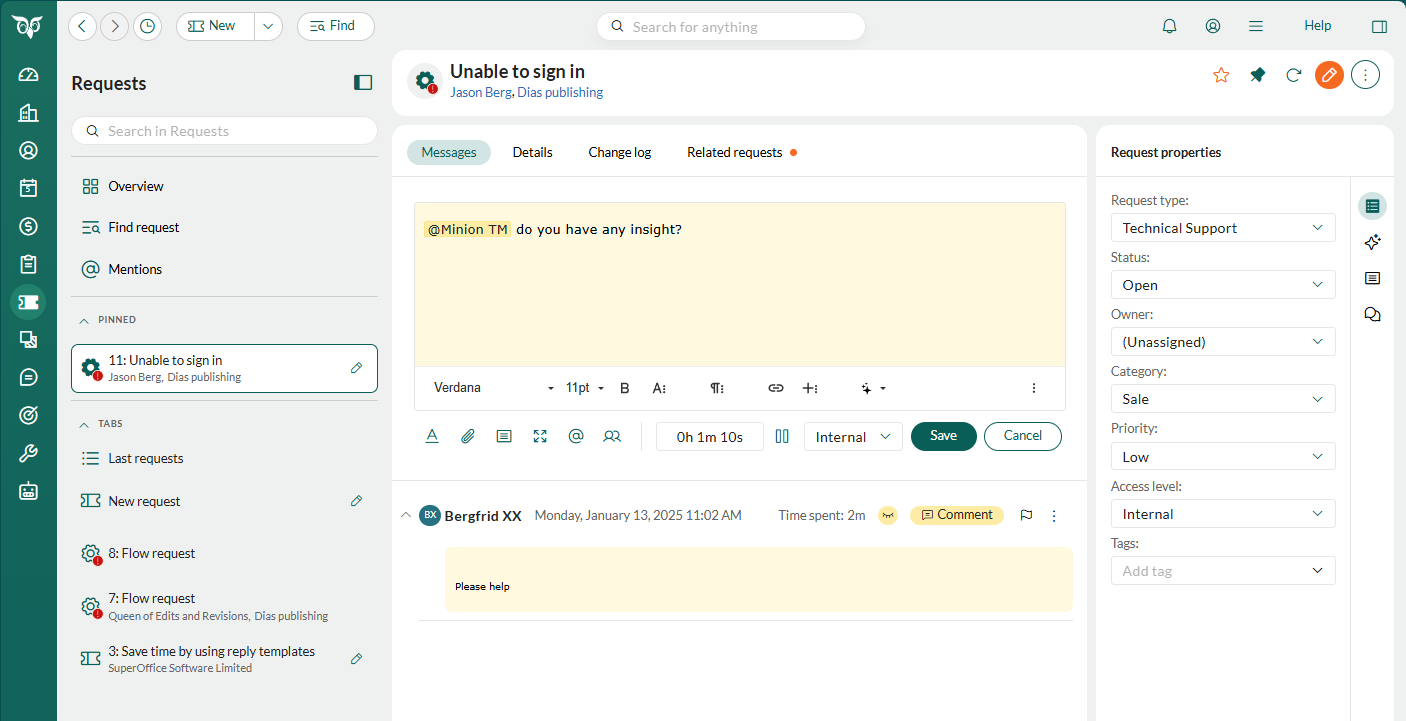 To remove a mention before you save, place the cursor right after the name and press Backspace, or right before it and press Delete. The whole name is removed.
- To mention additional associates in the same comment, type @ again and select the next associate.
- Click Save.
Change the mentions in a comment
If the Enable editing of messages global preference is turned on, you can edit the text of a comment and add mentions in the same way. When you save, each associate you add receives a new mention, and existing mentions show the updated text.- If you remove a mention from a comment, the mention stays on the associate’s Mentions tab.
- Mentions are deleted only when you delete the whole comment.
See where you are mentioned
- On the Request screen, click Mentions () in the left panel. When the left panel is hidden, click . A badge next to Mentions shows how many unread mentions you have.
-
Find the mention you want to follow up on. The Mentions tab lists every mention in requests you have access to, newest first. Each row shows who mentioned you, the request ID and title, the first sentence of the comment, and the date. Unread mentions are highlighted.
- To see only the mentions you have not opened yet, select Unread in the filter at the top of the list. Select All mentions to see them all again. If no mentions match the filter, the tab shows All caught up.
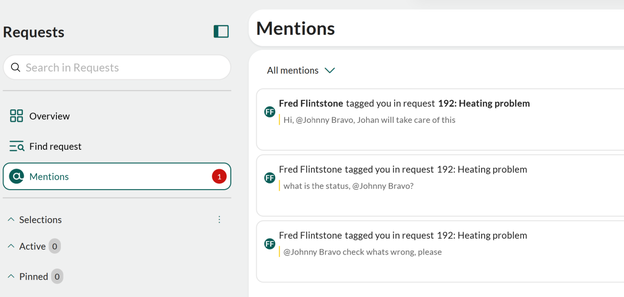
- Click a mention. The request opens in a tab, scrolled to the comment you were mentioned in, and the mention is marked as read.
Pin the request or delete a mention
-
On the Mentions tab, click on the mention.

-
Select one of the following:
- Pin request: Pins the request in the Pinned group of the left panel. The row shows . Select Unpin request to remove the pin.
- Delete: Removes the mention from your Mentions tab. The comment and the request are not changed.
Get notified when you are mentioned
When an associate mentions you, a notification appears in the notifications panel ().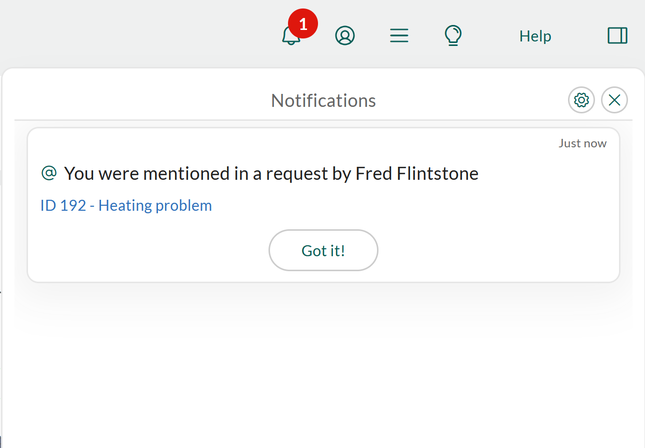
- Click the request link in the notification to open the request. The request opens at the top, not at the comment. To go straight to the comment, open the mention from the Mentions tab.
- Click Got it! to remove the notification.