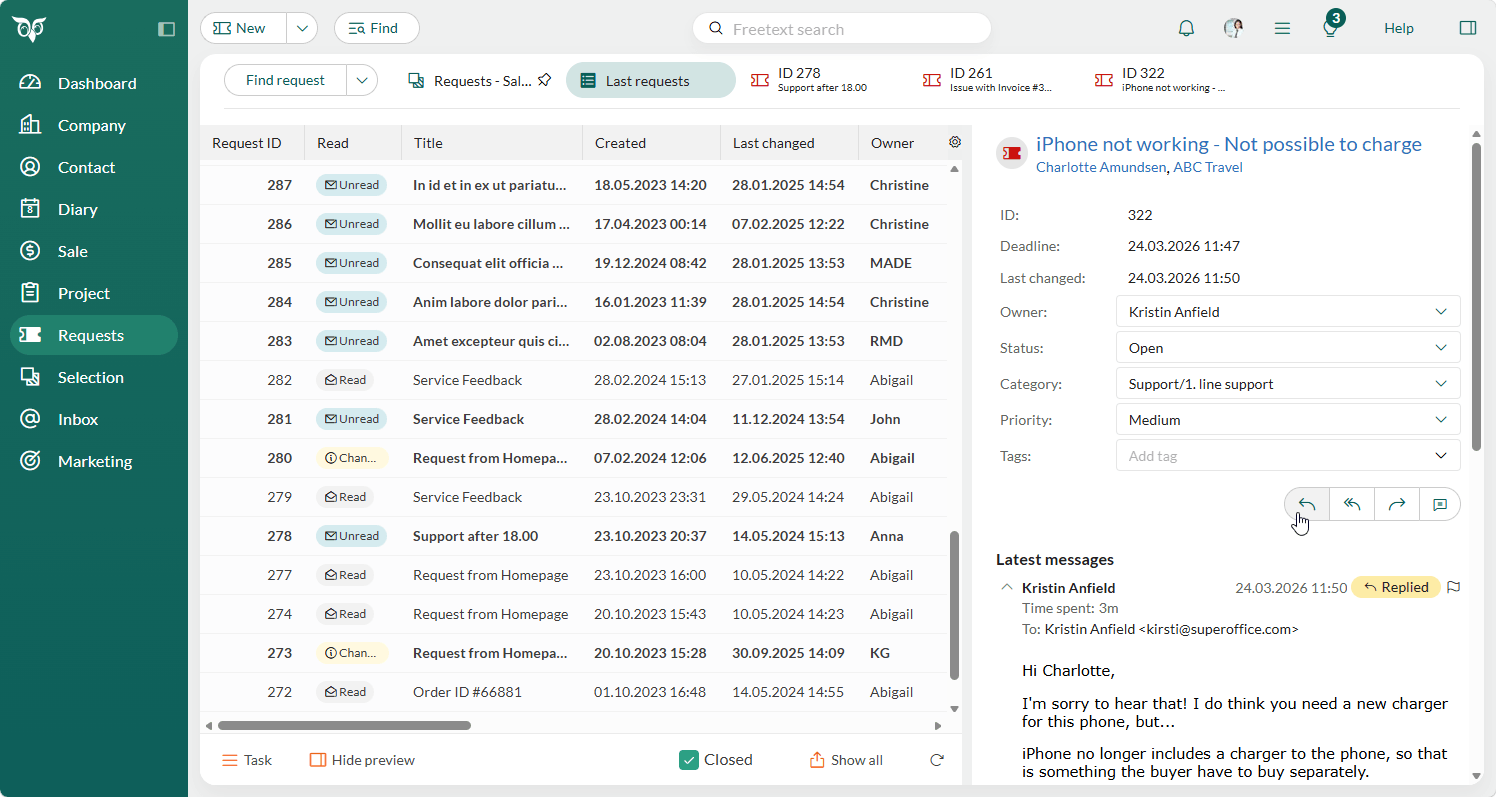
In this guide you will learn how to reply to all incoming requests in SuperOffice.
In request handling, your most important task is to respond to inquiries. Replies can be sent to a single request or multiple requests at once.When you open a request and select Reply, the email signature you have set up will automatically appear and you can to add your message to the contact containing the answer to their question or the solution to their problem.
Set the No. of expanded messages preference (under Personal settings > Preferences > Request) to control how many messages are shown when viewing a request.
Use reply templates to save time. If the template is available in multiple languages, you can select a language ().
Ensure External is selected in the Access level field if the contact should see the message.
Click to attach relevant documents.
Click Save to send the message.
If the Anonymise users on replyglobal preference is enabled, your name will be removed from outbound messages.
If you switch to another tab on the Request screen before you send the message, your unsent reply is kept. The tab shows a pencil () until you send or discard it.
Comments allow you to add internal notes to a request without sending them to the customer. For example, to include what you have done or discovered so far.