When you postpone a request, you set its status to Postponed until a time you choose. At that time, the status changes back to Open. For example, postpone a request while you wait for the customer to reply.

Postpone one request

  1. Open the request.
  2. In the Request properties panel, click the Status field.
  3. Expand Postponed and select an option, such as Next working day or 1 week.
    • To choose your own time, select Specified, enter a date and time, and click Set.
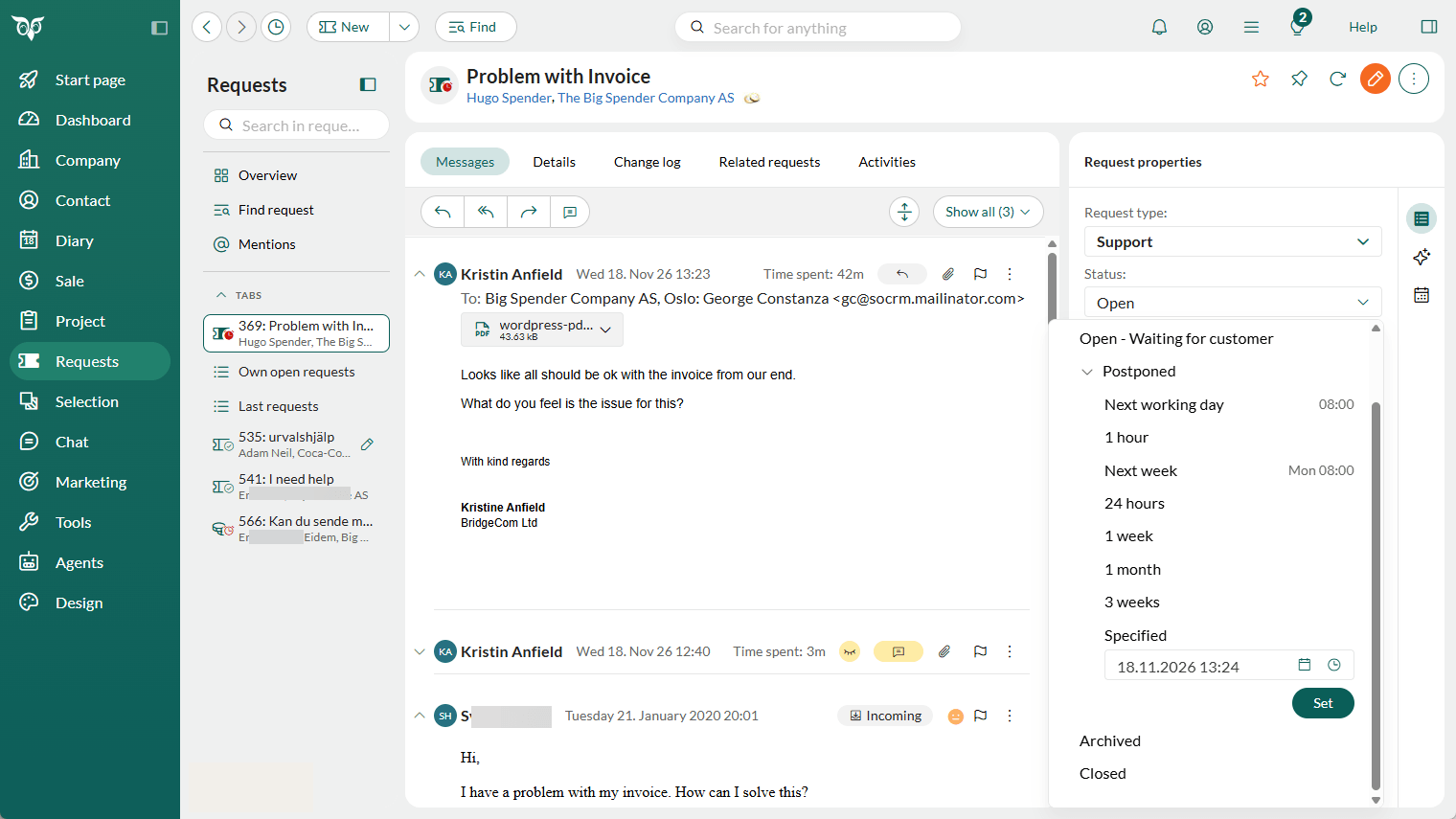
    Status menu with the postpone options expanded under Postponed -screenshot
The same postpone options are available when you move a request to Postponed in board view, and when you change the status while replying or using quick reply.

Postpone options

Each status with internal status Postponed has its own list of options, which your administrator can change. Options with a fixed time show it on the right, for example 08:00 or Mon 08:00. 24 hours, 1 week, and 1 month use plain clock time and can end on a weekend.

Working days

Working days follow the opening hours on the request’s priority (Time frame). Closed days and the priority’s holidays are skipped. If no opening hours are set, Monday to Friday is used. Times such as 08:00 follow your preferred time zone.