In this how-to guide you will learn how to find requests in SuperOffice
As a customer support agent, you get a lot of incoming calls and emails about pending or old customer inquiries. That is why it is important to know how you can find a single request or groups of requests as quickly as possible.Do one of the following:
Use the standard lists, which are predefined searches.
Use the search screen for requests in the Find request.
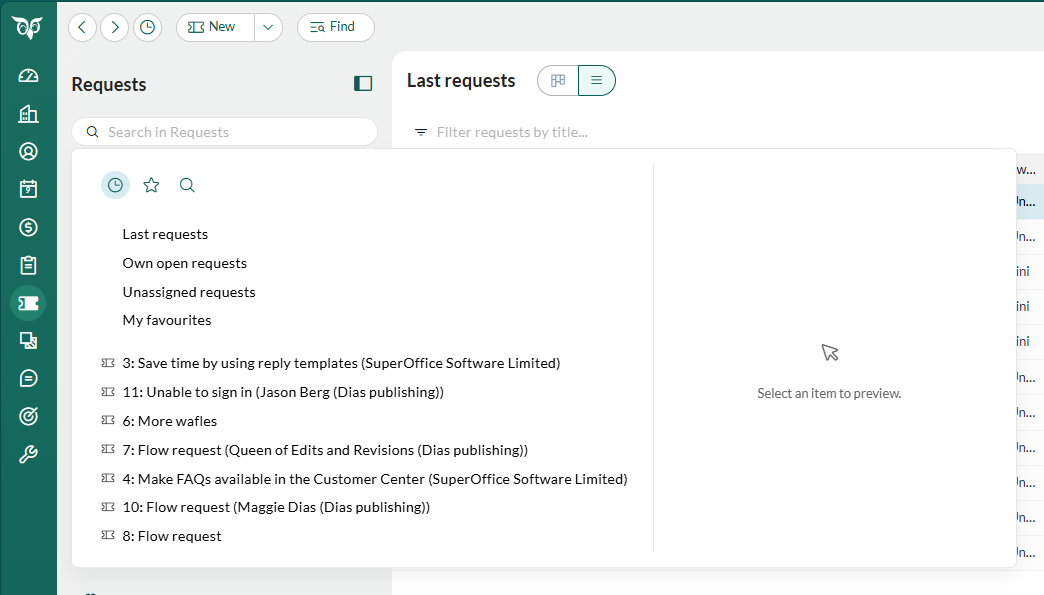
The simplest way to find requests is to open one of the standard lists. They are listed first when you click the search field at the top of the left panel. You can also find them under Selections.
Click the search field at the top of the left panel.
Click a list in the history. The list opens in a tab, in list view or board view.
The standard lists are:
Last requests: Shows the requests most recently recorded in the system. If specified in user preferences, this list will only contain requests from the categories you are a member of.
Own open requests: Shows requests that belong to you and which have the Open status. This list contains the requests that you are responsible for, and is therefore the screen you will be working in most often.
Unassigned requests: Lists requests that no-one is assigned responsibility for. To take responsibility for one of the requests, it is important you do so by clicking Accept request. Otherwise there is a risk of others answering the request at the same time.
My favourites: Shows the requests you have saved as favorites.
You can also use these options:
Get next in queue: If the queue system is set up for your company, you can click this option to get the next unassigned request in the queue for the category you belong to.
Request selections: Your own request selections are listed under Selections in the left panel.
Use the dropdowns to set criteria such as Owner, Internal status, or Category.
Add additional criteria by clicking Add criterion or remove existing ones with the icon.
Combine filters using the AND or OR options to refine your search.
Click Find in the lower-right corner to run the search.
You can save frequently used criteria as a selection for easy access later. If you add the result to an existing selection, the selection also opens as a tab in the left panel.
To reset the search to default criteria, select Reset to default. To clear all filters, select Clear all.
The results of your search are displayed as a list of requests in the Results tab. You can:
Sort the requests by clicking the column headings.
Click a request to display its details in the preview section on the right.
Double-click a request to open it in a tab.
Use the Show/Hide preview button at the bottom of the screen to toggle the preview section.
Access bulk actions or export options by clicking the Task button. For example, you can choose to favorite or delete several requests in a single operation.
The status Open together with the Read column will give an overview if the request were Read by owner, New information, or Not read by owner.
This section of the screen displays the contents of the request selected under Search result. You have the same options as when processing requests, including sending a quick reply without opening the request in full.If the preview section is not visible, click Show preview at the bottom of the screen.


 The standard lists are:
