


Availability of the Activities section tab
The Activities section tab is available for:Activities tab columns overview
The Activities section tab contains the following columns to display key information about each activity:View activities
- Go to the relevant screen, such as Company, Contact, Project, or Sale.
- Click on the Activities tab to see all activities linked to the entity.
- Double-click an activity row to open and view or edit the details of that activity.
Filter activities
You can filter the list of activities by using the checkboxes or filters at the bottom of the section tab. This helps focus on specific activity types or timeframes.Include completed activities
To include completed activities in the list, ensure the Completed checkbox is ticked. This allows for a full view of both ongoing and past activities.Managing activities in the Activities tab
- Add activity: Click Add, complete the details, and click Save to create a follow-up.
- Open activities: Double-click an activity in the list. If you double-click a document, the document itself opens.
- Move between activities: Use the scroll arrows to navigate through activities. Use Preview in the side panel to quickly view details.
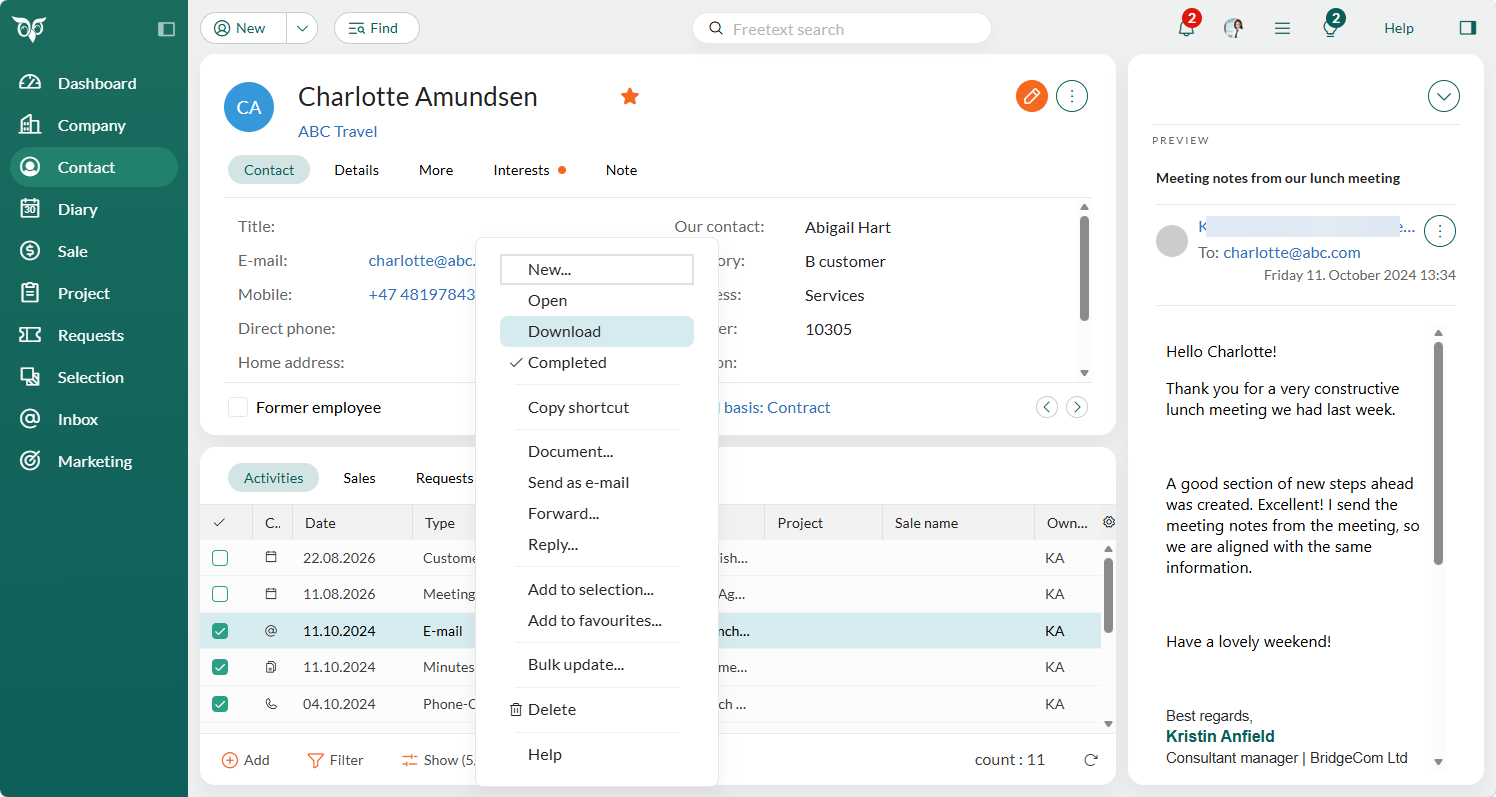
- Reply to or forward emails: Locate the saved email, right-click, and choose Reply or Forward.
-
Download an email or document: Locate the item, right-click, and choose Download to save a copy to your device. Not available when multiple items are selected.
Additional tips
- Quick navigation: Use the Navigator to quickly switch between different entities and their corresponding Activities tabs.
- Marking completion: To change the Completed status of an activity, simply click the box.
- Tooltips for full text: If not all the text in a field is visible, hold the mouse pointer over it to display it in a tooltip.