

If the company that the contact belongs to has not yet been entered, you need to do that first. See Add companies.
Steps
- Go to Contacts.
- Tap + and select New contact.
- Enter their first and last name.
- Select the company they belong to.
-
Add other details as necessary. For example, phone number, and email address.
If lead categories are set up with a lead status, the Lead status field appears for the contact.
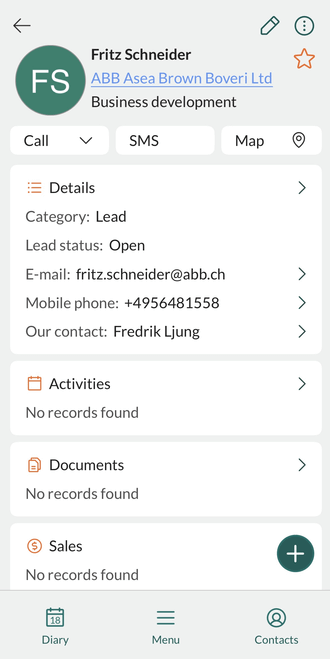
- Tap Save.
Add on company
- Locate and open the company.
- Tap + and select Add new contact.
- Enter first and last name.
- Optionally add other information and save.
Add profile picture / logo
- Tap the image in the header.
- Tap + and select Add image from camera or Add image from gallery from the menu.
- Take or choose an image.
-
Tap and drag to select a region, or select OK to use the entire image.
- To remove a distracting background from an image, tap the remove background icon (). Crop and rotate are also available here.
- Save.


Best practices
- To avoid duplicating entries, search for the contact in question first to check that they have not already been entered.
- Enter all phone numbers with country codes, so that you can call directly no matter where you are in the world.