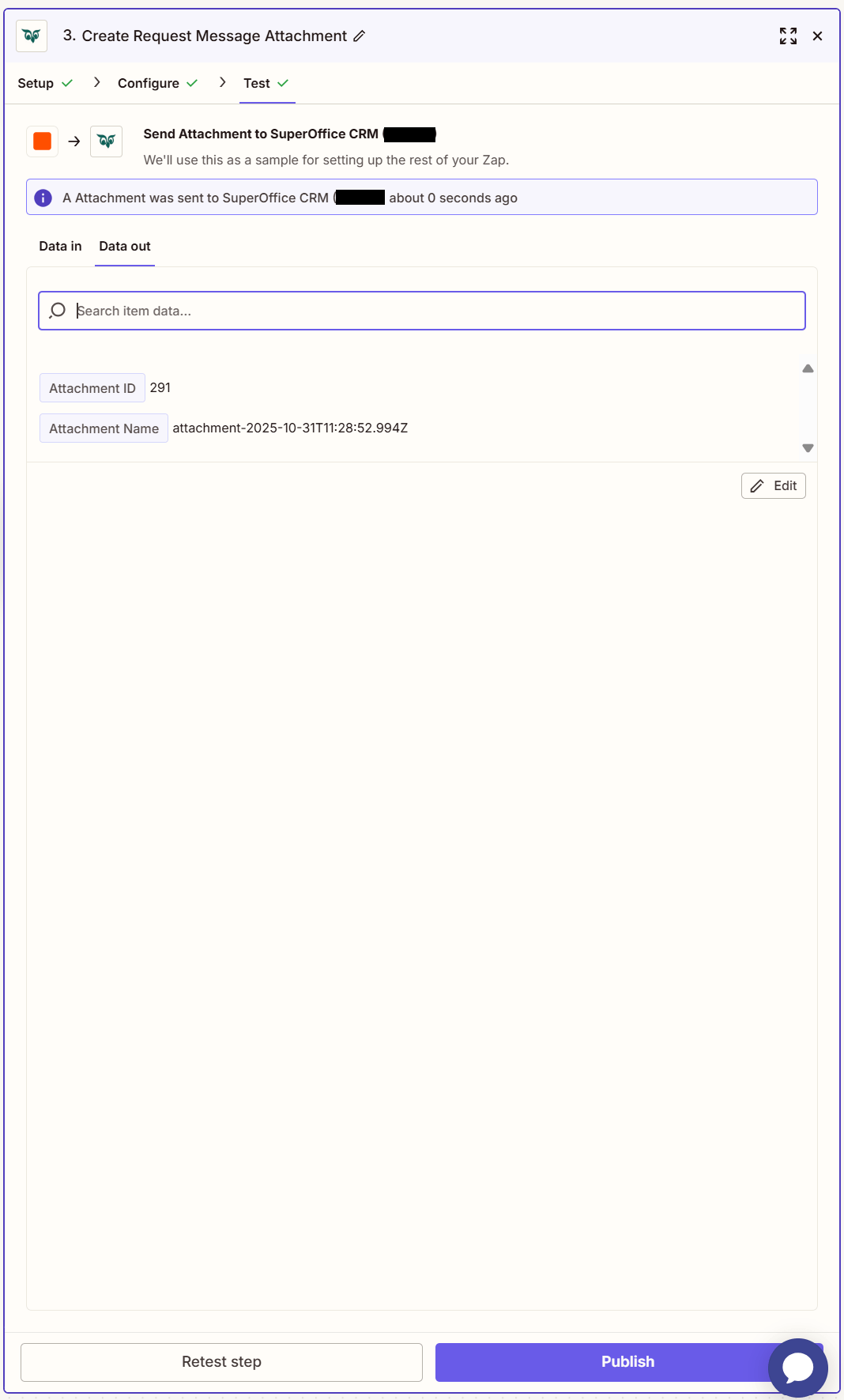
Steps
- On the Zaps page, click Create. Then click on the Trigger step and choose the event that will start a Zap.
-
Click on the Action step to set up app, event, and account:
- In the Action event section, select Create Request Message Attachment
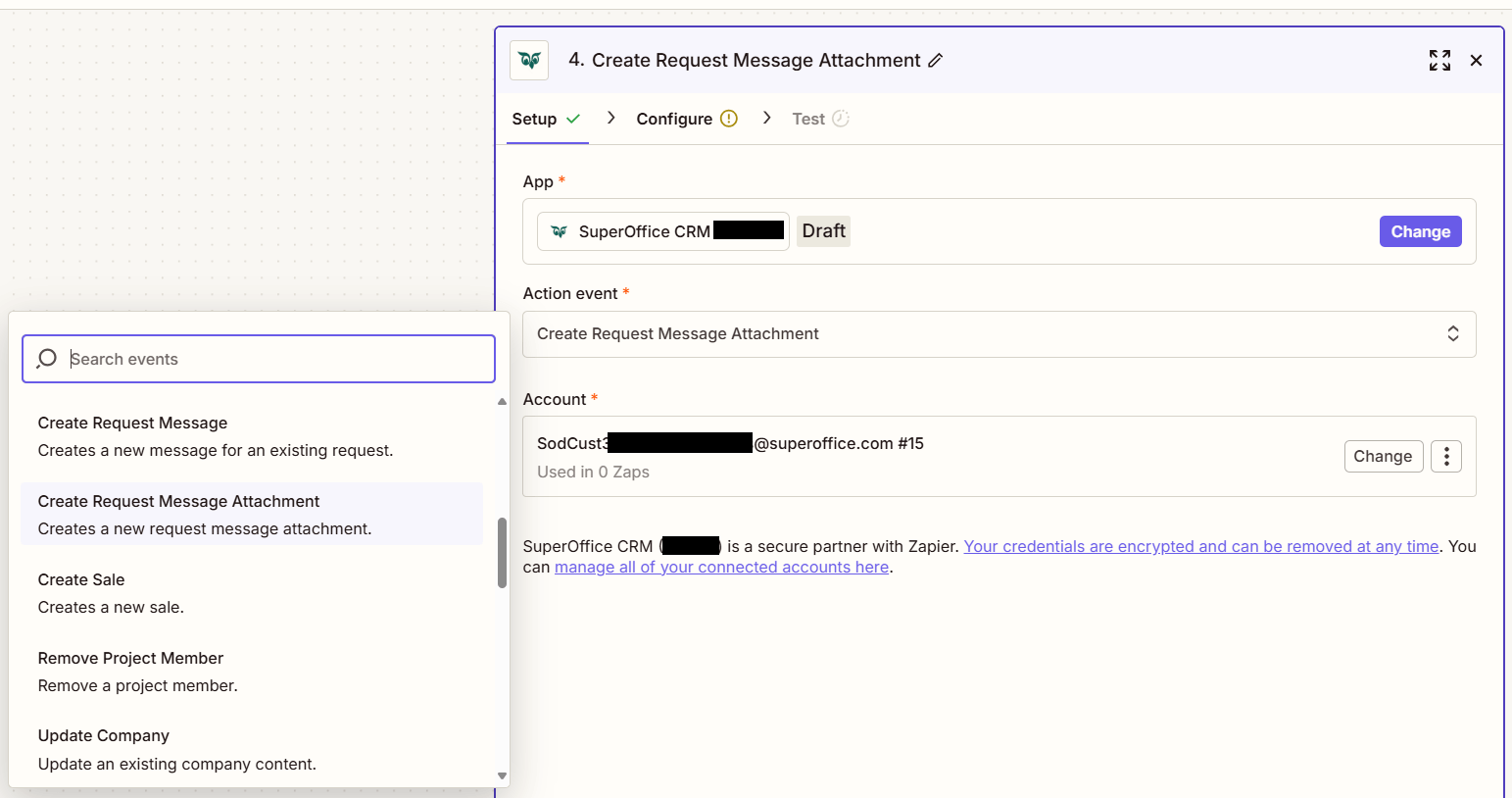
-
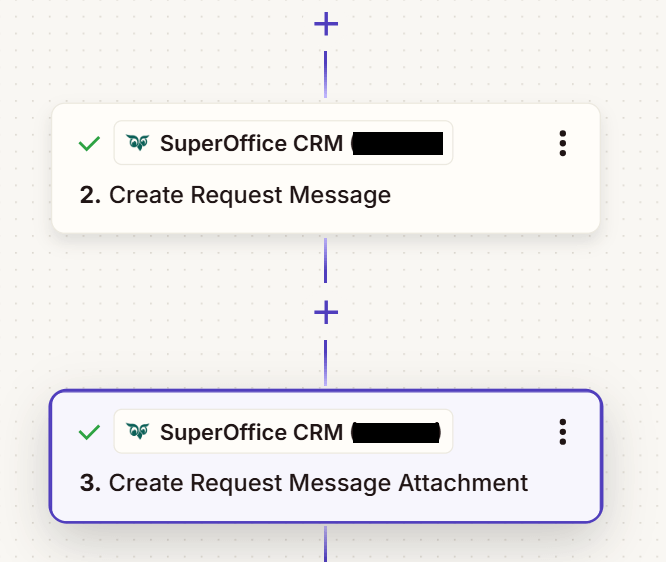
Important to note that this step must be performed after the Create Request Message Action.
- Click Continue.
-
The value set for Request Message Id should be the Message Id from previous Create Request Message Action step.
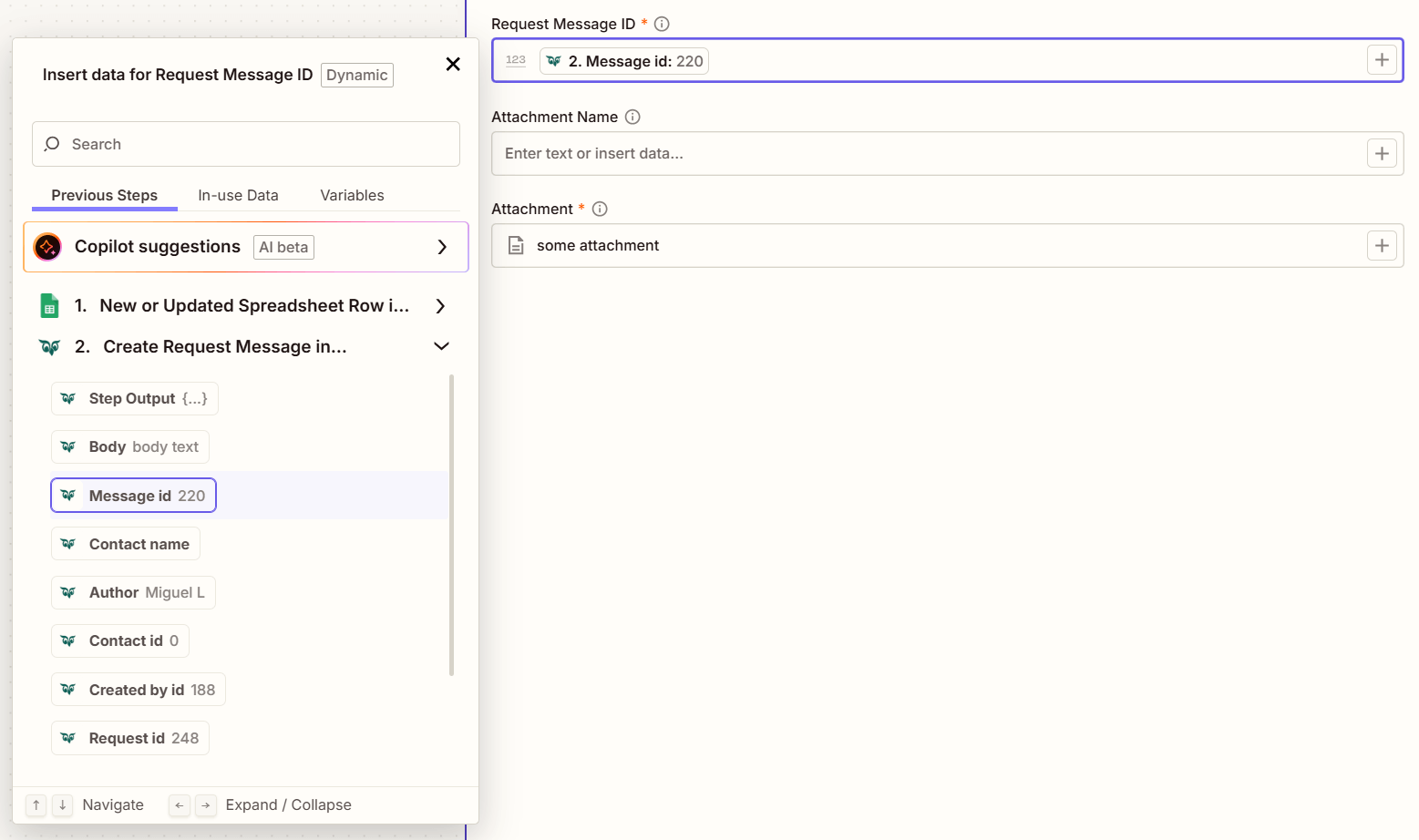
-
Fill out the mandatory fields Request Message ID, Attachment and optionally other fields.
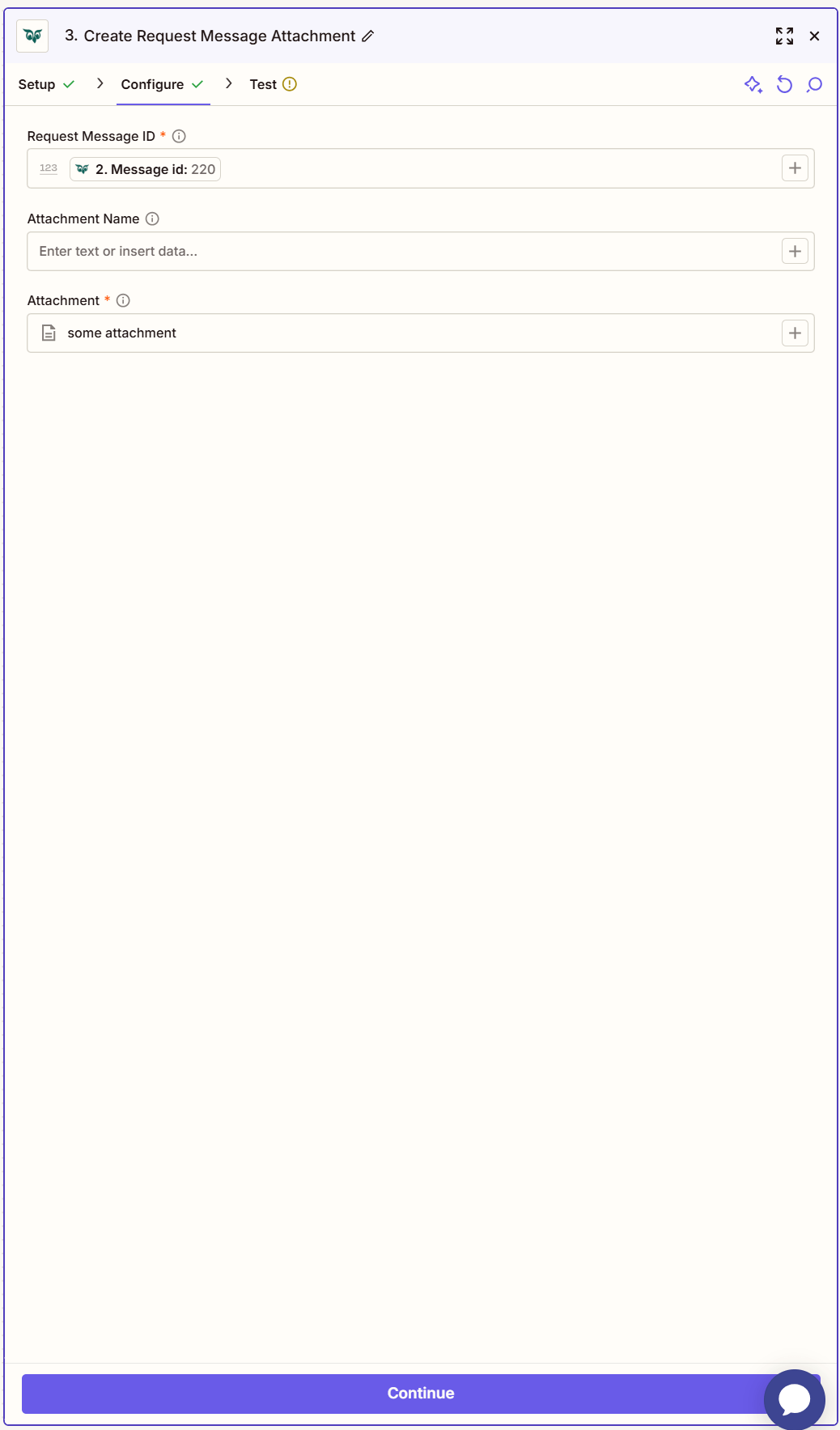
-
Click Test step to check that the action works.
If the above steps were configured correctly, the response should consist of Attachment ID and Attachment Name.