

Steps
- On the Zaps page, click Create. Then click on the Trigger step and choose the event that will start a Zap.
-
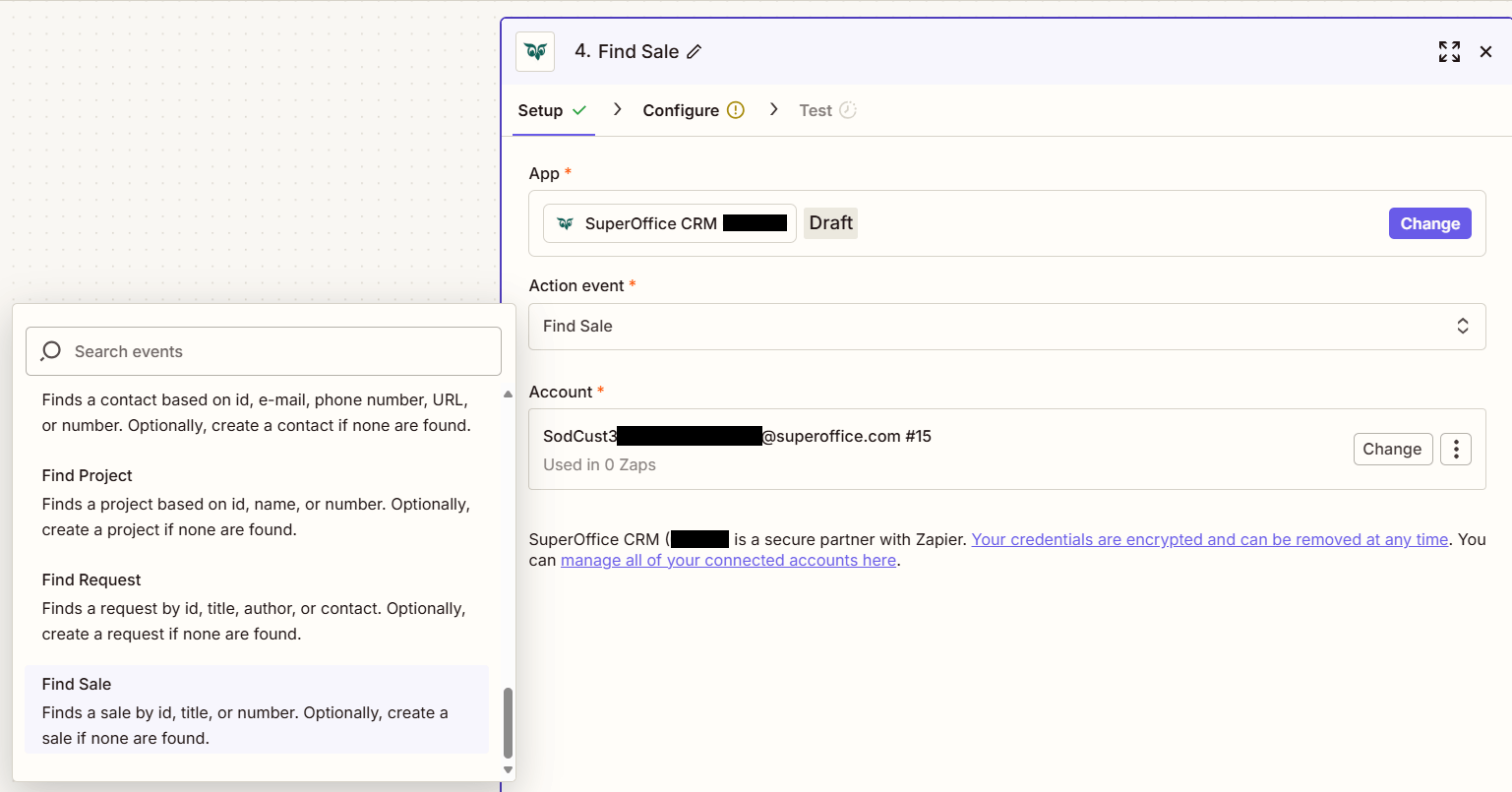
Click on the Action step to set up app, event, and account:
- In the Action event section, select Find sale
-
Click Continue.
-
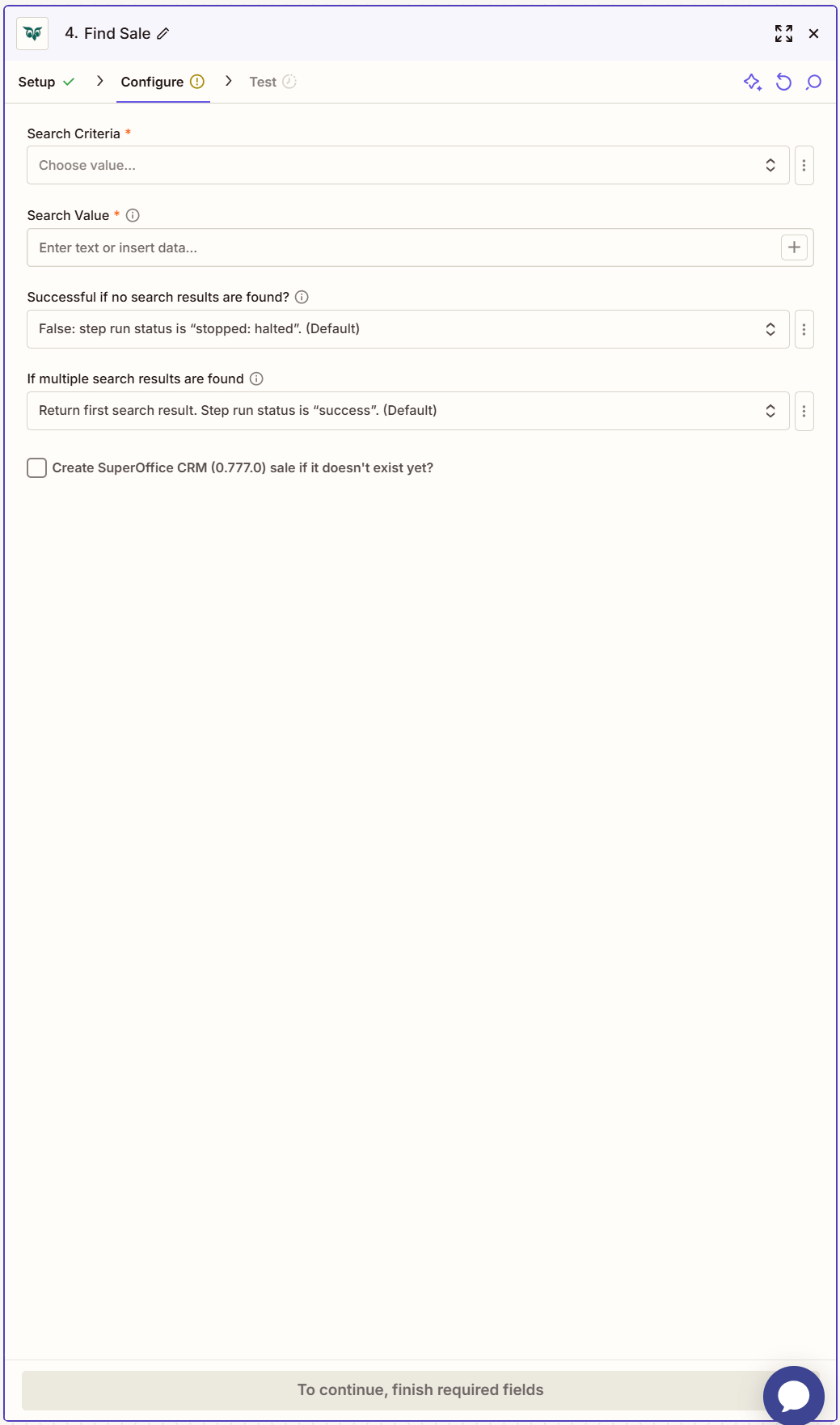
Choose your Search Criteria from the available options.

-
Set your Search Value.
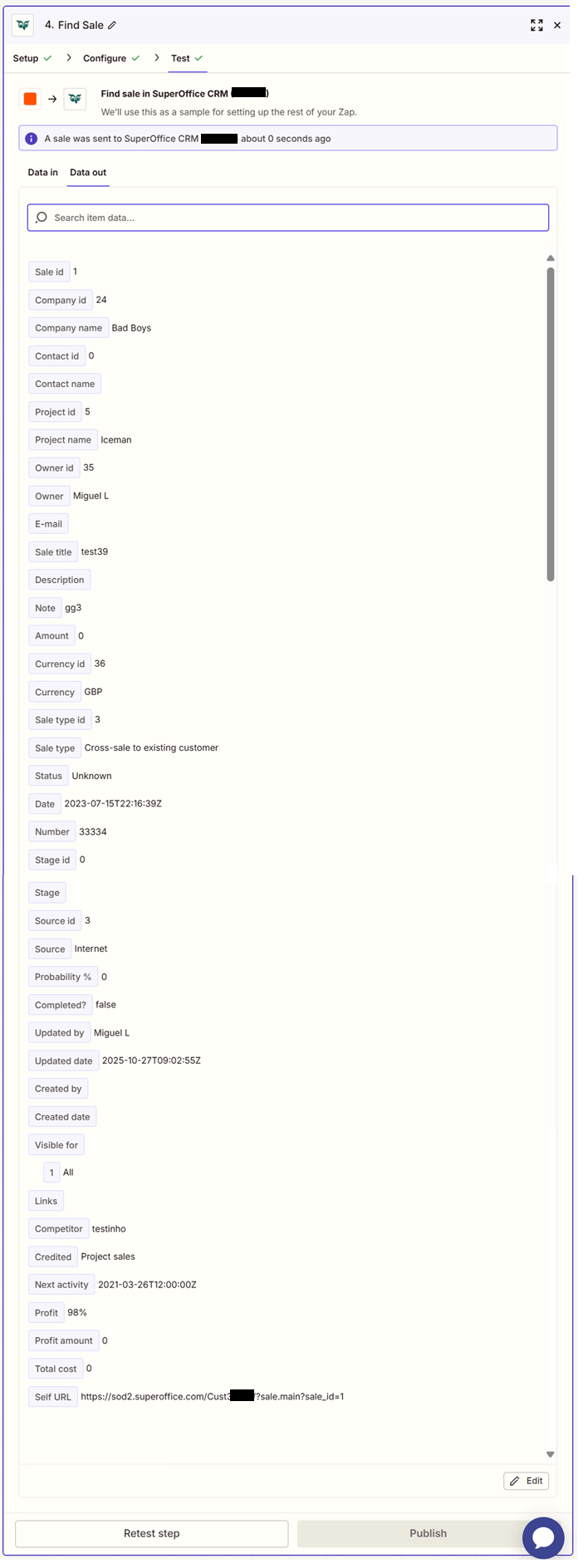
- Click Test step to check that the action works. If the above steps were configured correctly, the response should consist of Sale id, Company id, Company name, Contact id, Contact name, Project id, Project name, Owner id, Owner, E-mail, Sale title, Description, Note, Amount, Currency id, Currency, Sale type id, Sale type, Status, Date, Number, Stage id, Stage, Source id, Source, Probability %, Completed?, Updated by, Updated date, Created by, Created date, Visible for, Links, Competitor, Credited, Next activity, Profit, Profit amount, Total cost, Self URL.