

There can be only one client secret and only one certificate per environment. To replace a secret or certificate, first click the trashcan to remove the old value and then create a new.
How to
-
In the Developer Portal, go to your app page.
To see the list of all apps:
- Select Apps from the top menu to see all apps across every partner you have access to, or
- Go to the Applications section of your partner page to see that partner’s apps.
-
Select Configuration > Authentication.
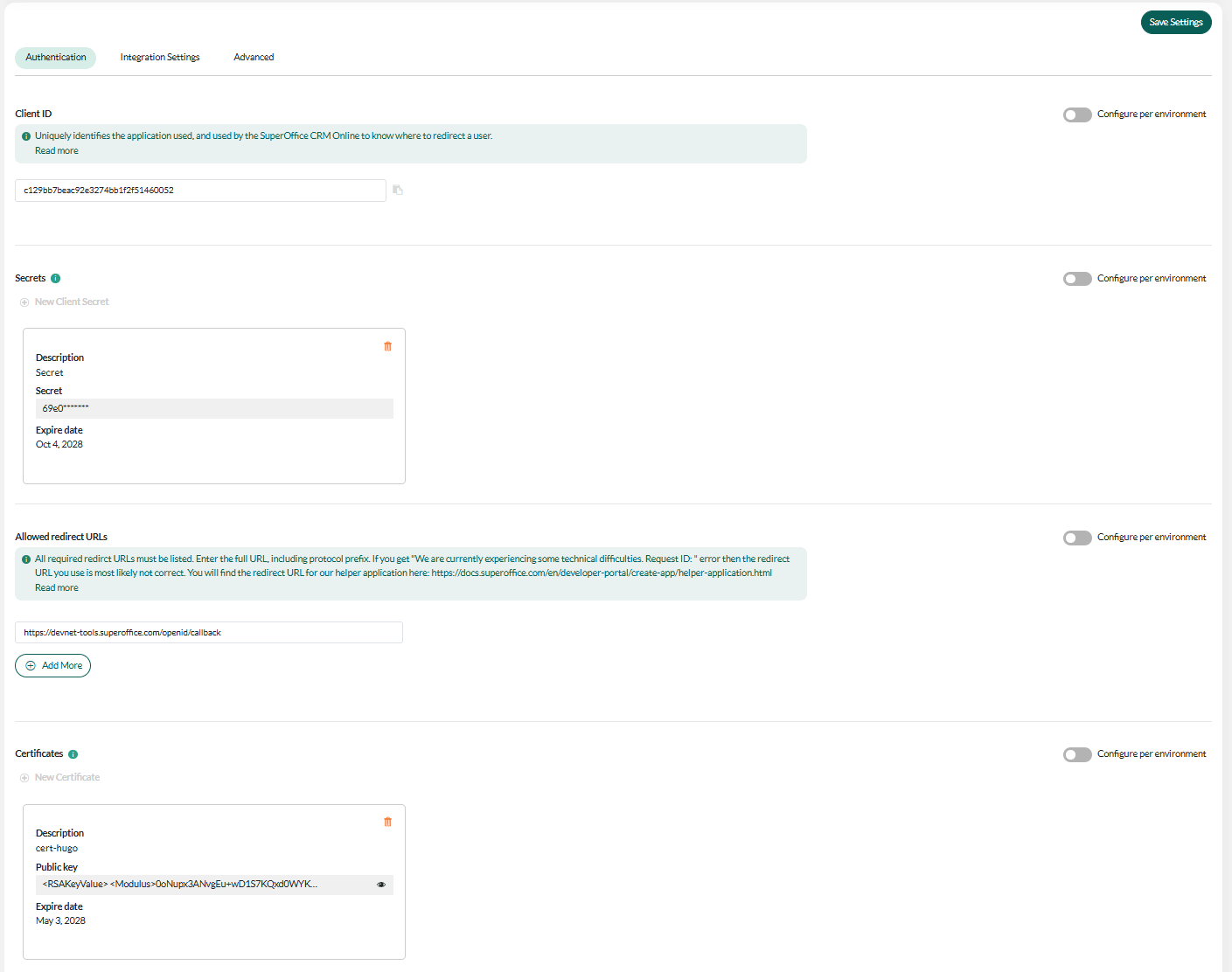
-
Click New Certificate.
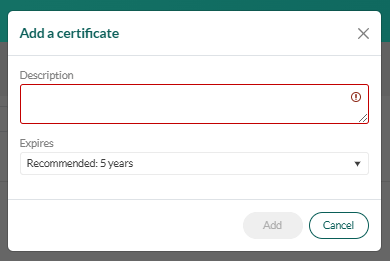
-
Enter a description and expiration, and then click Add.
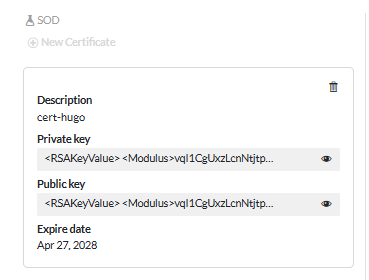 Expiration date is not enforced yet.
 - Store the private key somewhere safe! You can’t look it up in the Developer Portal later.
-
Click Save Settings.
- If the new certificate is for SOD only: No further action is needed.
- If the certificate is for stage, production, or all environments: You must request publishing.