

Check the contact at the top of the sidebar
What you see depends on what SuperOffice finds:- The contact’s name and company: The sender is matched. Choose your action.
- Select contact: Several contacts in SuperOffice share the email address. Click Select contact and choose the correct one.
- Click to add new contact: The sender isn’t in SuperOffice. Add them as a new contact.
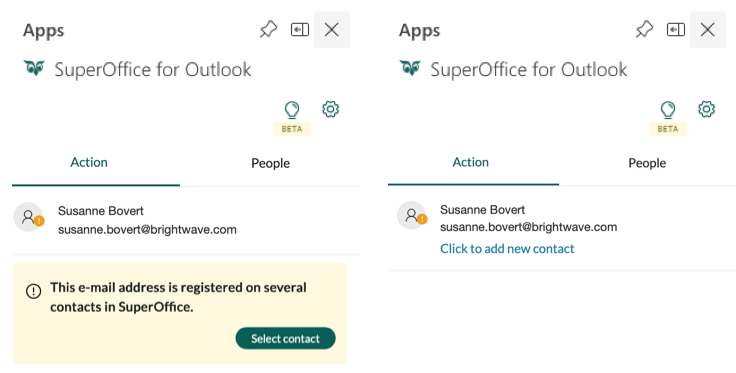 If you choose an action without matching the contact, Contact or Company stays empty until you select a contact in the form.
Add a new contact
-
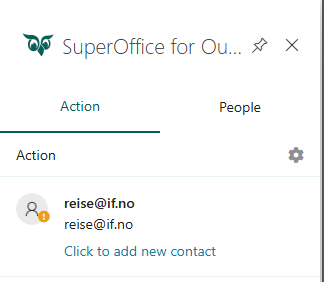
At the top of the sidebar, select Click to add new contact.
-
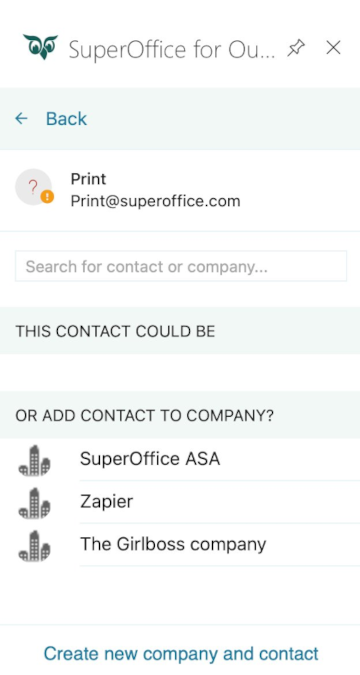
Choose one of these options:
- Add email to an existing contact: Select a contact from the This contact could be list to link the email address to that contact.
- Add contact to an existing company: Select a company from the Or add contact to company list.
- Create a new company and contact: Use this if the company isn’t in SuperOffice yet.
- Fill in the required fields and click Save.
Add a contact from the People tab
You can also add contacts from the People tab in the SuperOffice sidebar. The People tab displays all contacts mentioned in the email. If the sender or recipient is unknown to SuperOffice, you will be prompted to add them as a new contact.- Open the People tab.
- Select Click to add new contact for the contact you would like to add.
-
Choose whether to:
- Save the contact to an existing company, or
- Create a new company and contact.