Open settings
The gear icon is available in both the Action panel and the People panel.- Open the SuperOffice for Outlook side panel.
- Click the gear icon towards the top-right corner of the panel.
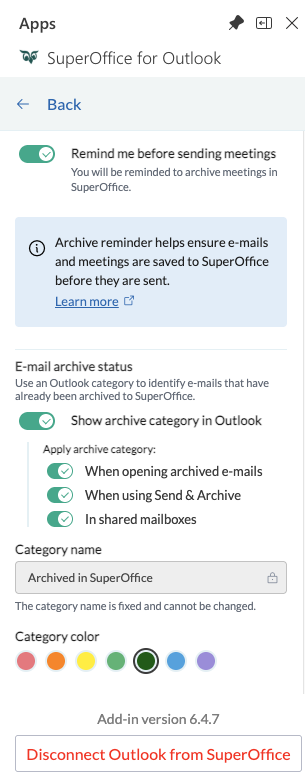
- Your user profile (email and tenant)
- All user-configurable options
- The add-in version number
- A Disconnect Outlook from SuperOffice button
Settings overview
Archive reminder
The Archive reminder section lets you control whether SuperOffice for Outlook prompts you to archive an email or meeting before you send it.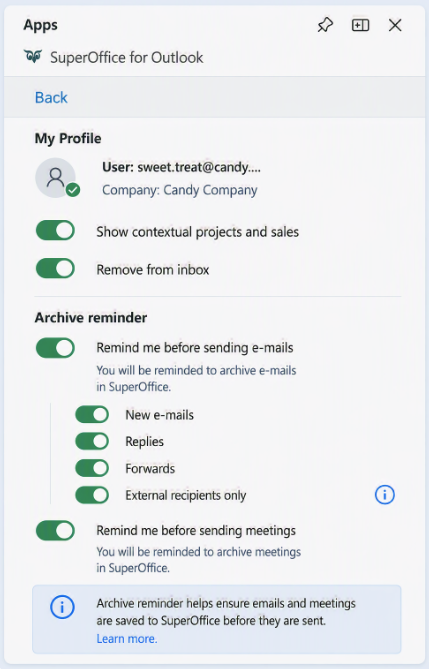
Enable or disable the reminder
Two separate toggles control reminders for emails and meetings:- Remind me before sending emails
- On (default): you are reminded to archive emails that are not yet set to be archived in SuperOffice.
- Off: no email reminder is shown, and all email sub-settings are disabled and greyed out.
- Remind me before sending meetings
- On (default): you are reminded to archive meetings that are not yet set to be archived in SuperOffice. This applies to appointments with at least one attendee.
- Off: no meeting reminder is shown.
Configure which emails trigger a reminder
When Remind me before sending emails is on, you can choose which types of outgoing emails trigger the reminder:
The Remind me before sending meetings toggle doesn’t have additional sub-settings. When it’s on, you’re reminded to archive any meeting with at least one attendee that isn’t yet archived in SuperOffice.
Your settings are saved automatically and synchronized across all your devices.
The archive reminder feature is only available in Outlook versions that support Microsoft Mailbox requirement set 1.12 or later. If it’s not supported, the reminder won’t appear and your email or meeting will be sent as usual.
E-mail archive status
The E-mail archive status section lets you control whether SuperOffice for Outlook adds the Archived in SuperOffice category to archived emails, and when.