

- Select New mail in Outlook.
- Open SuperOffice for Outlook (if not already pinned).
-
Ensure the Archive email in SuperOffice toggle is enabled.
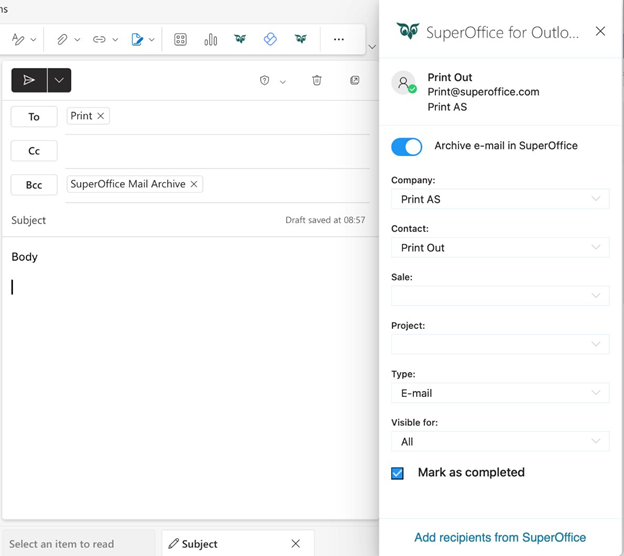 Bcc to SuperOffice Mail Archive is required to ensure the email is archived in SuperOffice.
 - Add recipients to the To field. If the first recipient’s email is known to SuperOffice, the Company and Contact field will auto-fill.
- Fill in any missing information or make adjustments as needed.
- Click Send to both send the email and archive it to SuperOffice.
The Visible for drop-down is only available to users whose administrator has enabled the required license.
For more details, see Admin - User Management - Visibility.