

Before you start
You need a license for Synchronizer for SuperOffice. Without it, you can’t add CRM data to calendar events.Your changes save automatically
SuperOffice for Outlook saves the CRM data on the event field by field, so you don’t need to remember to save before you send. This works the same for new and existing events, and there’s no Save button. When you select a value in a field, a spinner appears, and then Saved shows above the field for a couple of seconds to confirm the change.- Values filled in automatically from the attendees are saved too, without the Saved confirmation.
- The data is saved on the Outlook event. SuperOffice is updated when Synchronizer for SuperOffice synchronizes the event.
- To change a value, select a different one. There’s no undo.
Add CRM data to a new event
- Select New event in Outlook.
- Open SuperOffice for Outlook.
-
Add people to the Invite attendees field in Outlook.
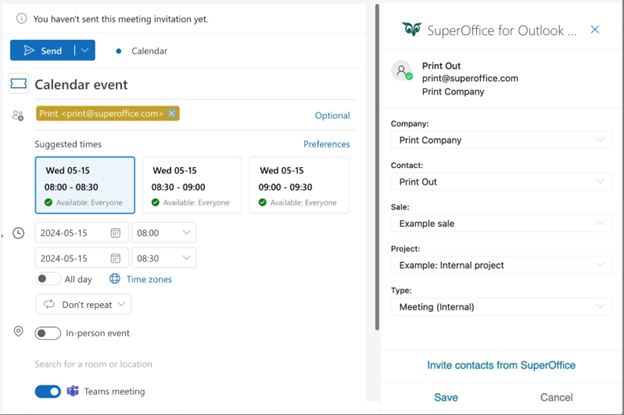
- If an attendee is stored in SuperOffice, their details appear, and Contact or Company is filled in automatically.
- If a contact is found but Contact or Company isn’t filled in, several contacts in SuperOffice share the same email address. Click Select Contact and choose the right one.
- If no contact is found, select Click to add new contact and enter the required details.
- To link the event to a different company or contact, type part of the name in Contact or Company to narrow the list, then select the company or contact. The search follows your preference for former employees.
- Send the event in Outlook, or save it if you’re not inviting anyone. You don’t need to save anything in SuperOffice for Outlook.
Add CRM data to an existing event
- Open the event in Outlook.
- Open SuperOffice for Outlook.
- Review the CRM data shown for the attendees. If there’s none, the add-in tries to find the organizer in SuperOffice.
- Select a contact, or add a new one, as described for a new event.
- Close the event when you’re done. Your changes are already saved to the event.