

Pinning is a per-panel action. Pinning the panel for a received email doesn’t pin the panel when you write an email, and the other way around. Pin each panel separately.
Selecting the X in the panel doesn’t just close SuperOffice for Outlook, it also unpins it. This is Microsoft’s default behavior for Outlook add-ins, and SuperOffice can’t change it. To get the panel back after you’ve selected X, open the add-in and pin it again.
Pin while reading an email
- Open SuperOffice for Outlook.
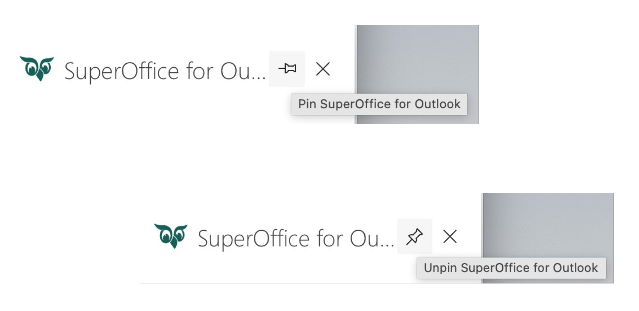
- Select the Pin icon in the SuperOffice panel. The panel stays open when you read other emails. It doesn’t stay open when you write an email. Pin that panel separately.
Pin while writing an email
Pinning keeps the panel open while you write, so you can review the archiving details before you send.- Select New mail in Outlook.
- Open SuperOffice for Outlook.
- Select the Pin icon in the SuperOffice panel. The panel stays open while you write this email. It isn’t pinned for received emails. Pin that panel separately.