

Microsoft defines a meeting as a calendar item where you invite other people or reserve resources.
How it works
The archive reminder can appear when sending emails or meeting invites.Emails
When you click Send on a new email, reply, or forward, and the email is not configured to be archived in SuperOffice, an archive reminder appears. The dialog reads: This email is ready to send, but it is not set to be archived in SuperOffice. Archive it now so the communication is saved with the right company or contact, or send it without archiving.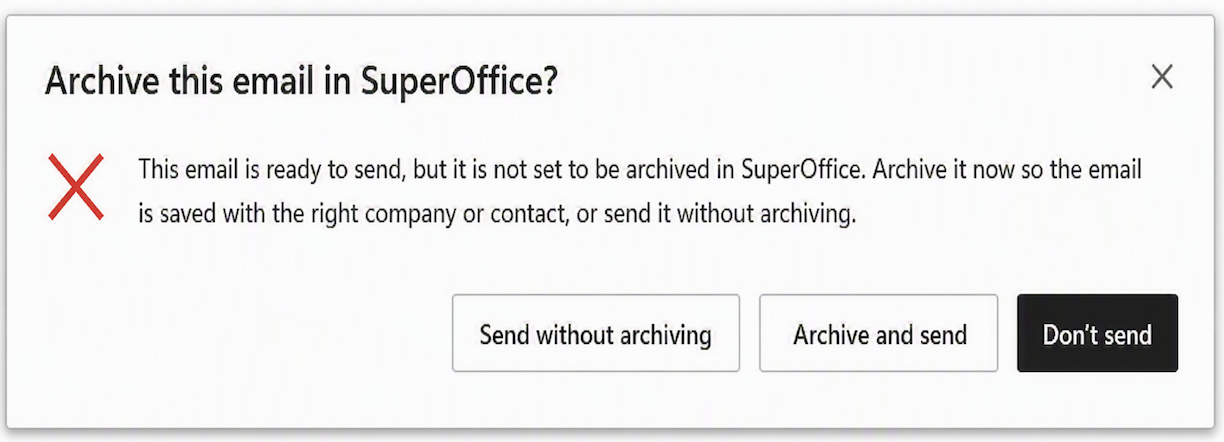 You have three options:
If you choose Archive and send, complete the archive information in SuperOffice for Outlook, and then send the email, the reminder will not appear again for that email.
Meetings
When you click Send on a meeting invitation and the required SuperOffice information is missing, an archive reminder appears. The reminder helps ensure that the meeting is connected to the correct company, contact, project, sale, or other SuperOffice records before it is sent. To continue, open SuperOffice for Outlook and complete the required information before sending the meeting invitation. Your changes save automatically. The dialog reads: This meeting is missing SuperOffice information. Open SuperOffice for Outlook to add and save the required information before sending, or send the meeting invitation without saving it. You have three options:For meeting invites, SuperOffice information is stored on the Outlook appointment as you fill it in. Synchronizer then synchronizes this information to SuperOffice. See Your changes save automatically.
When the archive reminder appears
The reminder appears based on your personal settings. By default, it is shown for:- New emails
- Replies
- Forwards
- Meetings
- The email or meeting already contains the required SuperOffice information.
- The main Remind me before sending emails or Remind me before sending meetings toggle is turned off in Settings.
- Your Outlook client does not meet the minimum requirement (mailbox requirement set 1.12).
Configure the reminder
You can turn the reminder on or off and configure which actions trigger it.- Open the SuperOffice for Outlook side panel.
- Click the gear icon to open Settings.
- Scroll to the Archive reminder section and adjust your preferences.