

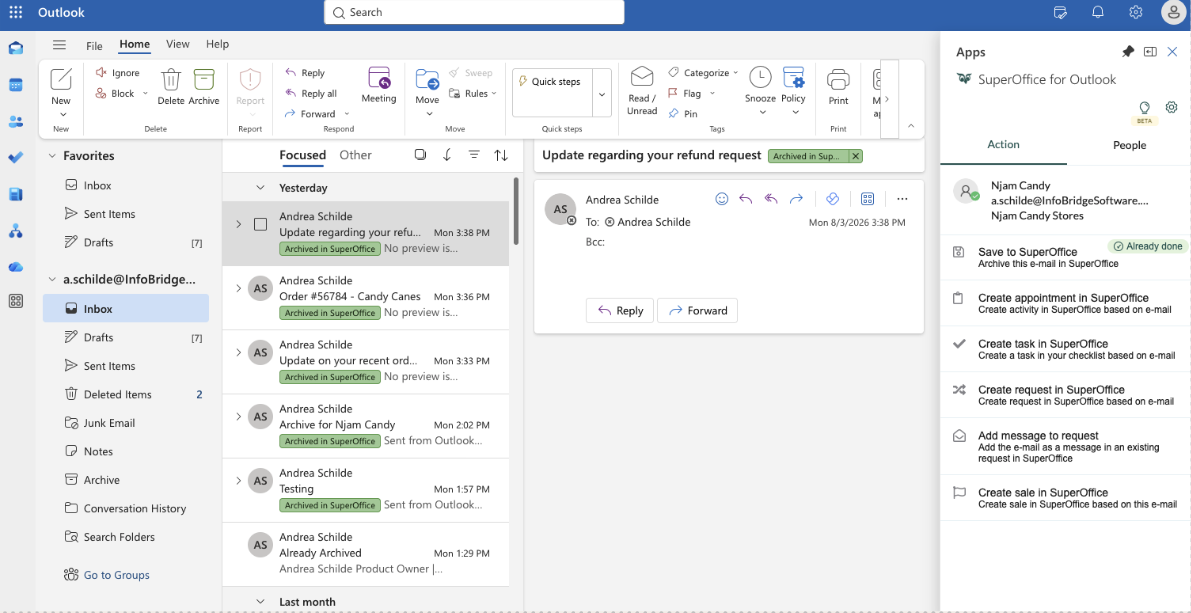
The Archived in SuperOffice category only shows that an email has been archived to SuperOffice. It has nothing to do with Outlook’s own Archive folder or Archive button.
How it works
The Archived in SuperOffice category shows the same status as the Already done indicator in the SuperOffice for Outlook panel. It brings that information into your message list, where it matters most when you’re working through a large number of emails. Instead of opening each email to check, you can see at a glance which ones are archived and which still need attention. It makes no difference who archived the email. If a colleague archived an email you’re looking at, it carries the category too. This is especially useful when:- You handle a high volume of email and want to avoid archiving the same message twice.
- You work in a shared mailbox with others and need to know at a glance what still needs archiving.
When the category is added
The category is added gradually as you use SuperOffice for Outlook, not all at once:- When you open an email that is already archived, the category is added at the same moment the panel shows Already done.
- When you archive an email you’re viewing, the category appears in your message list as soon as archiving completes.
- When you send an email with Send & Archive, the category is added to the sent email the next time you view an email with SuperOffice for Outlook open. It doesn’t appear at the moment you send.
Before you start
- SuperOffice for Outlook is installed and available in Outlook.
- You have access to the mailbox where you want to see archive status.
- For shared mailboxes, the Archived in SuperOffice category has been created in that mailbox. See Using archive status in a shared mailbox.
Turn on and configure archive status
- Open SuperOffice for Outlook and click the gear icon to open Settings.
- Go to E-mail archive status.
- Turn on Show archive category in Outlook.
-
Under Apply archive category, choose when the category should be added:
- When opening archived e-mails: adds the category when you open an email that’s already archived.
- When using Send & Archive: adds the category to emails you archive as you send them.
- In shared mailboxes: also adds the category to emails you open or archive in shared mailboxes you have access to.
- Choose a Category color.
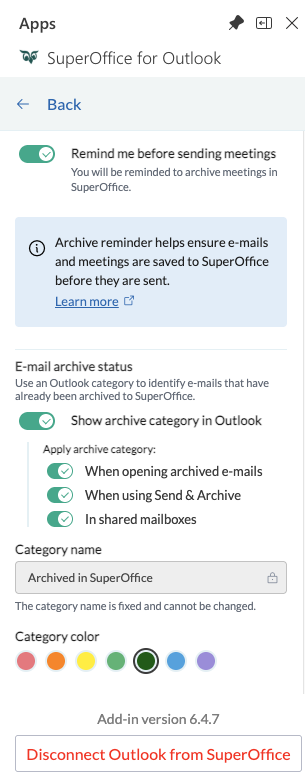 For your personal mailbox, SuperOffice for Outlook creates the category for you. Its name is fixed; you only choose the color. Turning the setting off stops new categories from being added, but any categories already on your emails stay until you remove them yourself.
See Settings - E-mail archive status for a full description of each option.
For your personal mailbox, SuperOffice for Outlook creates the category for you. Its name is fixed; you only choose the color. Turning the setting off stops new categories from being added, but any categories already on your emails stay until you remove them yourself.
See Settings - E-mail archive status for a full description of each option.
Using archive status in a shared mailbox
To use archive status in a shared mailbox, a category named exactly Archived in SuperOffice needs to be created in that mailbox first. This is done once per shared mailbox by a user with permission to manage categories there. Once the category exists, SuperOffice for Outlook starts adding it as people open and archive emails there.Create the category in the shared mailbox
Create a category named Archived in SuperOffice and choose a color. Both apply to everyone with access to the mailbox, and any later change to either is seen by everyone. Where you create the category depends on your Outlook version:
Once you’re in the shared mailbox’s category list, create the category and choose a color.
Make sure you’re managing the shared mailbox’s categories, not your own. A category created in your personal mailbox isn’t visible to the other users of the shared mailbox.