

Change the columns on the Overview tab
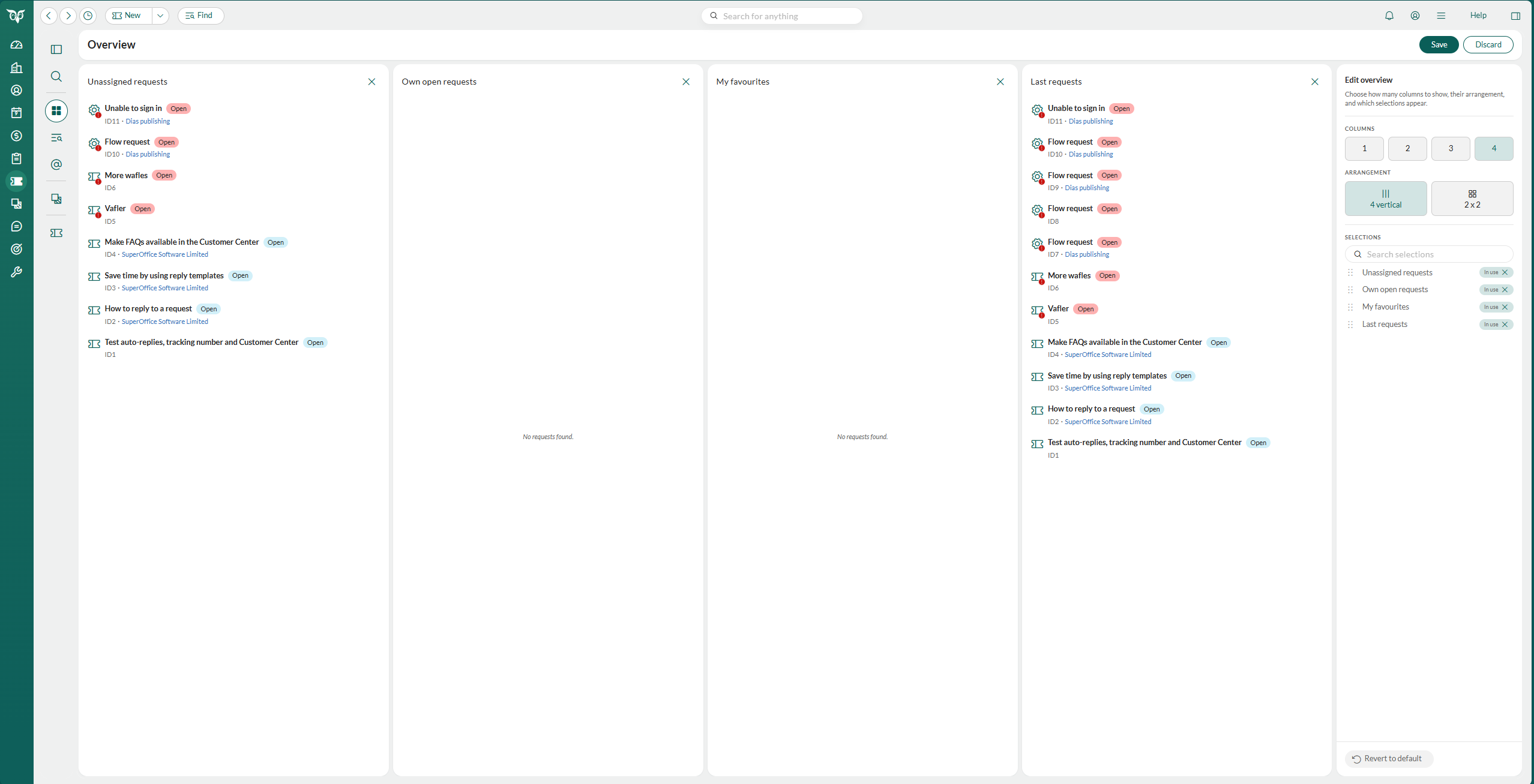
- Click the pencil () in the header of the Overview tab to open Edit overview.
- Choose how many columns you want, from one to four. With four columns, you can show them side by side or as a 2 × 2 grid.
- Choose what fills each column. Under Selections, search for a selection or a standard list, and drag it onto a column. The selections in use are listed first. To empty a column, click in its header, or click next to its selection in the list.
- Check the preview, and then click Save. Click Discard to drop your changes.
The setup of your Overview tab is saved in the browser you use. It does not follow you to another browser or device.
Change what the cards show
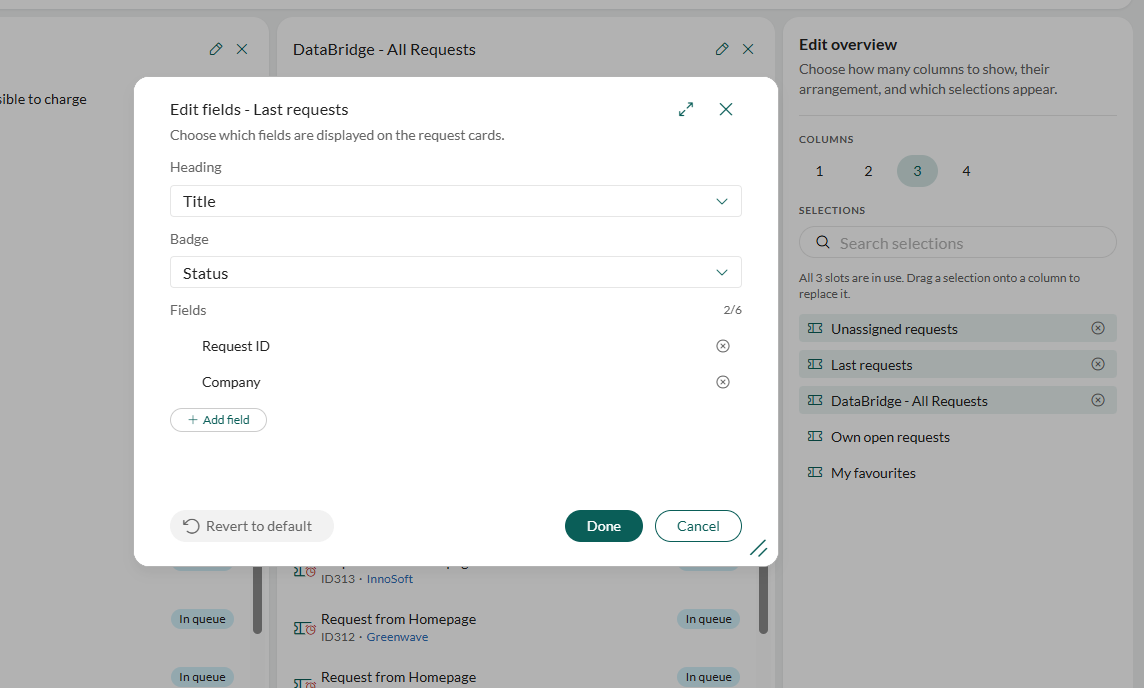
- In Edit overview, click the pencil () in the header of the column. The Edit fields dialog opens.
- Choose the Heading of the card, and optionally a Badge.
- Under Fields, click Add field to add up to six fields to the card. To remove a field, click .
- Click Done, and then Save in the header. Click Revert to default in the dialog to restore the fields of this column only.
 The preview panel closes while you edit.
Personal preferences
You can customize requests to suit your workflow:- Go to Personal settings > Preferences.
-
Select Request and adjust settings such as:
- Show the last message at the top.
- Use the oldest request as the main request when merging.
- Preview image attachments in messages.
- No. of expanded messages.
- Automatically quote the last message.
- Show only own categories.
- Automatically close tab when adding a message to request.
- Automatically close tab when changing request status to closed.
- Default owner and category for new requests.
- Default status in new request and Default status for new message. See default status order.
-
Select Notifications via e-mail and adjust settings such as:
- New requests or messages.
- Request escalated.
- Click Save to apply your changes.
Your availability status
Your availability status determines whether you receive requests through automatic assignment. It also affects the assignment of contacts. To update your status, click Personal settings in the top bar and select Your availability status.- Present: You are available for automatic assignment of requests and contacts.
- Not present: New requests will not be assigned to you. Your out-of-office message will be shown next to your name when someone manually assigns an item.
Global preferences
Administrators can customize Service for all users in Settings and maintenance.- In Settings and maintenance, select Preferences in the navigator.
- Go to the Global Preferences tab and scroll down to the SuperOffice Service system settings section.
- Anonymise users on reply
- Default From address
- Default style for outbound email
- External access level as default
- New status when accepting a request
- Send email notification of open requests