

Get an overview of your requests
The Overview tab shows your work in up to four columns of request cards. By default, the columns are Unassigned requests, Own open requests, My favourites, and Last requests. Each card shows the request type, the request ID, the title, the company, and the status.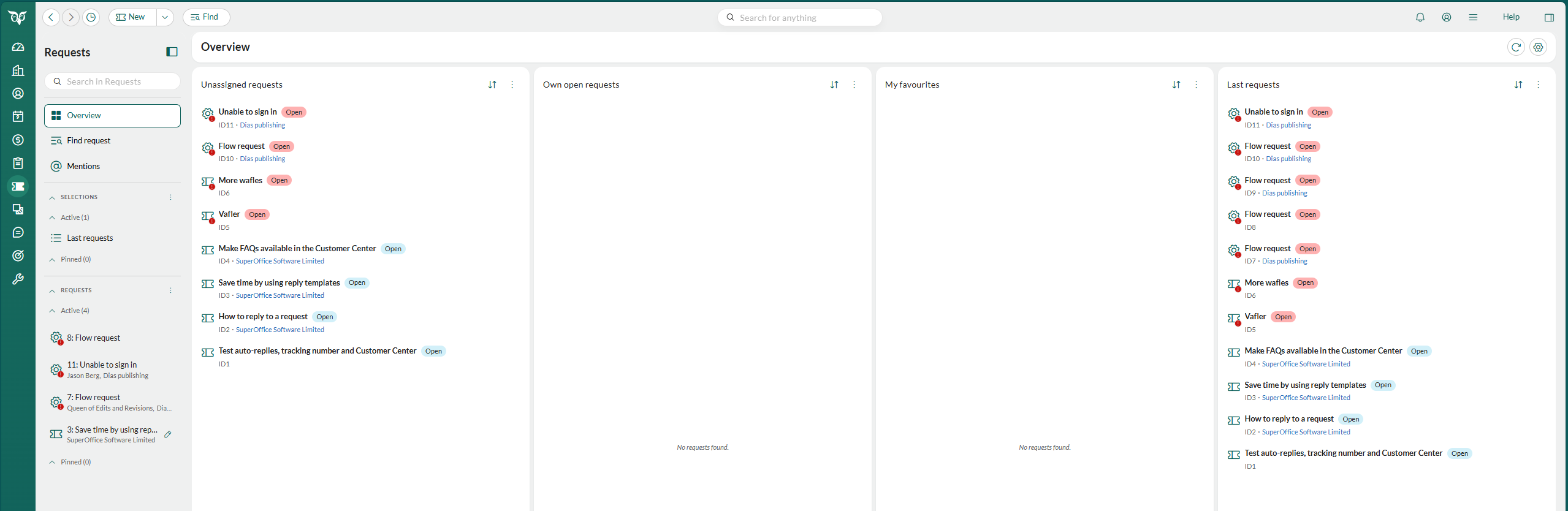
- Click Requests in the Navigator.
- Click Overview in the left panel.
- Use the cards to find the requests that need your attention. A colored badge on the request type icon shows the status. Red means the deadline has passed, green means closed, and gray means postponed.
- Click a card to preview and update the request, or double-click it to open it in a tab.
- See more requests: A column shows up to 20 requests. Click See all requests to open the full list or selection in a tab.
- Sort a column: Use the sort button to sort by request ID, creation date, owner, last change, or priority.
- Open a contact or company: Click the name on a card.
- Reload the Overview tab: Click . A column also reloads when you change one of its requests in the same browser. Changes made by other users do not appear until you reload.
Preview and update a request from the Overview tab
- Click a card. The request opens in a panel on the right, with the latest messages, the request details, and the reply buttons.
- Change the owner, status, category, priority, or tags directly in the panel.
- To keep working on the request, click (More options) and then Open in full view. Choose Pin request to add it to the Pinned group.
Work with the tabs in the left panel
The left panel has two groups. Pinned holds the requests and selections you have pinned, and Tabs holds the ones you have open. You can keep many requests and selections open at the same time. A tab is either in Tabs or in Pinned, never both. Your tabs are saved, so they are there when you sign in from another browser. See Work with overview pages for how the left panel works. To pin a request, click the pin icon () in the header of the request. You can also pin a tab from its menu. See Pin and unpin tabs.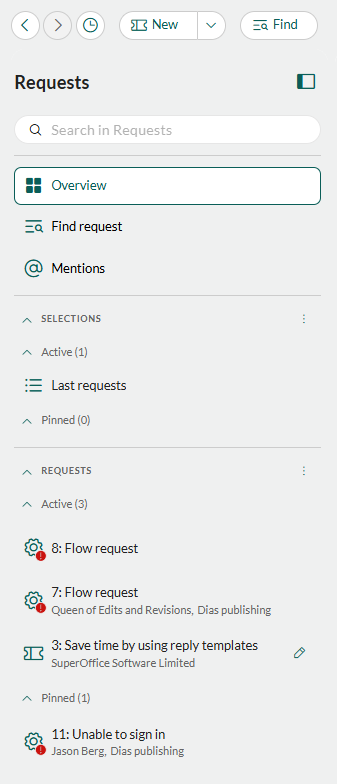
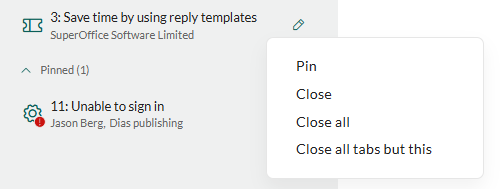
Open another tab
Open a request or a selection from the left panel, from the search dialog, or from a link in SuperOffice CRM. It opens in a new tab right after the tab you are on. The other tabs stay open, and each keeps its own unsent reply, edit mode, and scroll position.You can have up to 50 tabs open, counting the tabs in both groups. When you open one more, the oldest tab closes automatically.
Keep track of unsaved changes
A pencil () at the end of a tab means the request has unsaved changes. For example, you have an unsent reply, or you are editing the request. When you close a tab with unsaved changes, you are asked to confirm. If you confirm, the changes are discarded.Spot requests that others work on or have changed
Each request tab shows the ID and title, and the contact person and company below. If your system has Live UI turned on, you can see who else works on a request. A presence icon replaces the request type icon while another user views or edits it. When another user has changed the request since you opened it, a changed icon is shown instead. Point to the icon to see the names. If the tab of a selection or list shows the changed icon with The archive might be out of sync, reload it. The mark disappears when you reload the request or list.Close request tabs automatically
A request tab closes by itself in these situations:- The request is deleted, marked as spam, or merged into another request. The tab closes even if it is pinned. Merging from the request card opens the surviving request in its place.
- You add a message to the request, or set its status to Closed, and you have turned on the matching preference. Pinned tabs stay open.
- Click Personal settings > Preferences.
- Click the Request group.
- Set Automatically close tab when adding a message to request or Automatically close tab when changing request status to closed to Yes.
- Click Save.
Typical scenarios
Incoming requests can arrive through many channels, and there is more than one way to register and reply to them. How request handling progresses will vary from request to request. A contact service system is all about providing your contacts the answers they are looking for and saving their contact information. Whenever you reply to a contact, they will receive an email from you. Which is why it is important to create your email signature. Different companies have different routines for request handling and can use SuperOffice Service in different ways. Below we have set up two real-life scenarios showing some of the available options. These scenarios will show you how you can reply efficiently when a contact has submitted a request by email and when a contact calls in with a problem or a question.
Scenario 1: The contact submits the request by email
- The contact writes an email to support@company.com or fills out a form in a user-support portal.
- The contact receives automatic acknowledgement of receipt of the enquiry.
- The enquiry from the contact is automatically registered as a request in SuperOffice CRM.
- The request ends up with a request handler in SuperOffice CRM. See Assign requests and Find requests.
- The request handler reads through the request.
- The request handler is unable to fulfil the request on their own and does one of the following:
- The request handler sends a response to the contact.
- The request handler closes the request and proceeds to deal with other requests.
Scenario 2: The contact calls the request handler
- The contact has a problem with a product and calls user-support.
- The request handler who answers the call registers the request.
- The request handler is unable to fulfil the request on their own and does one of the following:
- The request handler sends a response to the contact.
- The request handler closes the request and proceeds to deal with other requests.